In This Article
Introduction
If you want to export your Account and Contact information, you can generate an ad hoc report and export it in Excel format.
Adhoc reports are available for two types of users: Admin and Team Lead.
Run an Adhoc Report
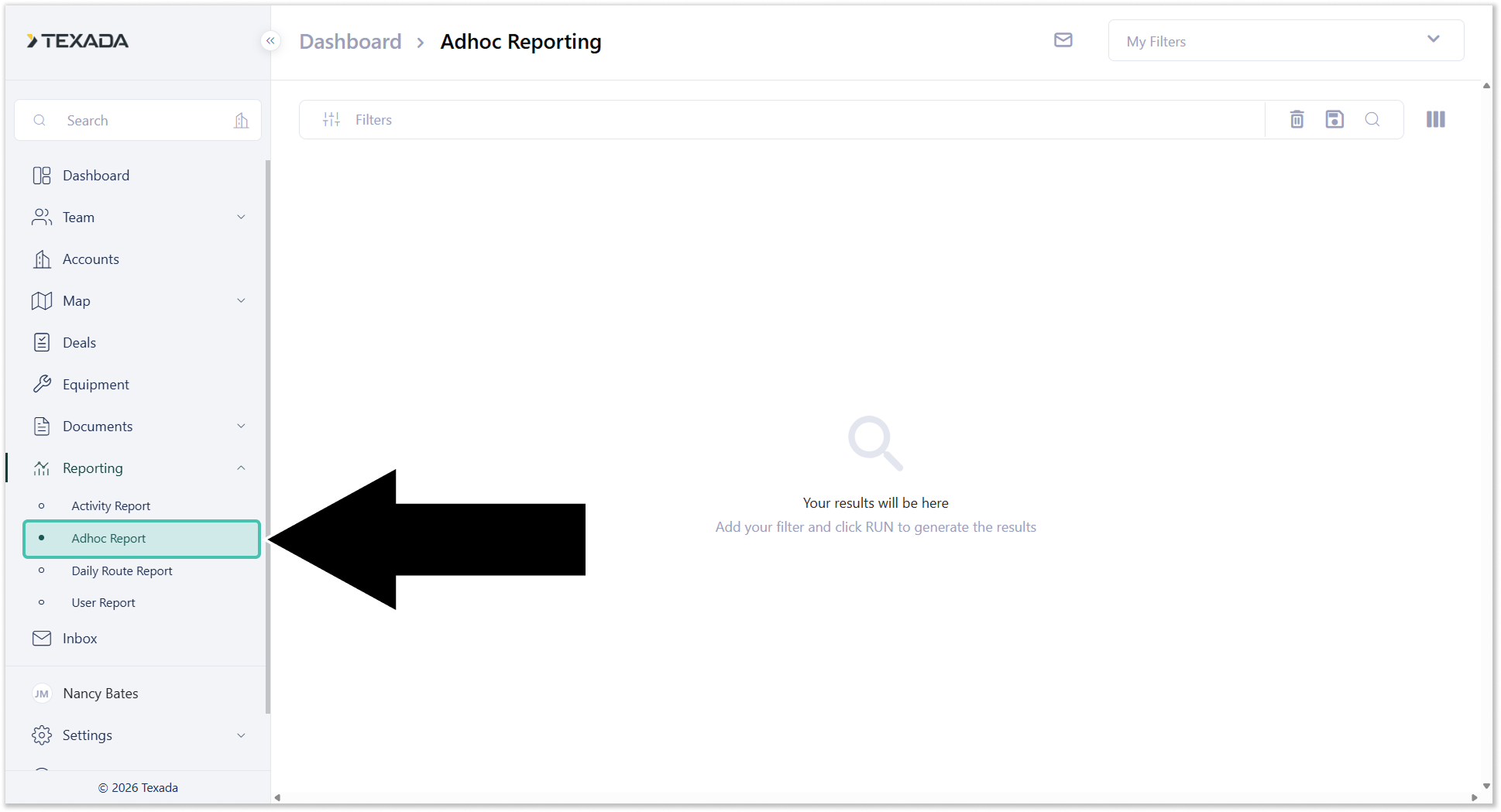
- Log in to Field Sales Tracker and select Reporting → Adhoc Report from the left navigation menu.
- Click the filters icon
 in the top-left corner of the screen to add filters to your report, tailoring its contents based on various criteria. For example, adding a Created Date Start filter will return only records that were created after the specified date.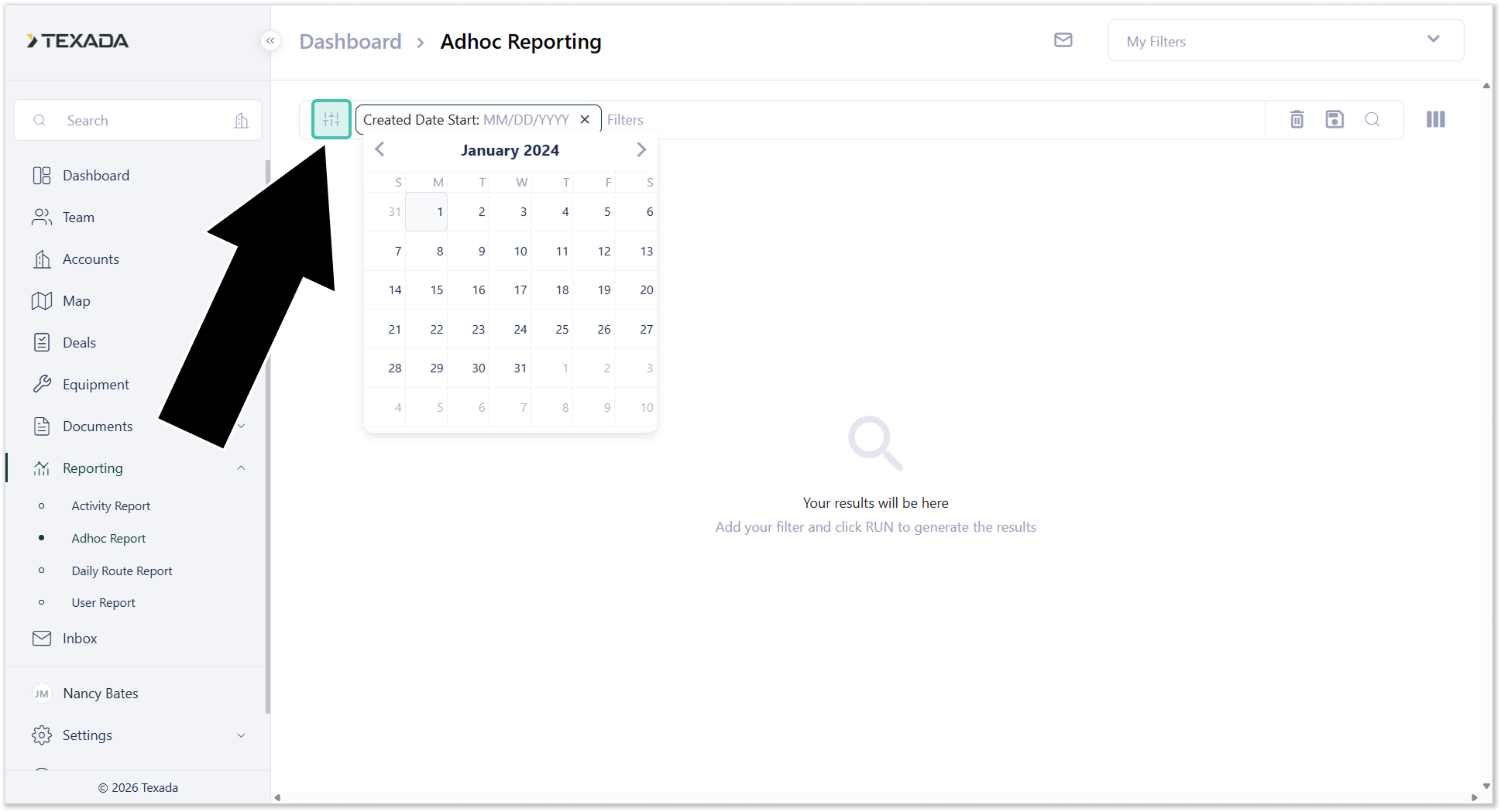
- Click the columns icon
 in the top-right corner of the screen to select which columns to include in the report. If you generate the report without managing the displayed columns, it will show all of the information by default.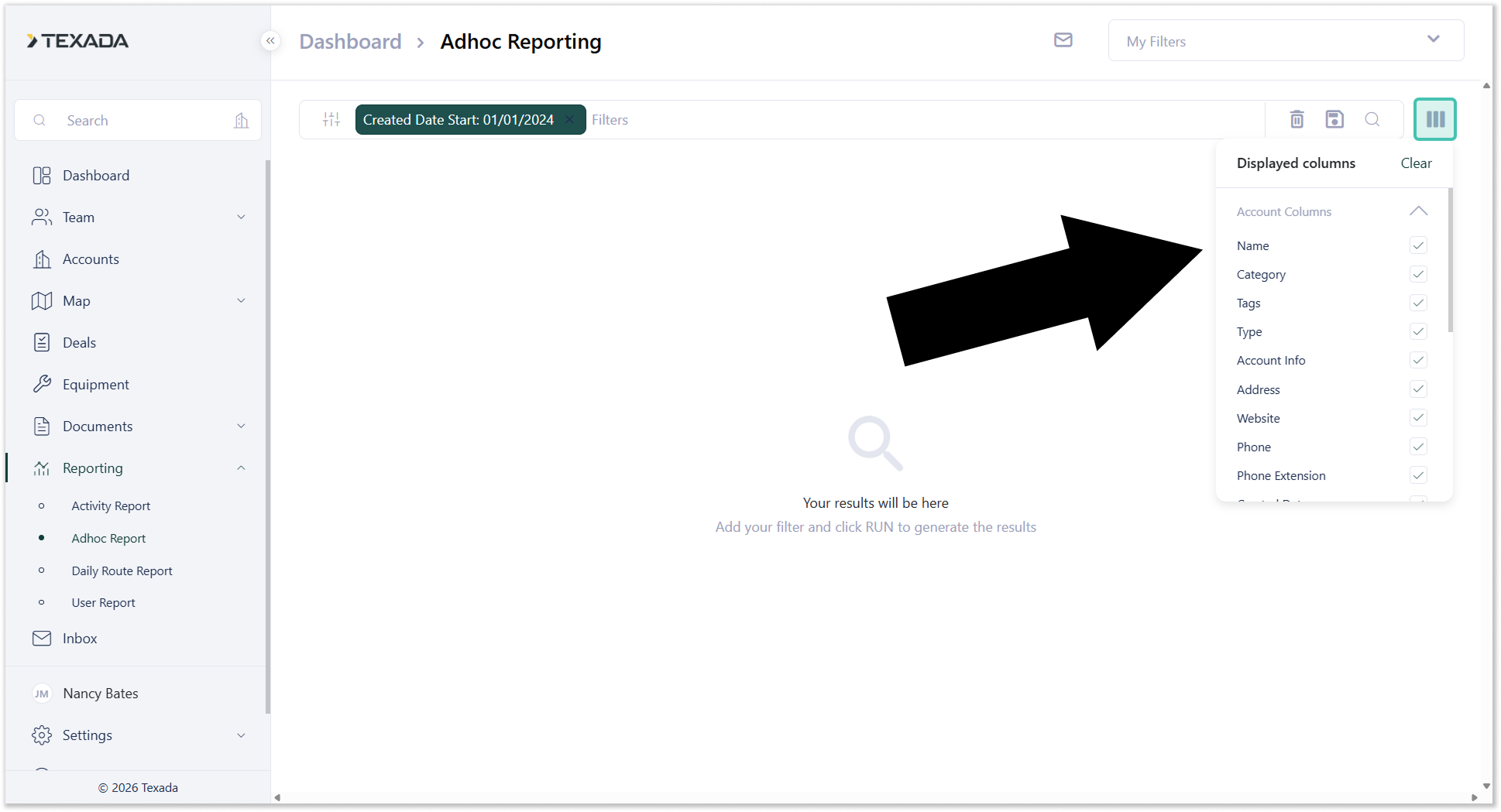
- Hit the run button
 to generate the report. Once the results appear, you can export the report by clicking the Export Excel button in the bottom-left corner of the screen.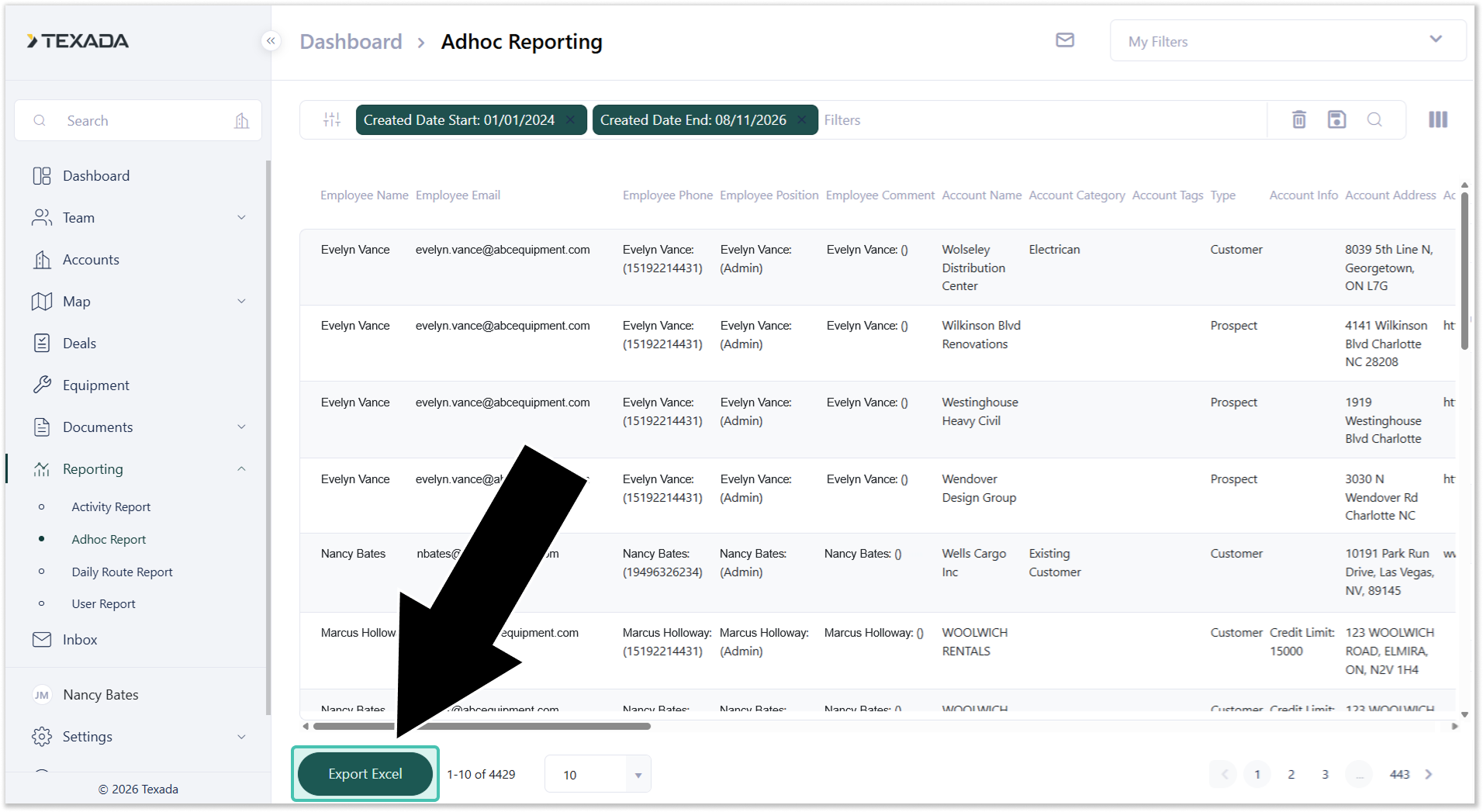
- To save a report for future use, click the save button
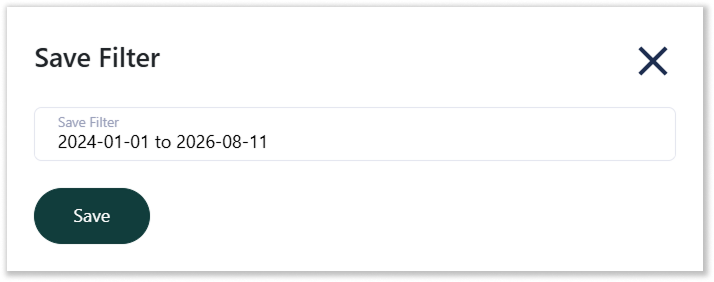
 . Give the Filter a name, then click Save.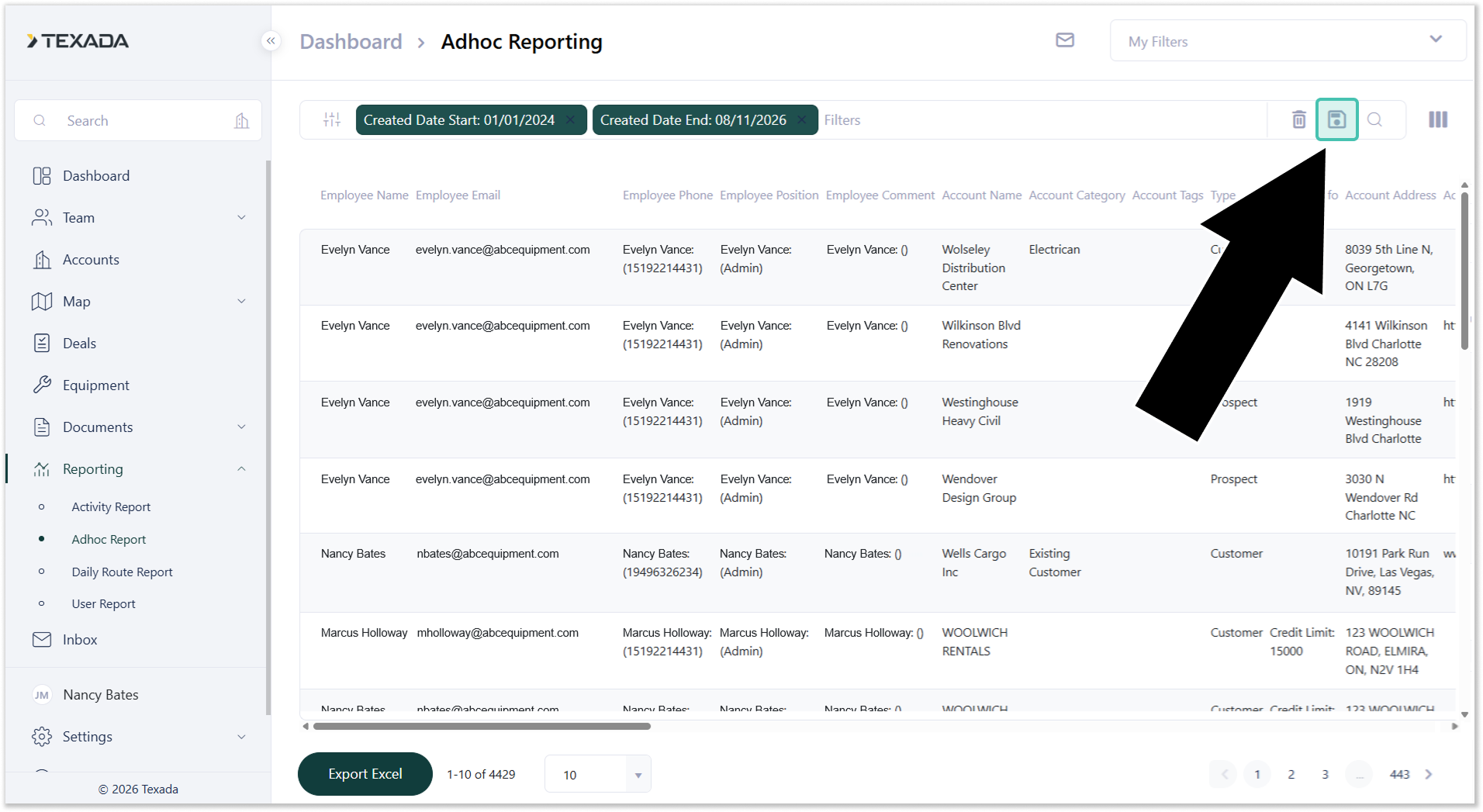
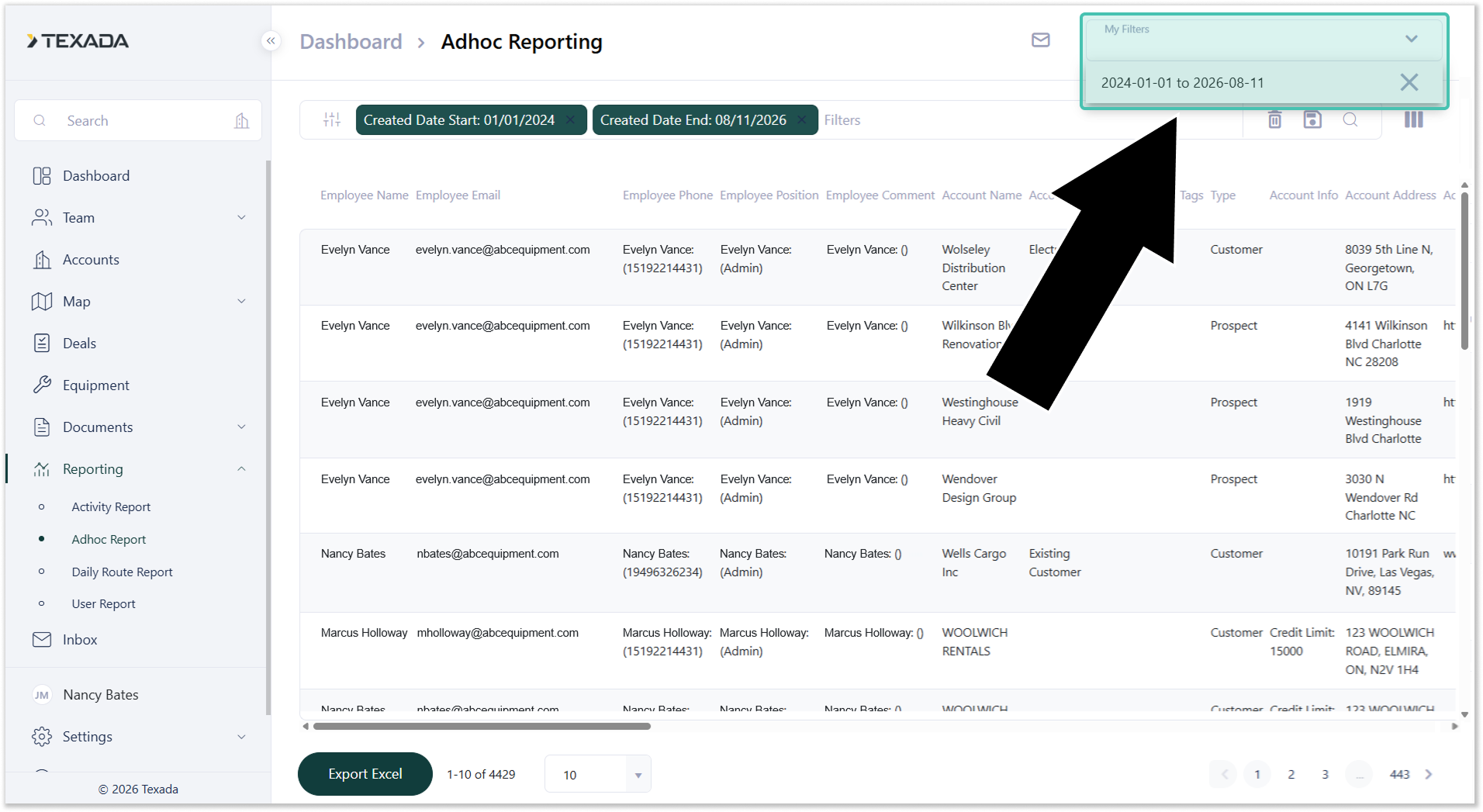
- To load a saved report, click on My Filters in the top-right corner of the screen, then select the desired report from the drop-down list.