In This Article
Manage Tags in Web
From the Settings Screen
- Log in to Field Sales Tracker and select Settings → Tags from the left navigation menu.
- To add a Tag, click the plus icon
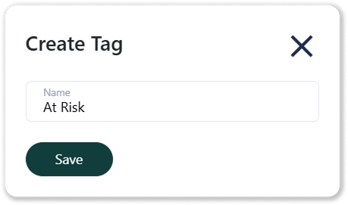
 in the top-right corner of the screen. Give your Tag a name, then click Save to create it.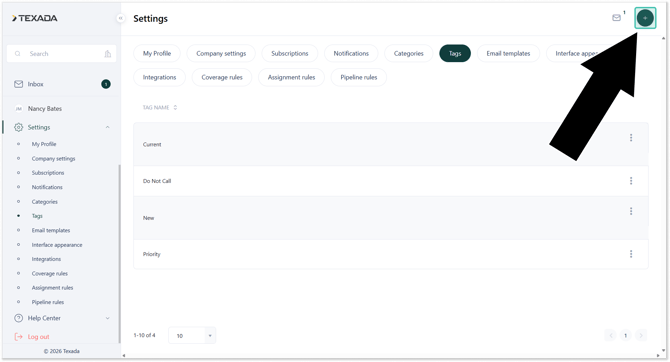
- To edit or delete a Tag, click the three dots
 to the right of the Tag you want to edit.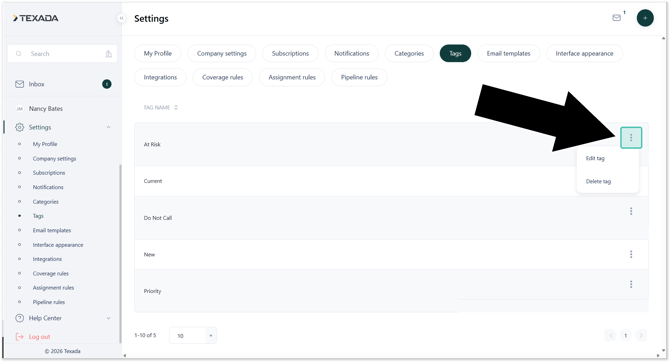
From the Account Details Page
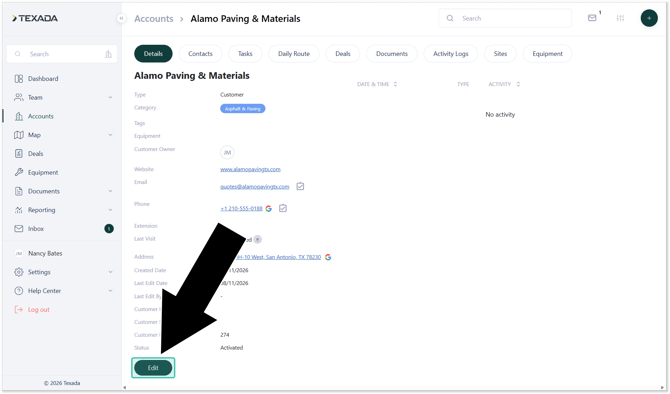
- Log in to Field Sales Tracker and select Accounts from the left navigation menu. Open the Account you’d like to edit, then click the Edit button in the bottom-left corner of the Account Details page.
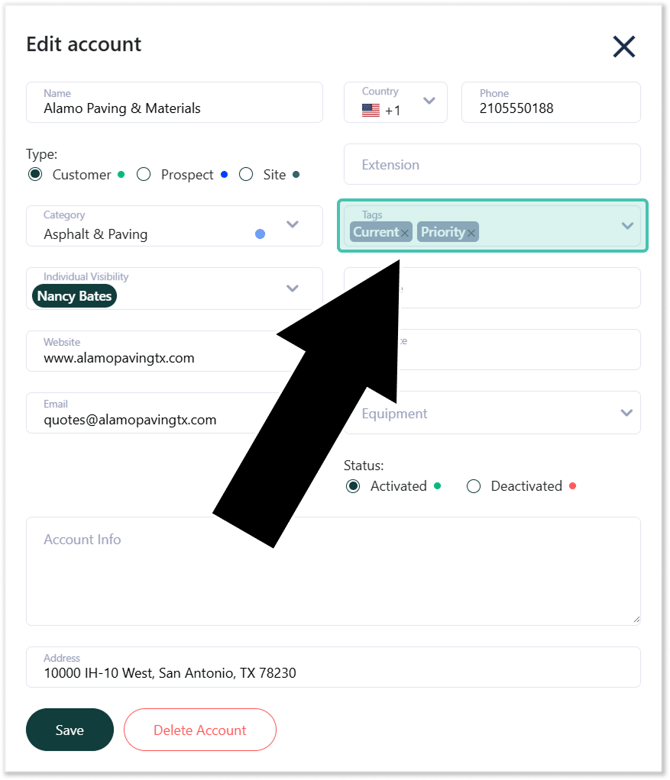
- To assign a new Tag to the Account, click the Tags field and select an existing tag from the drop-down list. You can also create a new Tag by typing it into the Tags field and pressing Enter. Once you are finished, click Save.
Manage Tags in Mobile
- Open the Field Sales Tracker mobile application and navigate to Home → List or Home → Map. Locate the Account which you’d like to edit (left) and tap on it to view its details. Then, tap the three dots
 in the top-right corner of the screen (right) to open the Account menu.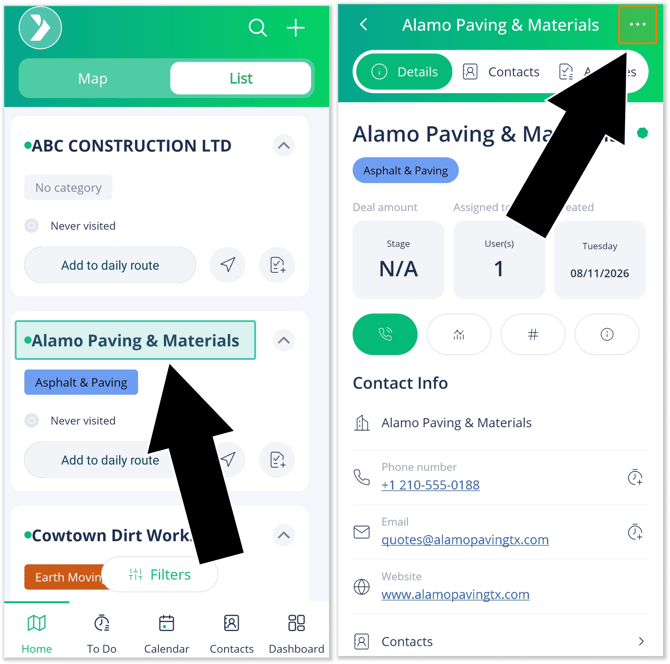
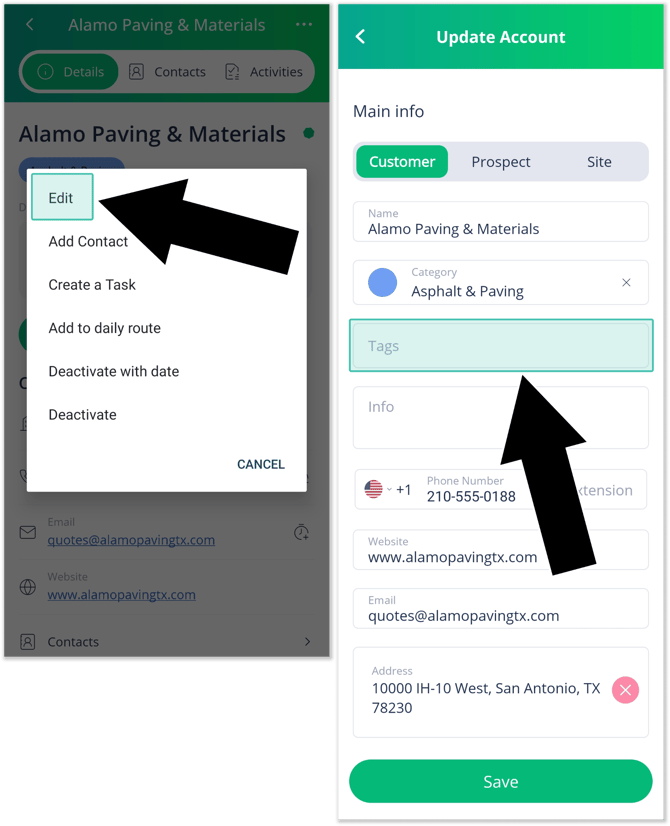
- Tap Edit (left) to open the Update Account screen (right). Tap Tags to manage tag for this Account.
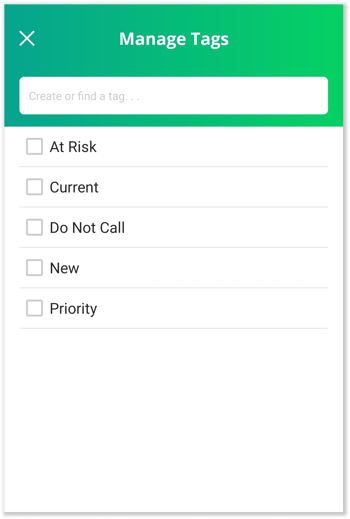
- Tap the checkbox next to a Tag to assign it to the Account. To create a new Tag, enter its name into the Create or find a tag field, then tap the blue plus icon
 to add it to the list of available Tags.
Once you are finished, tap the white X in the top-left corner of the screen to return to the Update Account screen, then tap Save to save your changes.