
In This Article
Introduction
The following article describes how to create a new deal in Field Sales Tracker for web and in the Field Sales Tracker mobile application.
Create a Deal (Web)
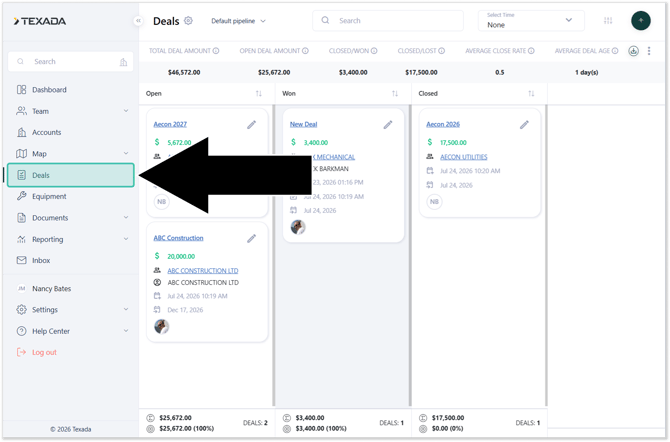
- Navigate to the Deals tab from the left-hand menu, or access Deals directly from a specific account profile.
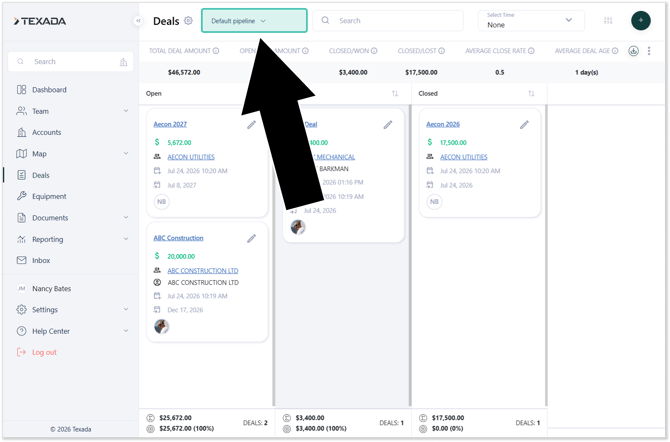
- Select the desired Deal Pipeline using the dropdown menu in the top-left corner.
- Click the
 (Plus) button in the top-right corner to create a new deal.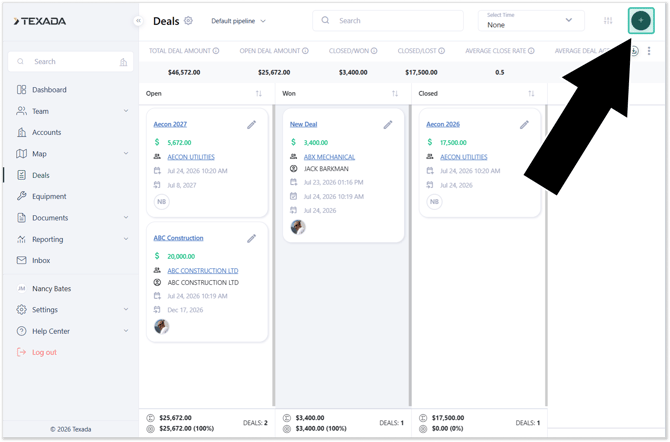
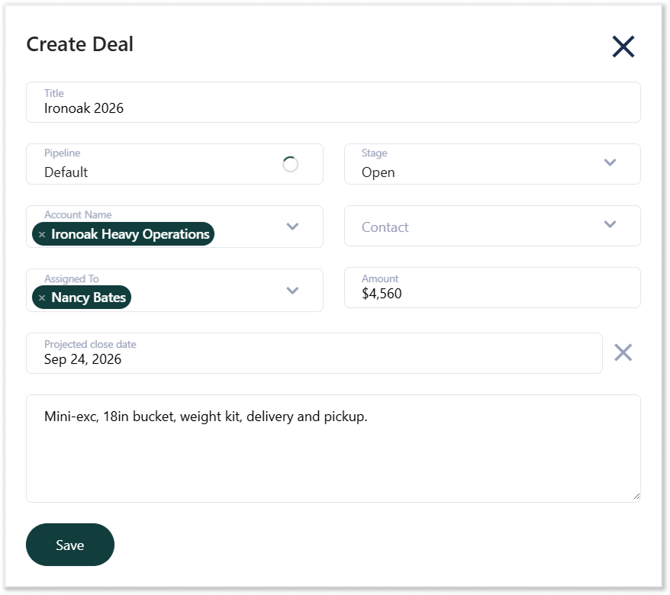
- Enter the deal details, then click Save to create the deal.
Create a Deal (Mobile)
- Log in to the Field Sales Tracker mobile application and navigate to Home → List or Home → Map, then select the Account to which you want to add a deal (left).
Tap the graph button to switch to the Actions tab (right), then tap Deals.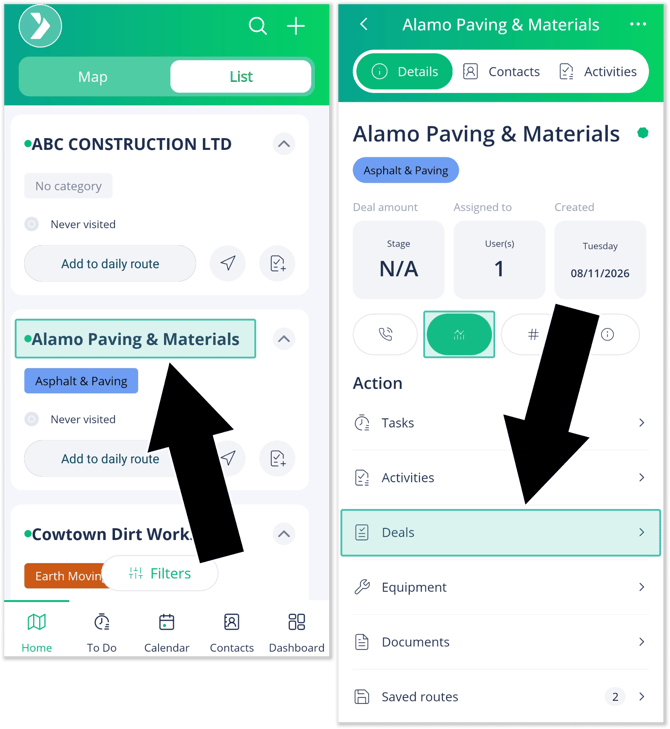
- Tap the plus icon
 in the top-right corner of the screen (left) to create a new deal.
Enter the deal details (right), then tap Save to create the deal.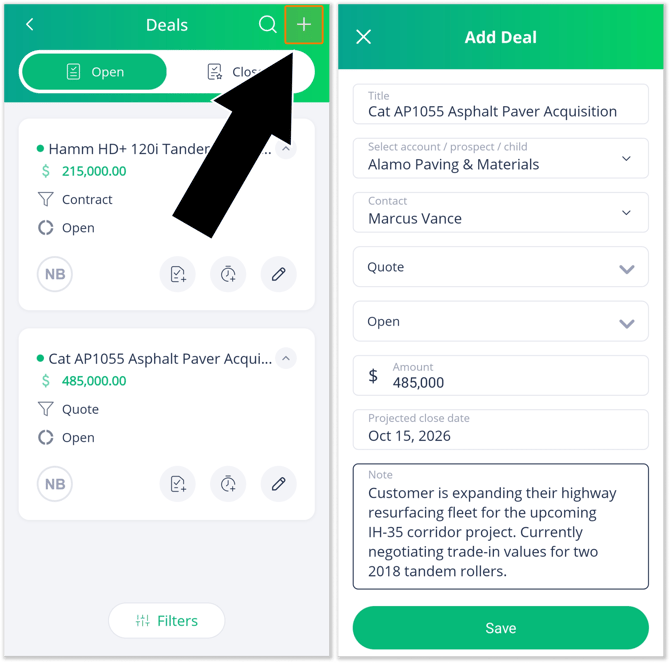
Deal Details
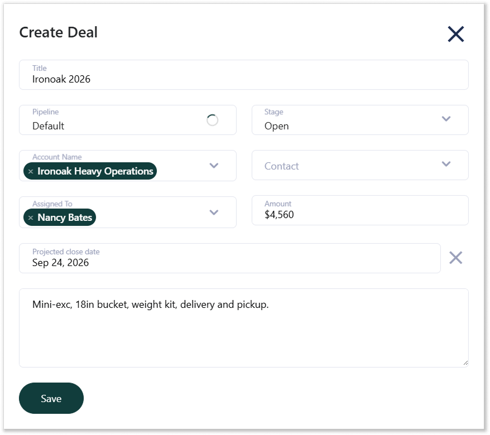
- Title – The deal’s name.
- Pipeline – The pipeline to which the deal belongs.
- Stage – This will automatically default to the first stage of the selected pipeline. You can override this value if needed.
- Account Name – The Account to which the deal belongs. Multiple Accounts can be associated with a single deal.
- Assigned To – The sales reps responsible for the deal. Multiple sales reps can be assigned to a single deal.
- Amount ($) – The deal’s dollar value.
- Projected Closing Date – The deal’s expected closing date.
- Notes – Use this section to add any additional notes or important information.