
Web Platform
- Open Field Sales Tracker.
- From the left-hand menu, click Accounts, or use the Search bar to find the specific account.
- Open the account you want to add an activity to.
- On the account details page, click the
 (Plus) button in the top-right corner.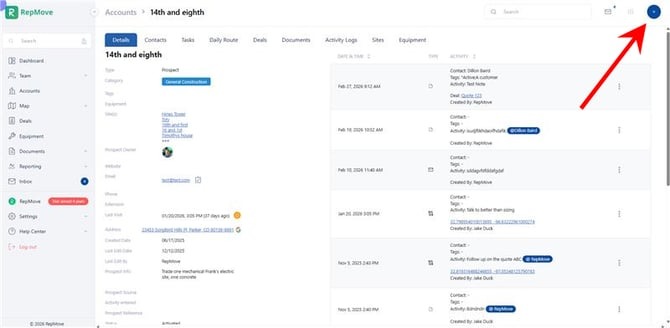
- Complete the activity details:
- Activity Type
- Contact
- Equipment
- Tags
- Attachments
- Select a Deal to associate the activity with.
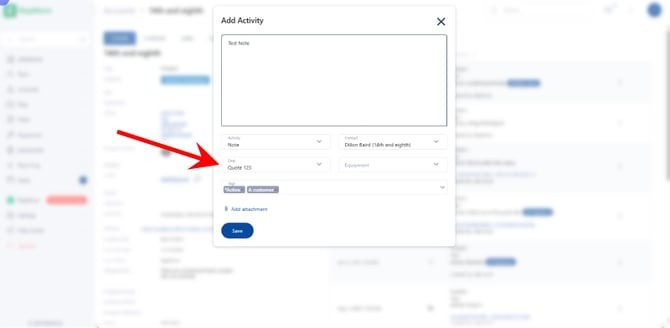
- Save the activity.
Mobile App
- Open the Field Sales Tracker app.
- Find the Account on the Map, or Use the
 Search button at the top.
 - Select the account, and hit the
 Add Activity button.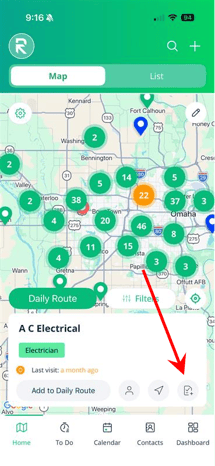
- Choose the type of activity you want to add:
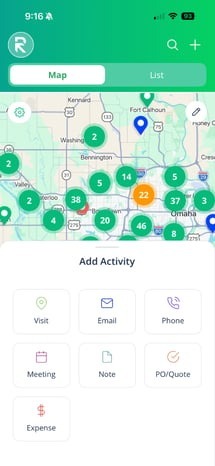
- Visit
- Phone
- Meeting
- Note
- PO / Quote
- Expense
- Enter the activity details.
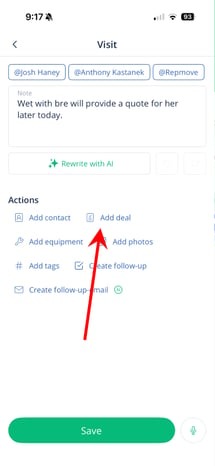
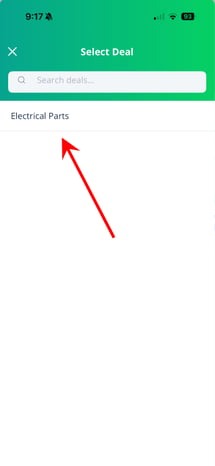
- Tap Add Deal to connect the activity to a deal.
- Save the activity.
Only the Dals associated with this account will be available for connection.