
In This Article
Create a New Pipeline
- Log in to Field Sales Tracker and select Deals from the left navigation menu. Click the gear icon
 in the top-left corner of the screen to open the Pipelines page.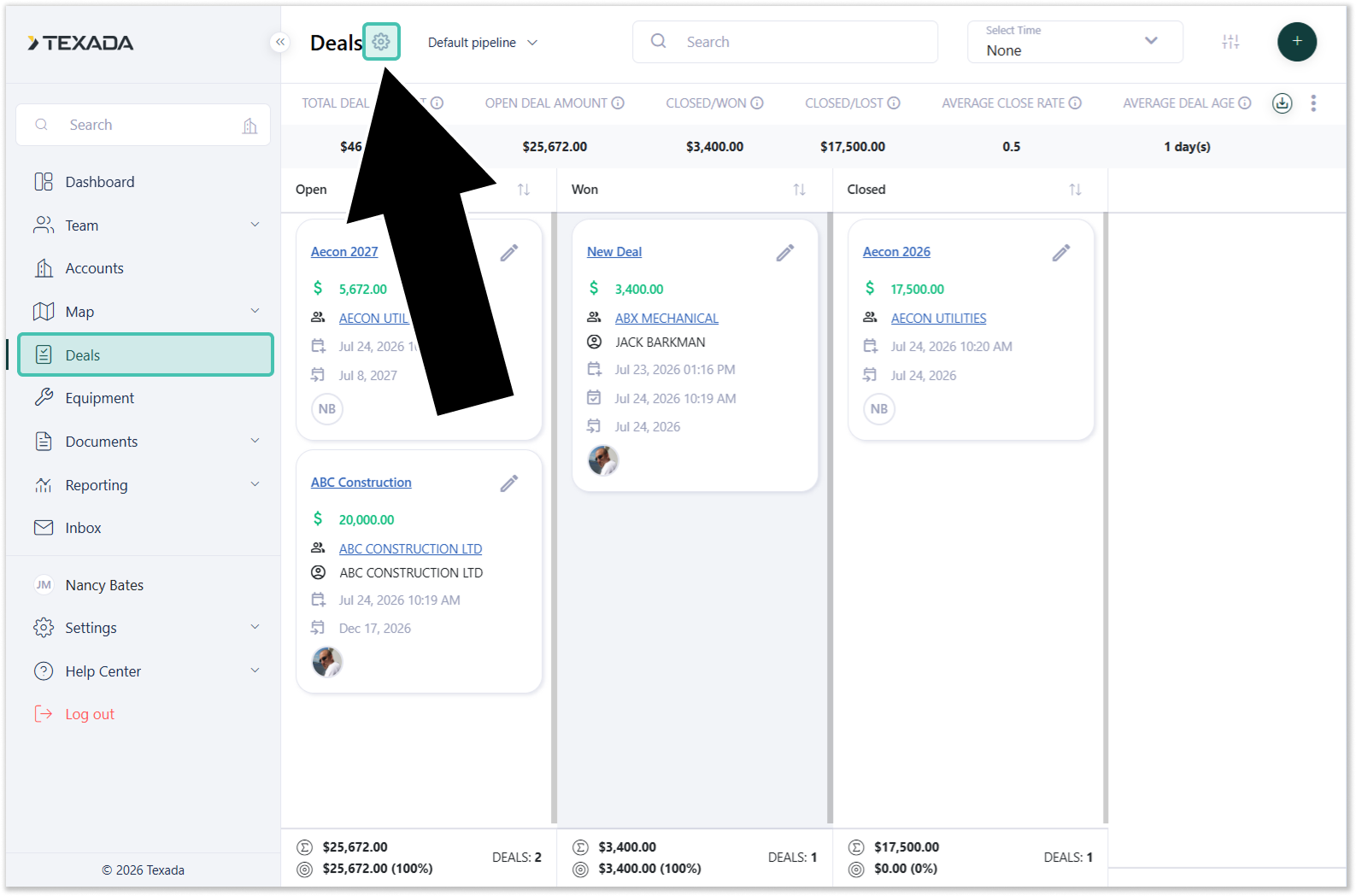
- This page lists the pipelines that currently exist in your system. Click the plus icon
 in the top-right corner of the screen to add a new pipeline.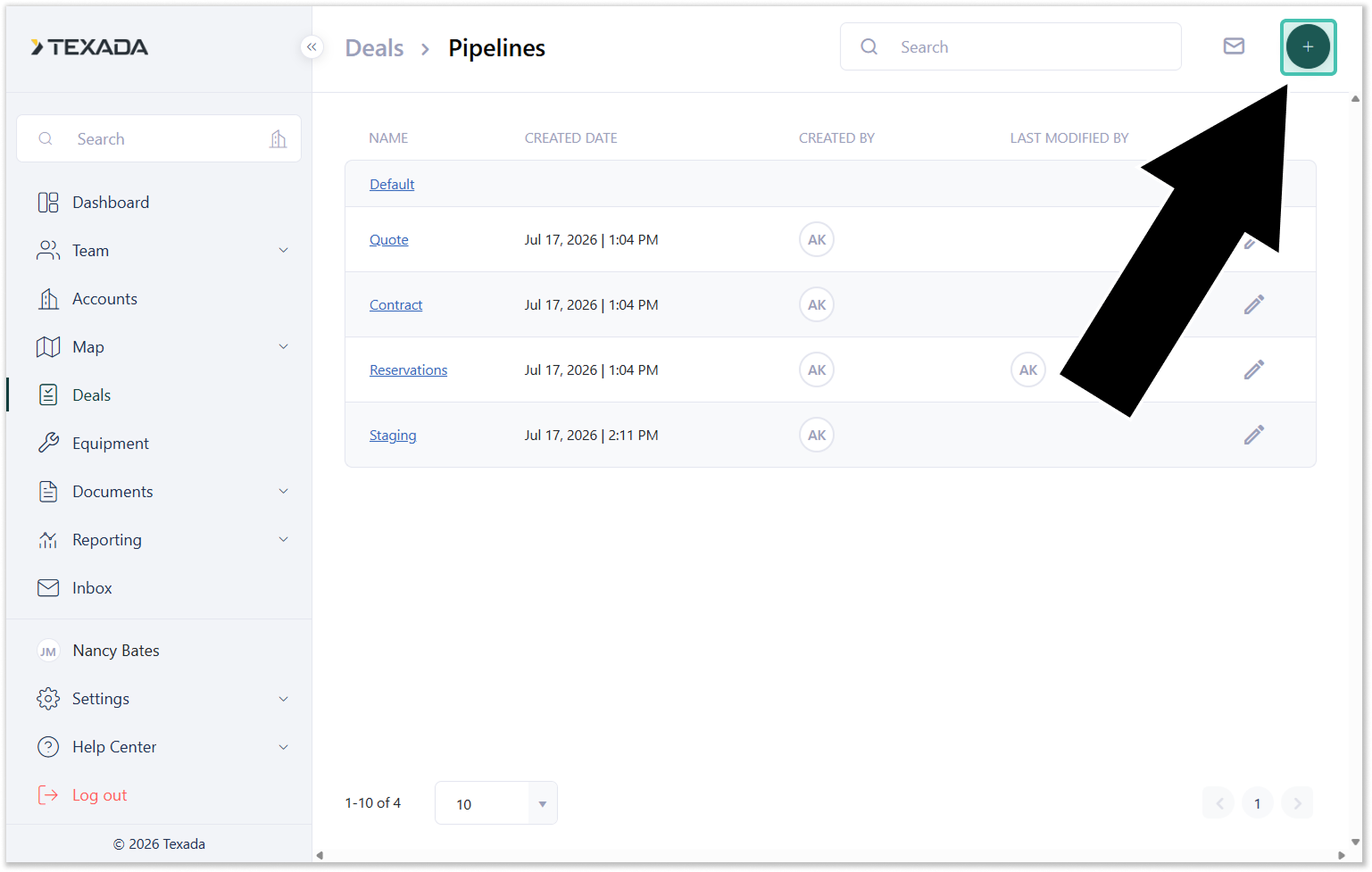
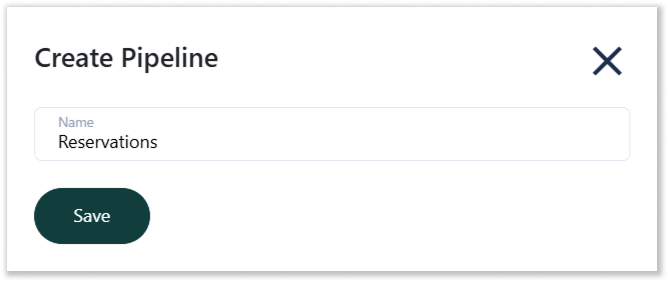
- Enter a name for your pipeline, then click “Save” to create it.
Edit Pipeline Stages
- Log in to Field Sales Tracker and select Deals from the left navigation menu. Click the gear icon
 in the top-left corner of the screen to open the Pipelines page.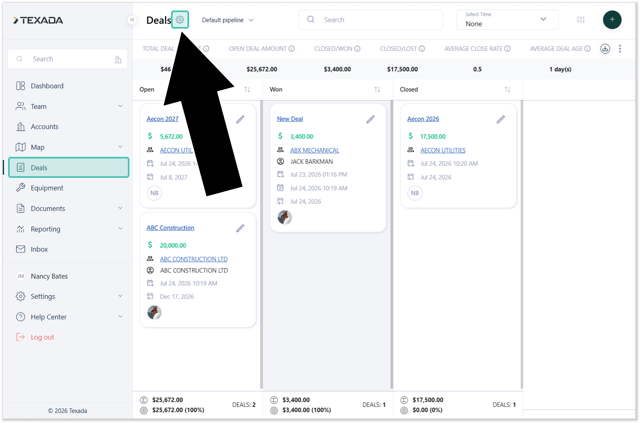
- Click on a pipeline’s name to edit its stages.
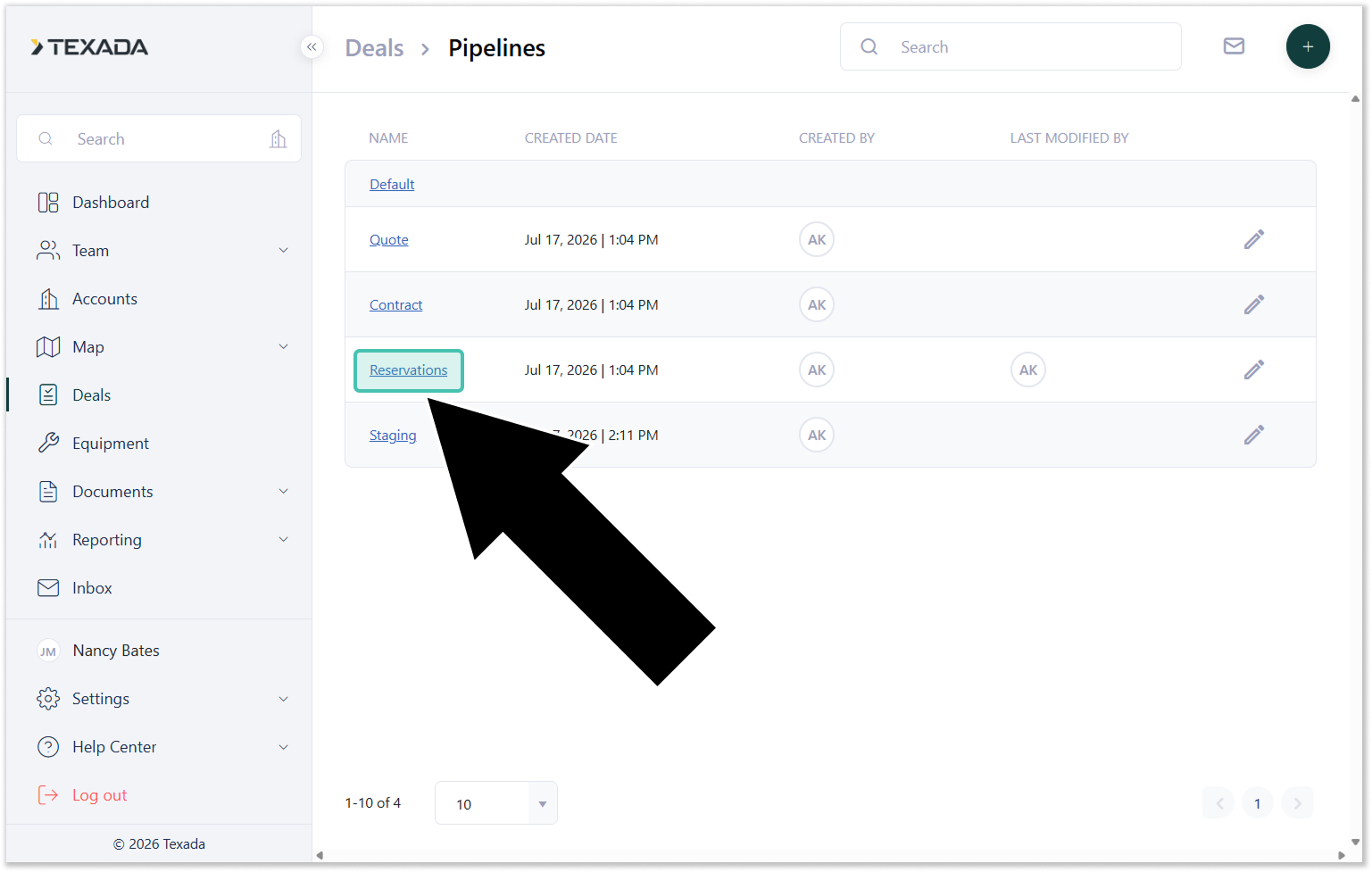
- Add, edit, or delete stages as needed:
- To create a new stage, click the plus icon
 in the top-right corner of the screen.
 - To edit an existing stage, click the pencil icon
 to the right of its row.
 - To rearrange stages, click and drag a stage into a new position using the six dots
 to the left of its row.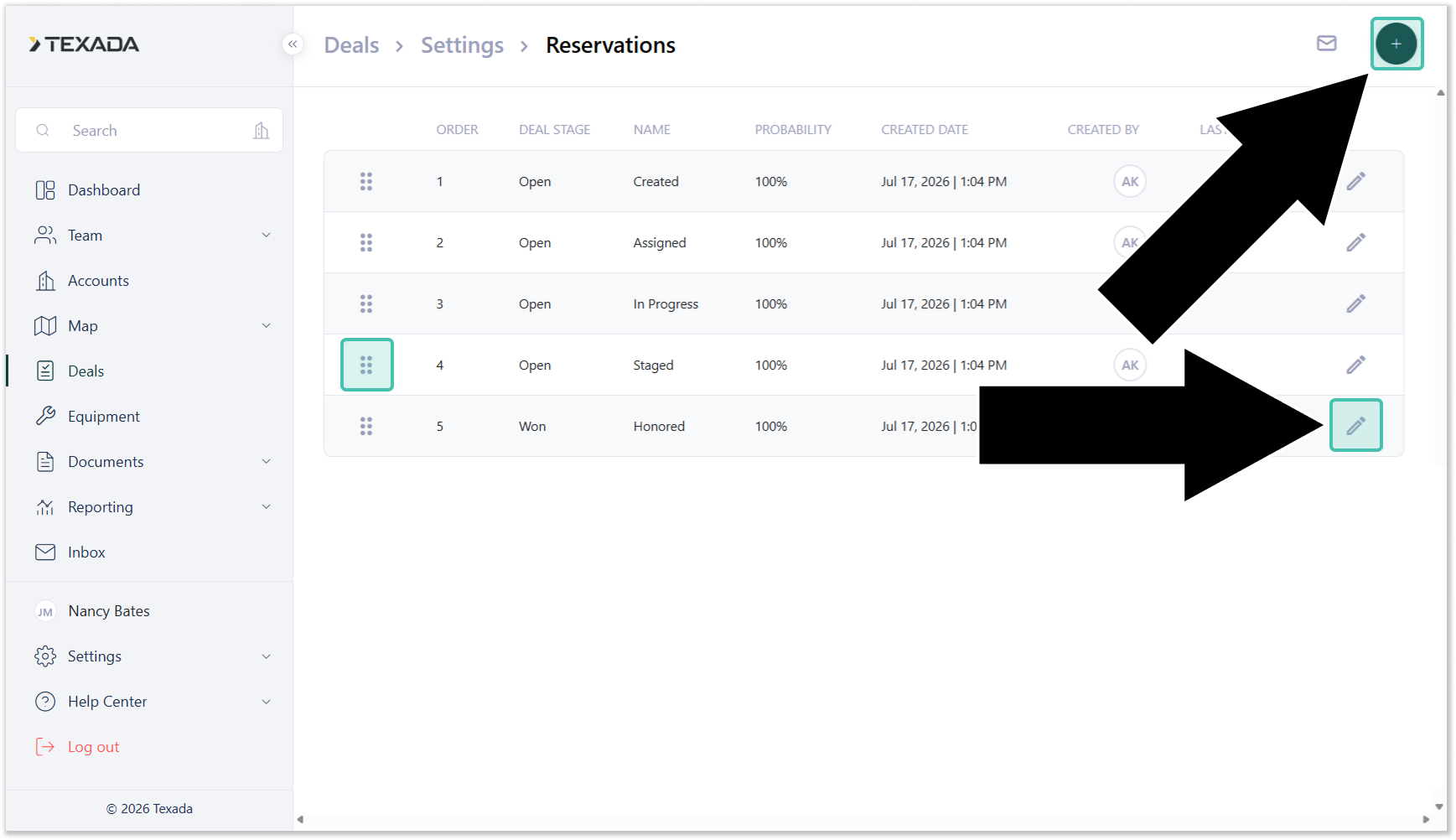
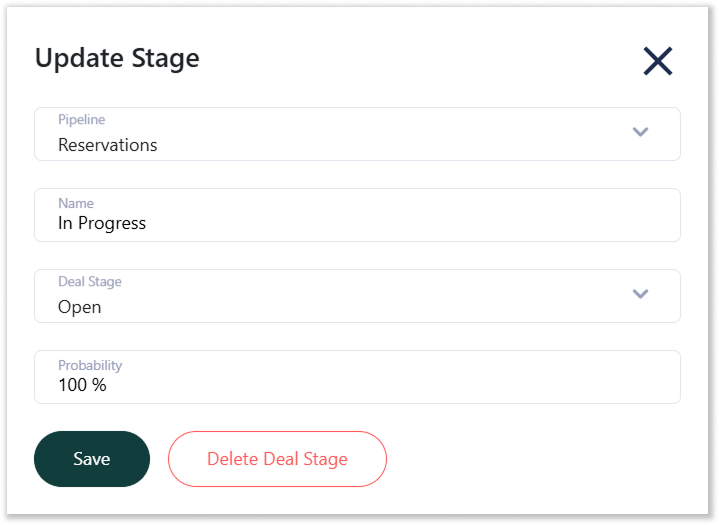
- When creating or updating a stage, select a Pipeline, Name, Deal Stage (Open, Won, or Lost), and a Probability of closing, then click “Save” to save your changes. You can also click “Delete Deal Stage” to delete a stage.
A pipeline must have at least one Open stage and one Closed stage. Once these are created, the pipeline will be available in both the Web and Mobile versions of Field Sales Tracker.