
In This Article
- Introduction
- Step 1: Texada Pay Reconciliation
- Step 2: Texada Pay Orphaned Terminal Payments
- Troubleshooting Tips
Introduction
The Texada Pay Reconciliation utility is an essential administrative tool for maintaining financial accuracy between your internal system (Service, Rental, and Financials / Payments) and the external payment processor (OpenEdge / clearing house).
Step 1: Texada Pay Reconciliation
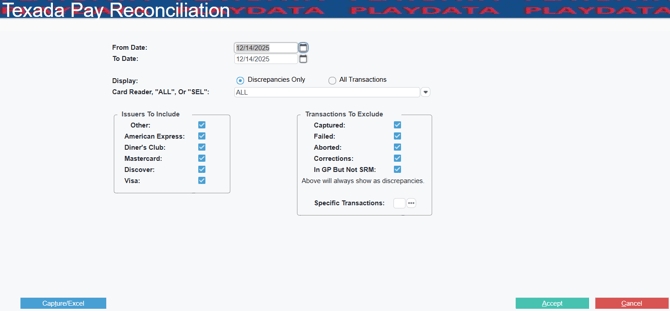
Accessed in Service, Rental, and Financials (Classic) at Accounts Receivable ⇾ Payments ⇾ Texada Pay Reconciliation, this report is designed to assist in investigating discrepancies between the Payments transactions logged internally within Service, Rental, and Financials and the corresponding transaction postings from the OpenEdge clearing house.
The reconciliation process involves comparing two sets of data on a generated spreadsheet:
- Running the Report: After setting the required date range, click the CAPTURE/EXCEL button to generate the reporting spreadsheet.
- Identifying Data Sources: The spreadsheet output uses specific column labels to define the source of the transaction information:
- Column headings labeled "LOG" represent transactions pulled from Service, Rental, and Financials (Classic).
- Column headings labeled "RPT" represent transactions captured by and downloaded from the OpenEdge clearing house.
Catching Discrepancies
The report is particularly useful for pinpointing issues by allowing you to filter the results using the DISPLAY options before running the comparison:
- 'Discrepancies Only': Selecting this option will return only those transactions where the data saved in the Texada Pay Payment Log does not match the transaction data returned from OpenEdge.
- 'All Transactions': Selecting this option outputs all records, including those that match and those that show discrepancies.
By comparing the "LOG" (SRF) and "RPT" (OpenEdge) columns, administrators can quickly identify payment failures, unsaved payments, or other financial mismatches that need manual correction or further investigation.
Step 2: Texada Pay Orphaned Terminal Payments
The Texada Pay Orphaned Terminal Payments utility (OPNEDG9) allows you to manage orphaned payments identified in Step 1. Orphaned payments, which occasionally occur when using Global Payments (GP) terminals with Service, Rental, and Financials (Classic), are transactions that are successfully processed by the bank but fail to register in your Service, Rental, and Financials records. This "disconnection" often results from technical glitches during payment processing, such as a browser crash, a lost internet connection, or prematurely closing a window.
The instructions below will walk you through identifying these missing transactions, linking them to the appropriate documents, and maintaining accurate, balanced financial records.
- View the List
When you open the screen, you will see a list of payments that didn't finish properly. The system checks with Global Payments in real-time to show you the current status:- Successful: The payment went through at the bank.
- Declined: The bank rejected the payment.
- Failed: The payment didn't go through or doesn't exist in the gateway.
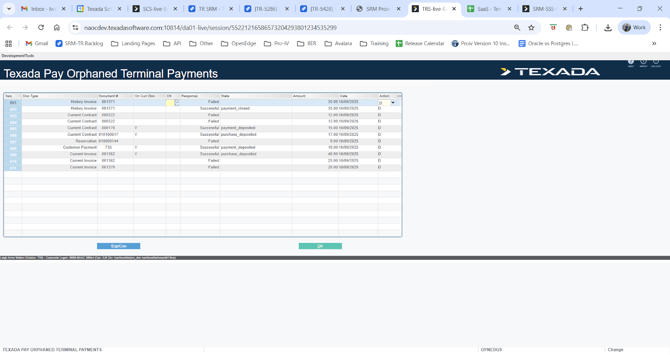
- Check Document Details
You can see which document (like an Invoice, Contract, or Work Order) is linked to the payment.- On Curr Doc: This tells you if the payment is already recorded on the document in Service, Rental, and Financials.
- Window on Dtl: You can use this field to see the full details of the document (though this doesn't work for Customer Payments or Captures).
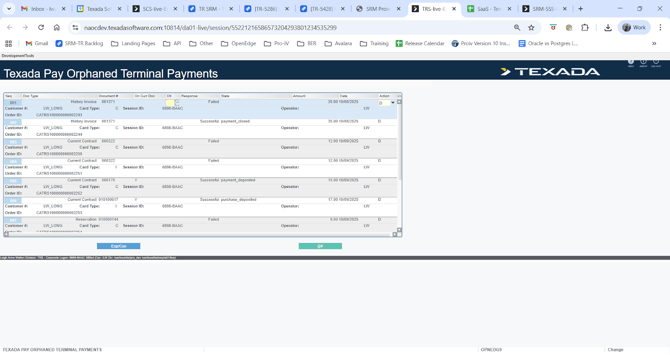
- Choose an Action
For each line, you must decide what to do. The system will only show you the options that make sense for that specific payment:- P (Create Payment): Use this if the bank has the money (Successful) but the payment is missing from Service, Rental, and Financials.
- V (Void Payment): Use this for credit cards to cancel the payment in both the bank and Service, Rental, and Financials.
- D (Delete): Use this to simply remove the record from this "orphaned" list (best for failed or declined payments).
- Blank: Do nothing and leave it for later.
- Save Your Work
When you try to exit the screen, the system will ask: “Proceed with Orphaned Queue Actions?”- Select Yes: The system will process all the actions you chose (deleting, voiding, or creating payments).
- Select No: All actions are canceled, and nothing will change.
Troubleshooting Tips
|
Issue |
What it Means |
What to Do |
|
Response says "Failed" |
The payment never finished at the bank. |
Use Action D (Delete) to clear the record from the list. |
|
"Create Payment" is missing |
The payment might already be recorded in Service, Rental, and Financials. |
Check the "On Curr Doc" column. If it says the payment is already there, you don't need to create it again. |
|
"Void Payment" is missing |
You can only void Credit Cards. |
Debit and Interac payments cannot be voided from this screen. |
|
Actions didn't save |
You might have clicked "No" when exiting. |
Go back into the screen, re-select your actions, and make sure to click Yes on the final confirmation. |