
In This Article
Introduction
When using Service, Rental, and Financials (Classic), it is possible for your internet connection to drop or to close the application in such a way that it leaves a document locked. When this occurs, the application will prevent you from re-accessing the document or section of the program that was open when the disconnect happened. Follow these steps to identify and remove your own personal sessions that are preventing you from accessing those functions.
Release a Lock
To release a lock in Service, Rental, and Financials (Classic), follow the steps below.
- Before you begin, ensure you do not have any open session windows in the background of your workstation.
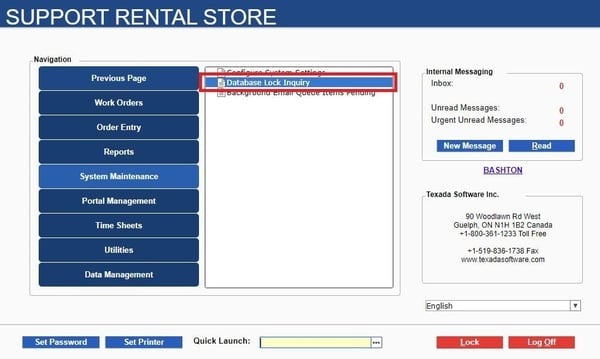
- Log in to Service, Rental, and Financials (Classic) and navigate to System Maintenance → Database Lock Inquiry. If you do not see this menu option, speak to your administrator to review and update your menu security options.
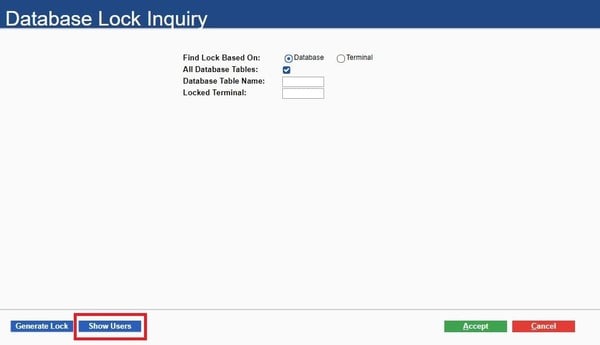
- At the bottom left of the Database Lock Inquiry, select the Show Users button:
- Depending on the size of your company, you may see many lines of Operators logged into the application. To filter these results to your own sessions, search for your name or Operator Code in the Search For field at the top of the window:

- Review your list of sessions, and sort them by Date/Time, oldest to newest. This time is the Date/Time that the session logged in, so all older sessions from your most current session are now lost and can be terminated:
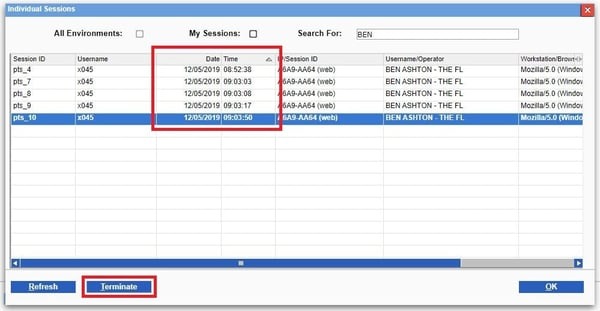
- Highlight each session in turn, and click the Terminate button in the bottom left. The application will request confirmation. Select YES to continue.
- Once all older sessions have been terminated, exit back out to the main menus of the application and access the function from which you were previously locked out.
Note: While most locks are released within seconds, there can be up to a two minute delay from terminating a session to when that lock is released. Please allow a minimum of two minutes to pass after completing the termination from when you attempt to re-access the function. - If the function is still locked, it is likely locked by another individual. This will require your administrator to review and release that lock. Please escalate as per your internal company policy, or contact Texada support for assistance.