
In This Article
- Manually clock into Texada Mobile
- Automatically clock into Texada Mobile from a work order
- Clock out of Texada Mobile
Context
Clock into Texada Mobile when you need to track the amount of time you are spending on a job. Clock out of the app when you have finished the job and are off the clock.
Note: Logging out of the app automatically clocks you out.
See: “About the Time Tracker in Texada Web and Texada Mobile” for more information about clocking in or out.
Before You Begin
Required: Mobile device with internet connection and Texada Mobile installed, valid Texada Mobile account, valid login credentials and access permissions
Steps
Manually clock into Texada Mobile
- In the Texada Mobile dashboard, tap the hamburger menu

The user menu opens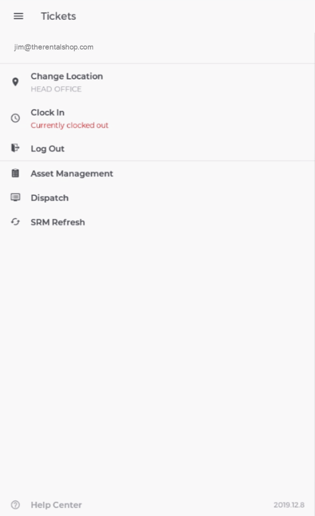
- Tap Clock In
You are clocked in
Your clock in time appears in Time Tracker in Texada Web
Automatically clock into Texada Mobile from a work order
- In the Texada Mobile dashboard, tap Work Orders

The list of assigned work orders opens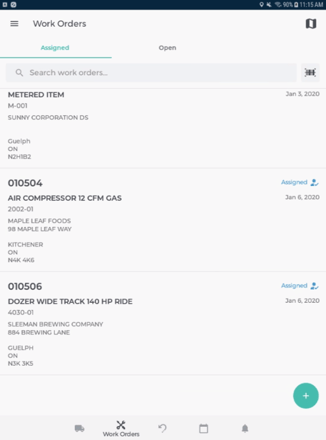
- Tap the work order you need to work on
The work order details page opens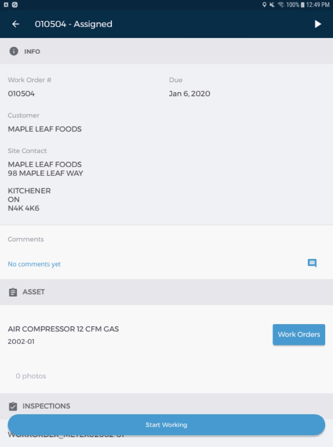
- Tap Start Working or play

You are clocked in
Your clock in time appears in Time Tracker in Texada Web
Your billable labor hours start to accrue on the related work order
Clock out of Texada Mobile
- In the Texada Mobile dashboard, tap the hamburger menu
The user menu opens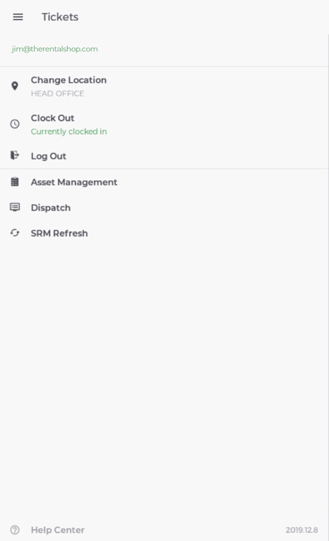
- Tap Clock Out
You are clocked out
Note: You can log out of the application to clock out. See: “Log in or Out of Texada Mobile” for more information
Your clock out time appears in Time Tracker in the web application
Note: If you clock out while working on a work order with the In Progress status, your labor hours stop accruing