
In This Article
Introduction
A Work Order is a document indicating that an Asset is in need of servicing, either for repairs or routine maintenance. Work Orders are created in Service Management (Classic), (Next), or Mobile, then assigned to a Mechanic for completion. The assigned Mechanic then completes the Work Order using Service Management Mobile.
The following article will detail the process of completing a Work Order in Service Management Mobile. Completing this process will change the Work Order’s status to Completed, allowing it to be invoiced and Closed in Service Management (Classic or Next). See About Work Order Statuses for more information.
Complete a Work Order
- Open a Work Order
Log in to Service & Rental Mobile and tap the Work Orders icon to view the list of Work Orders. Locate the Work Order you want to complete and tap on it to view its details. See “Browse Work Orders in Service Management Mobile” and “View and Edit a Work Order in Service Management Mobile” for more information.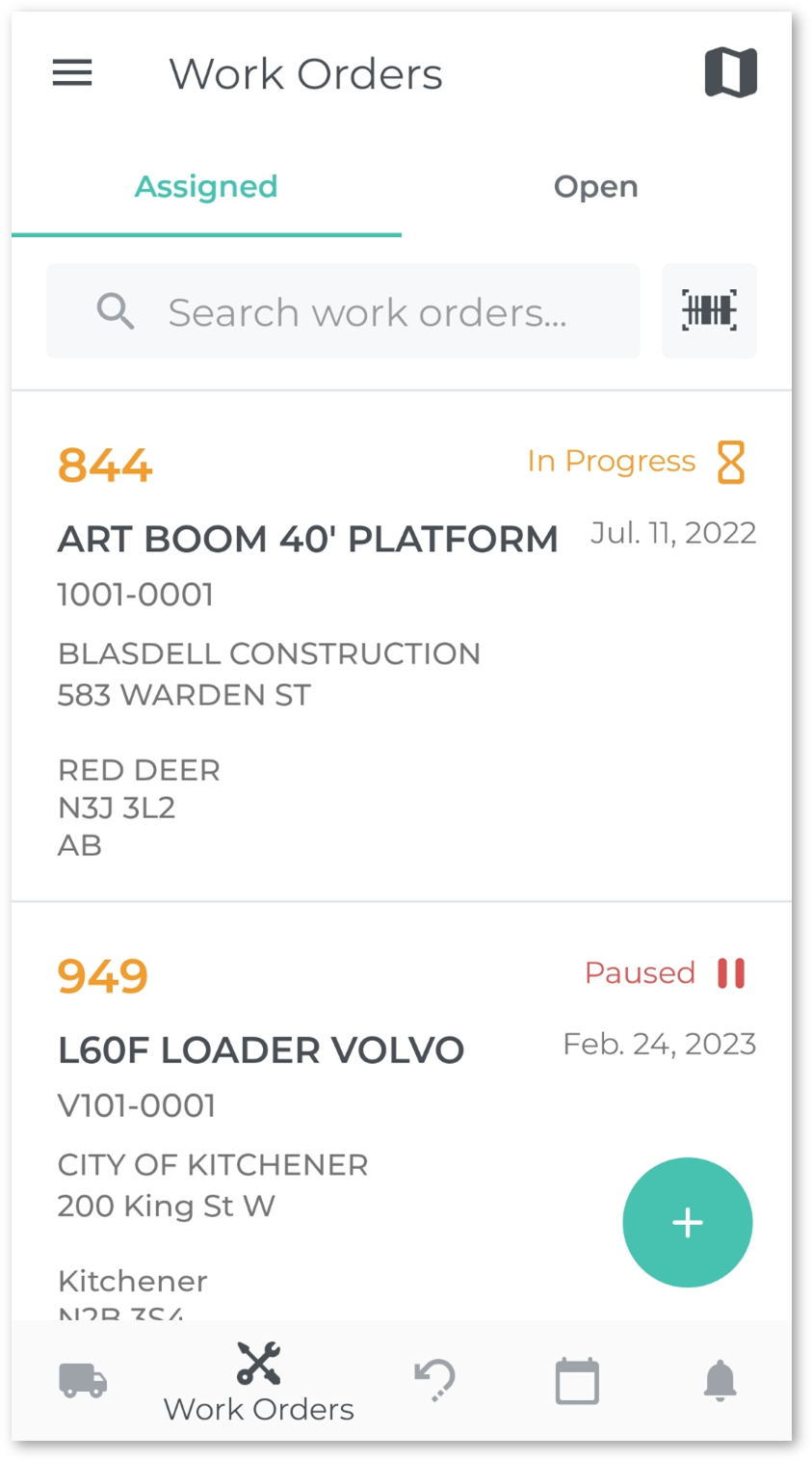
- Start Working
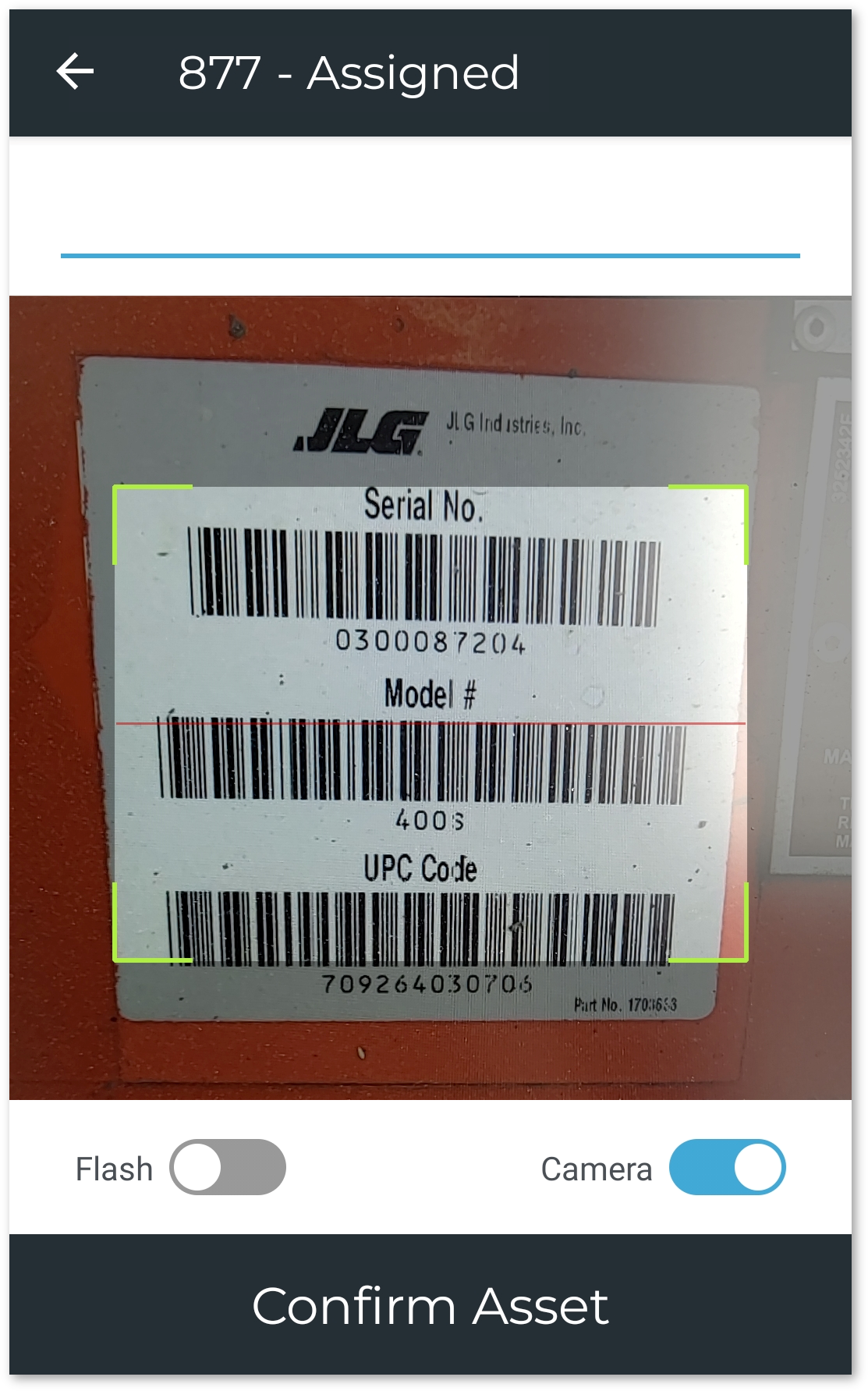
If you have not yet started work on the Work Order you selected (i.e. its status is “Assigned”), you will need to start working before you can complete the Work Order. To do this, tap the “Start Working” button at the bottom of the screen (left). This will open your device’s camera so you can scan the Asset’s barcode (right); see “Scan a Product Barcode in Service & Rental Mobile” for more information. While it is possible to bypass this process by entering the Asset’s Product number directly, it is highly recommended to locate and scan the Asset’s barcode to ensure you are working with the correct Asset.
Once you have scanned the Asset’s barcode, tap “Confirm Asset” to continue. If the “Auto Time Tracker” option is enabled in Service, Rental, and Financials (Next), you will also be prompted to select a labor line to track your time against. See “Add Labor to a Work Order in Service Management Mobile” for more information.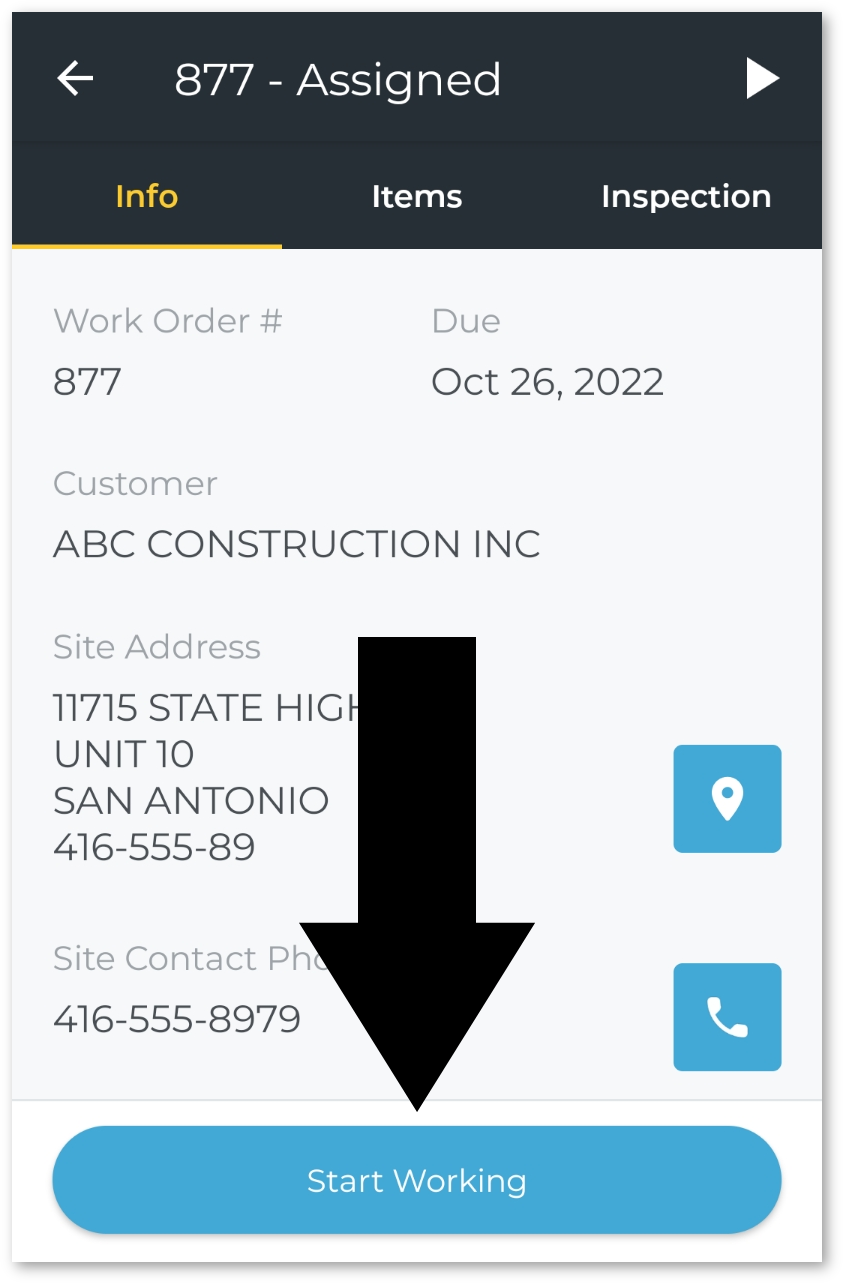
- Complete Work and Review
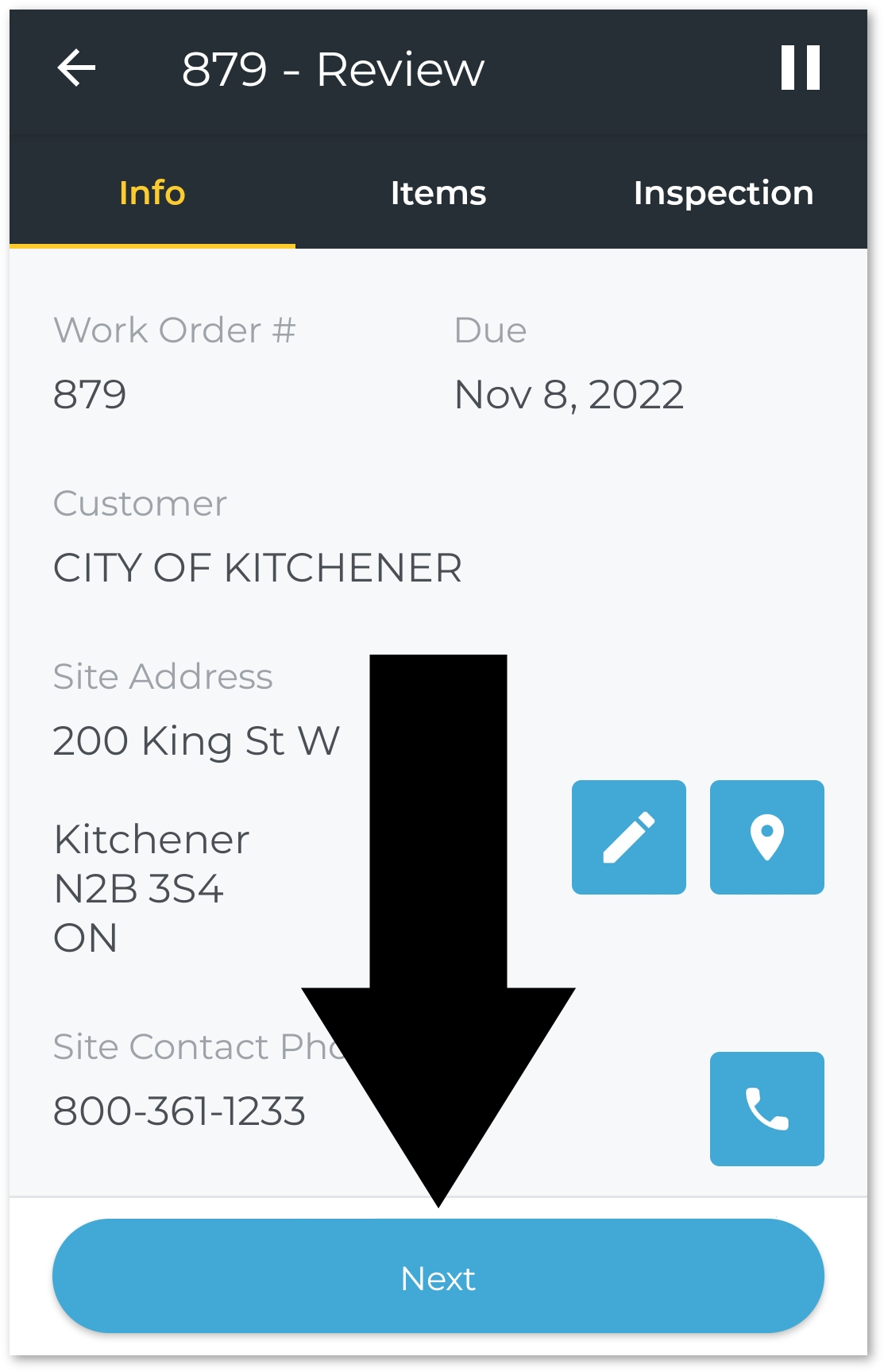
Once you have started Work on the Work Order, you will have the option of adding billable items to it, including Parts, Labor, and Services. This can be done via the Items tab. Once you have finished adding billable items, tap “Work Complete” to finalize the Work Order (left). This will switch the Work Order to review mode (right), giving you a chance to review the Work Order and ensure that all the included information is correct. Tap the back button in the top-left corner of the screen to go back and make changes. Tap “Next” once you are ready to continue.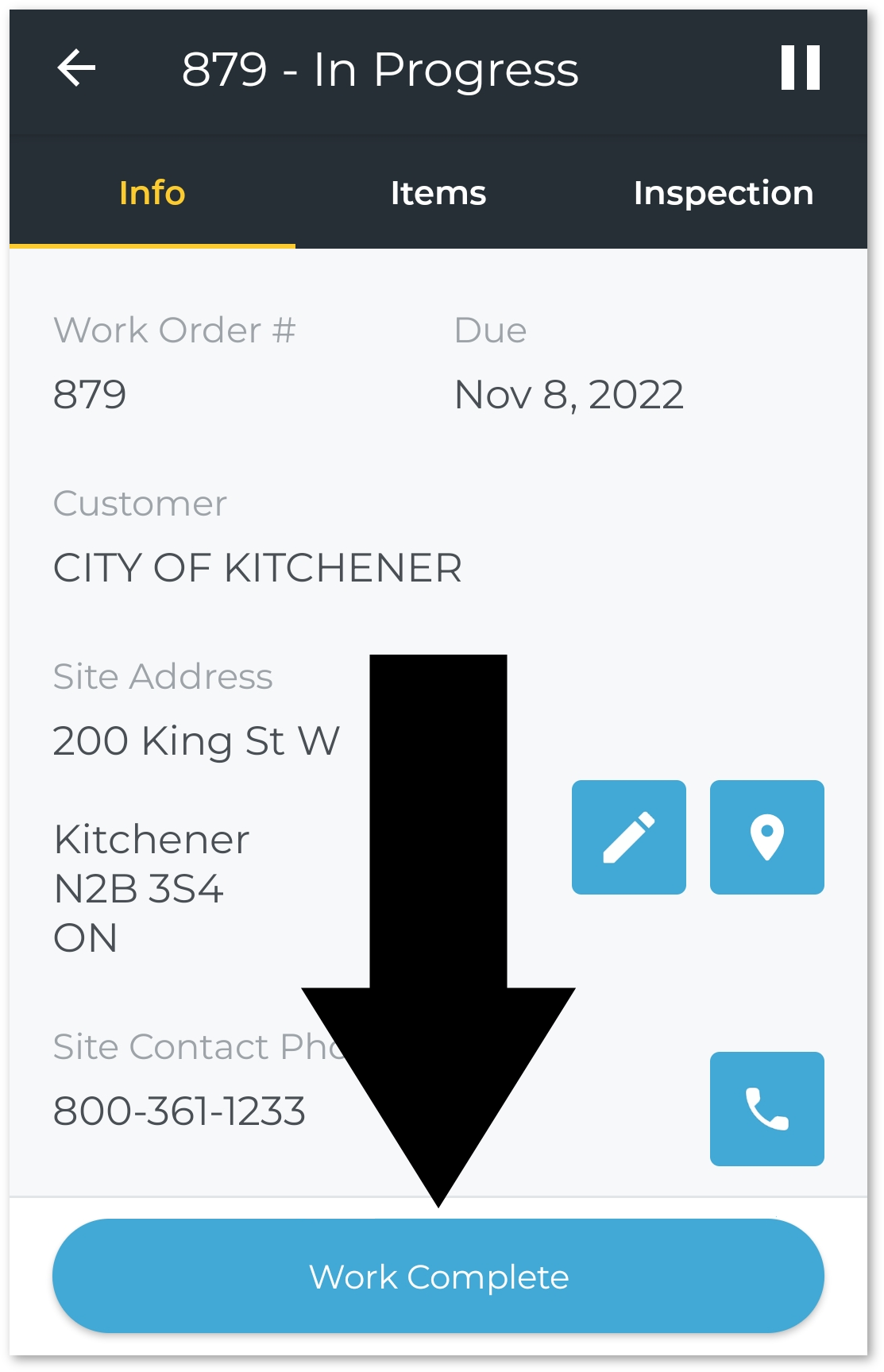
- Sign and Complete
The following screen allows the customer to sign off on the Work Order, with the option of emailing a copy of the signature to one or more recipients. See “Electronically Sign a Document in Service & Rental Mobile” for more information.
Once the customer has signed off on the Work Order, tap “Complete Work Order” to mark the Work Order as Completed. Completed Work Orders can be invoiced and Closed via the Work Order List page in Service Management (Next).