
Introduction
Reset your password in Texada Mobile if you need to update the password for security reasons or if you forget the password.
Before You Begin
Required: Mobile device with internet connection and Texada Mobile installed, valid Texada Mobile account, valid email address associated with your Texada Mobile account
Steps
To reset your password, do the following
- At the Texada Mobile login page, tap Forgot your password?

The Password Reset popup opens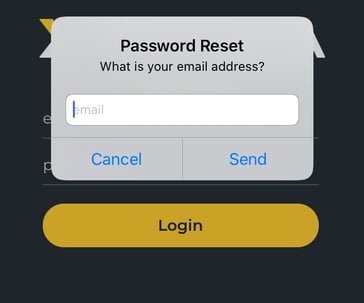
- Type the email address associated with your Texada Mobile account in the Email field, and tap SEND
A password reset email is sent to the specified email address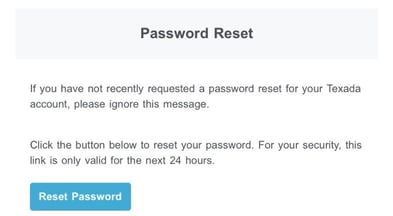
- In the reset password email, tap Reset Password
The change password page opens in your web browser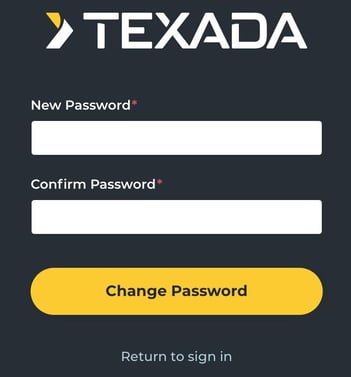
- Type your new password in the New Password field
- Re-type the password in the Confirm Password field
- Tap Change Password
Your password is reset