
In This Article
Introduction
Once a Contract’s rental period has ended, and rented Products have been delivered or picked up from the Customer’s work site, it is time to perform a Return. Performing a Return tells the system that the Products on t he Contract have been returned into inventory, and causes an Invoice for the rental to be generated.
There are 2 types of Return:
- Rental Return: The ‘standard’ Return type, Rental Returns are initiated from the Rental Returns page in Rental Management (Next).
- Check-In: Check-Ins are initiated in Service and Rental Mobile, and are used when a rented Product is returned directly to the yard as opposed to the counter. Once they have been initiated in Service and Rental Mobile, Check-Ins are processed from the Check-In page in Rental Management (Next).
The primary difference between Rental Returns and Check-Ins is in how they are initiated: Rental Returns are initiated in Rental Management (Next), while Check-Ins are initiated in Service and Rental Mobile. Once they have been initiated, both types of Return are completed in Rental Management (Next).
The following article will describe the process of completing both types of Return in Rental Management (Next).
Initiate a Rental Return
To initiate a Rental Return in Rental Management (Next), follow the steps below.
- Navigate to the Rental Returns page.
Log in to Rental Management (Next) and navigate to the Rental Returns page at Returns → Rental Returns. For more information on this page, see “The Rental Returns Page”. - Select a Product to return and click “Process Return”.
Locate the Product you wish to return and select it by clicking on its row in the Rental Returns table. Then, click the “Process Return” button in the bottom-right corner of the page. Note that you are only able to select one Product to return on this page; if you want to return multiple Products on the same Contract, you will have the option to do so on the following screen.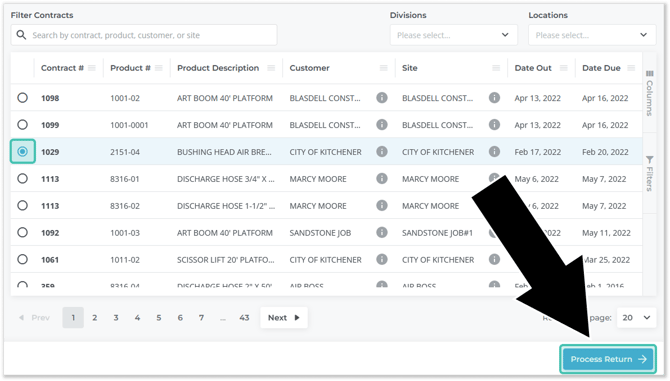
- From this point forward, the process of completing your Return is the same as that for a Check-In. See “Complete a Return” for more information.
Initiate a Check-In
To initiate a Check-In in Rental Management (Next), follow the steps below. Note that Check-Ins must be created in Service and Rental Mobile before they can be processed in Rental Management (Next); see “Complete a Check-In or Check-Out in Service and Rental Mobile” for more information.
- Navigate to the Check-Ins page.
Log in to Rental Management (Next) and navigate to the Check-Ins page at Returns → Check-In. For more information on this page, see “The Check-In List Page”. - Click on the Check-In you want to process, then click “Process Check-In”.
Once you’ve located the Check-In you want to process, click on it to open the Check-In Info window. Then, click the “Process Check-In” button in the bottom-right corner of the window to begin processing the Check-In.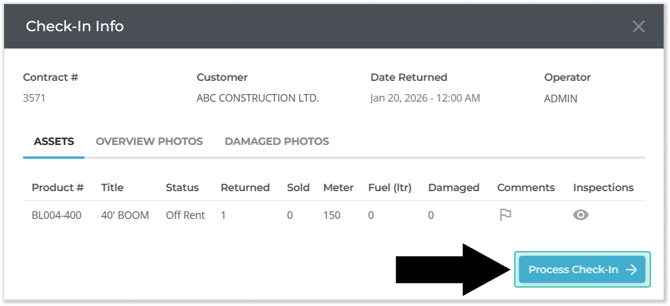
- From this point forward, the process of completing your Check-In is the same as that for a Rental Return. See “Complete a Return” for more information.
Complete a Return
Once you have initiated a Rental Return or Check-In, the remaining steps are the same for both Return types. To complete a Rental Return or Check-In, follow the steps below.
- Select Products to return and modify Contract information.
On the Process Return screen, you are able to review the details of the Contract and select which Products to return. You may return anywhere from a single Product to all the Products on the Contract at once. If multiple Products are returned at the same time, they will also be billed on the same Invoice.
Once you are satisfied with the information on this screen, use the “Review Return” button to proceed to the next step.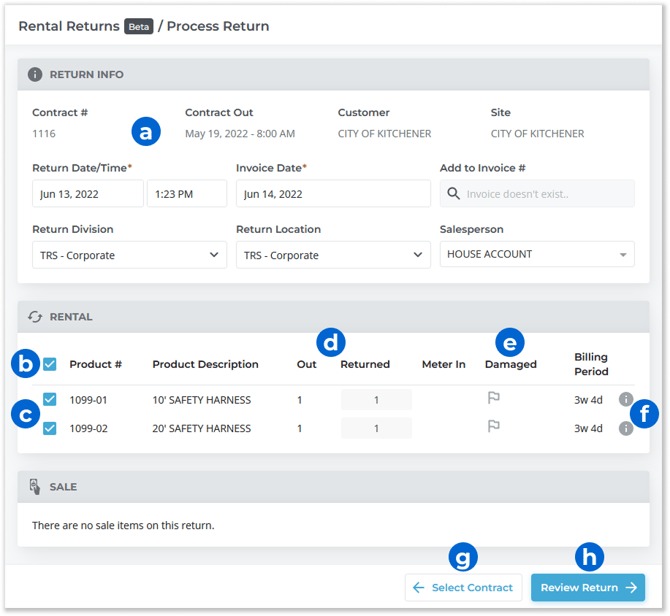
- Return Info Panel
This panel contains information on the Contract and Return. Many of the fields in this panel can be edited. - Select all Products Checkbox
Check this box to select all Rental Products to be returned. - Select Product Checkbox
Check the box next to each Product to indicate that it is being returned. - “Out” and “Returned” Columns
These two columns indicate the quantity of each Product that was rented out on the Contract and that is currently being returned, respectively. By default, the quantity returned will be equal to the quantity out. This number can be edited if you wish to return fewer than the number of Products rented. - Damaged Indicator
Click the flag icon on a Product’s row to indicate that the Product was damaged while out on rental. You will be prompted to enter a reason code for the damage. These reason codes are managed in Rental Management (Classic), at System Maintenance → Configure System Settings → Operations → Rental Return Product Codes. - Billing Period Information Icon
Hover your mouse over the info symbol on a Product’s row to see more detailed information on its billing period.
 - Select Contract Button
Use this button to cancel the return and navigate back to the Rental Returns page. - Review Return Button
Once you are satisfied with the information on this screen, use this button to proceed to the Review Return screen.
- Return Info Panel
- Review Return information and edit rental fees.
On the Review Return screen, you are able to review all of the information you have submitted so far. You can also modify your Products’ rental fees prior to generating an Invoice.
Once you are satisfied with the information on this screen, click “Generate Invoice” to finalize the Rental Return and generate an Invoice.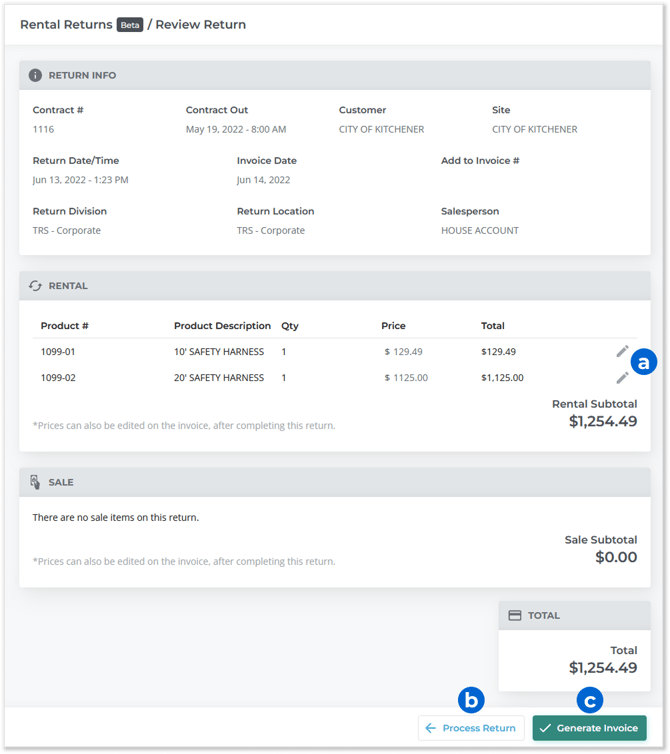
- Edit Rental Item Details Button
Click the pencil icon next to a Product’s row to view and edit its rental details, including its total rental price. See “Rental Item Details” for more information.
 - Process Return Button
Use this button to return to the previous screen. - Generate Invoice Button
Once you are satisfied with the information on this screen, click this button to finalize the Rental Return and generate an Invoice.
- Edit Rental Item Details Button
- Review and Pay Invoice
Once you click “Generate Invoice” on the Review Return screen, the Rental Return will be completed, and returned Products will be marked as available in Inventory. If all outstanding Products on the Contract were returned, the Contract will also be closed. Finally, an Invoice will be generated for the amount indicated on the Review Return screen. You will automatically be redirected to this Invoice once the return is complete, and prompted to add a payment for the outstanding balance if one exists. At this point, you are free to submit a payment for the Invoice or to cancel the process and collect payment later.
Rental Item Details
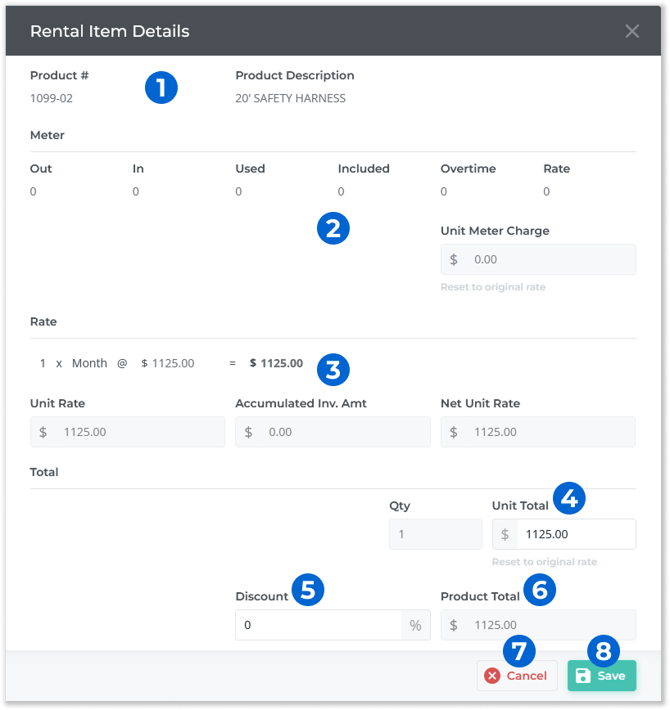
Clicking the pencil icon next to a Product’s row on the Review Return screen will open the Rental Item Details window. This window allows you to review and edit meter information and rental costs for the Product. By using this window, you can adjust the amount on the Invoice that will be generated when the Rental Return is complete.
- Product # and Description
The product number and description of the Product you are editing. - Meter Information
For metered Products, this section displays information about the Product’s meter readings and usage costs, as well as the final meter charge for the Product. - Rate Information
This section contains information on the Product’s rental rates, including a breakdown of the rates that were charged (hourly/daily/weekly/monthly) to arrive at the Unit Rate. - Unit Total
The total rental cost per unit. By default, this value is based on the Product’s rental rates as shown in the Rate section of the window. It can also be manually edited to adjust the cost of rental. If you have edited this value and wish to restore the default cost, use the “Reset to original rate” option found directly below this field. - Discount
The percentage discount currently applied to this Product’s rental cost. Discounts can be set per Customer as well as at the time the Contract is created. This value can also be edited from this window to adjust rental cost. - Product Total
The total rental cost for this Product. This value is equal to Unit Total * Qty * (100-Discount)%. If you have modified the Unit Total or Discount values, the Product Total will appear as “Save to refresh”. Click the “Save” button to recalculate this value. - Cancel Button
Use this to close the window without saving your changes. - Save Button
Use this to save your changes, recalculate the Product Total, and close this window.