
In This Article
Introduction
The User Menu provides you with a number of important options for managing your session, including switching instances, clocking in and out, switching to Service, Rental, and Financials (Classic), and accessing the Settings menu. The following article will cover all of the options available from the User Menu.
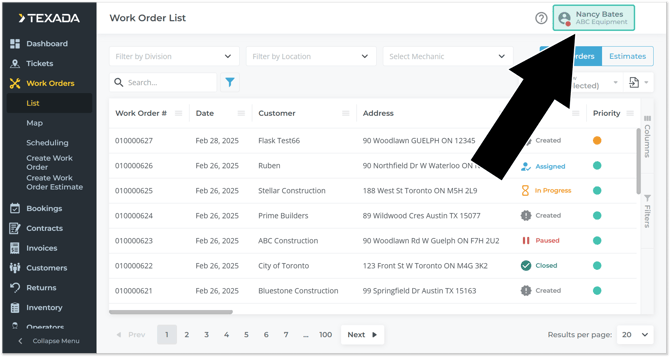
To reach the User Menu, click on your name in the top-right corner of Service, Rental, and Financials (Next).
The User Menu
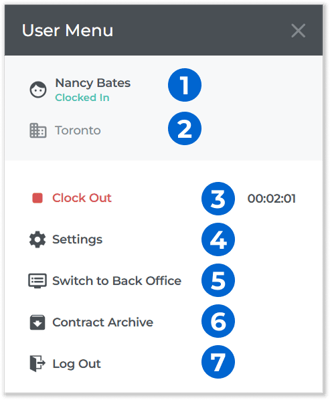
- User Name and Time Tracker Status
Your name and current Time Tracker status are displayed here. The Time Tracker status will read “Clocked In” or “Clocked Out” if the Time Tracker is or is not currently logging time, respectively. This is also displayed under your profile picture on every page when the User Menu is not open, as a green circle (clocked in) or a red circle (clocked out). - Current Instance
Your current Service, Rental, and Financials (Next) instance is displayed here. This is also displayed under your name on every page when the User Menu is not open. See “About Instances” for more information. - Time Tracker
The Clock In / Clock Out button is displayed here, along with the amount of time logged under the current session.- If you are currently clocked out, the button will read “
 Clock In”. Pressing it will clock you in and start the Time Tracker. Your logged time for this session will begin incrementing from 0, and will continue to do so until you clock out or log out of Service, Rental, and Financials (Next).
 - If you are currently clocked in, the button will read “
 Clock Out”. Pressing it will clock you out, stop the Time Tracker, and save the final logged time for the session. Completed sessions can be reviewed via the Time Tracker page. See “About the Time Tracker” for more information.
- If you are currently clocked out, the button will read “
- Settings Button
Use this to access the Company Settings page. See “Company Settings” for more information. - Switch to Back Office Button
Use this to open Service, Rental, and Financials (Classic) in a new browser tab. - Contract Archive Button
Click to open the Archive Contracts window and archive old Contracts. See “Archive Contracts in Rental Management (Next)” (article forthcoming) for more information. - Log Out Button
Use this to log out of Service, Rental, and Financials (Next). If you are clocked in, your session will be automatically ended and saved to the Time Tracker page.