
In This Article
- Introduction
- Access Service, Rental, and Financials (Next) from Service & Rental Mobile
- Service, Rental, and Financials (Next) in Service & Rental Mobile
Introduction
Service, Rental, and Financials (Next) and Service & Rental Mobile are a pair of tools designed to be used together, offering different but complementary features. (Next) is intended to be used primarily by dispatchers and counter operators, while Mobile offers features useful to Drivers, Mechanics, and other field operators.
However, there may come a time when a Mobile user could benefit from (Next)’s features while on the road. For example, a Driver may want to create and self-assign a Delivery Ticket in Rental Management (Next), then continue with loading Assets in Service & Rental Mobile.
For this reason, Texada has made it possible to log in to Service, Rental, and Financials (Next) directly from Service & Rental Mobile. This feature is fast and convenient, requiring only a single button press, and allows Mobile users to access all of (Next)’s functionality without ever needing to exit the Service & Rental Mobile app.
Access Service, Rental, and Financials (Next) from Service & Rental Mobile
To log in to Service, Rental, and Financials (Next) from Service & Rental Mobile, open the User Menu (tap the hamburger icon  in the top-left corner of the screen), then tap “Web App”.
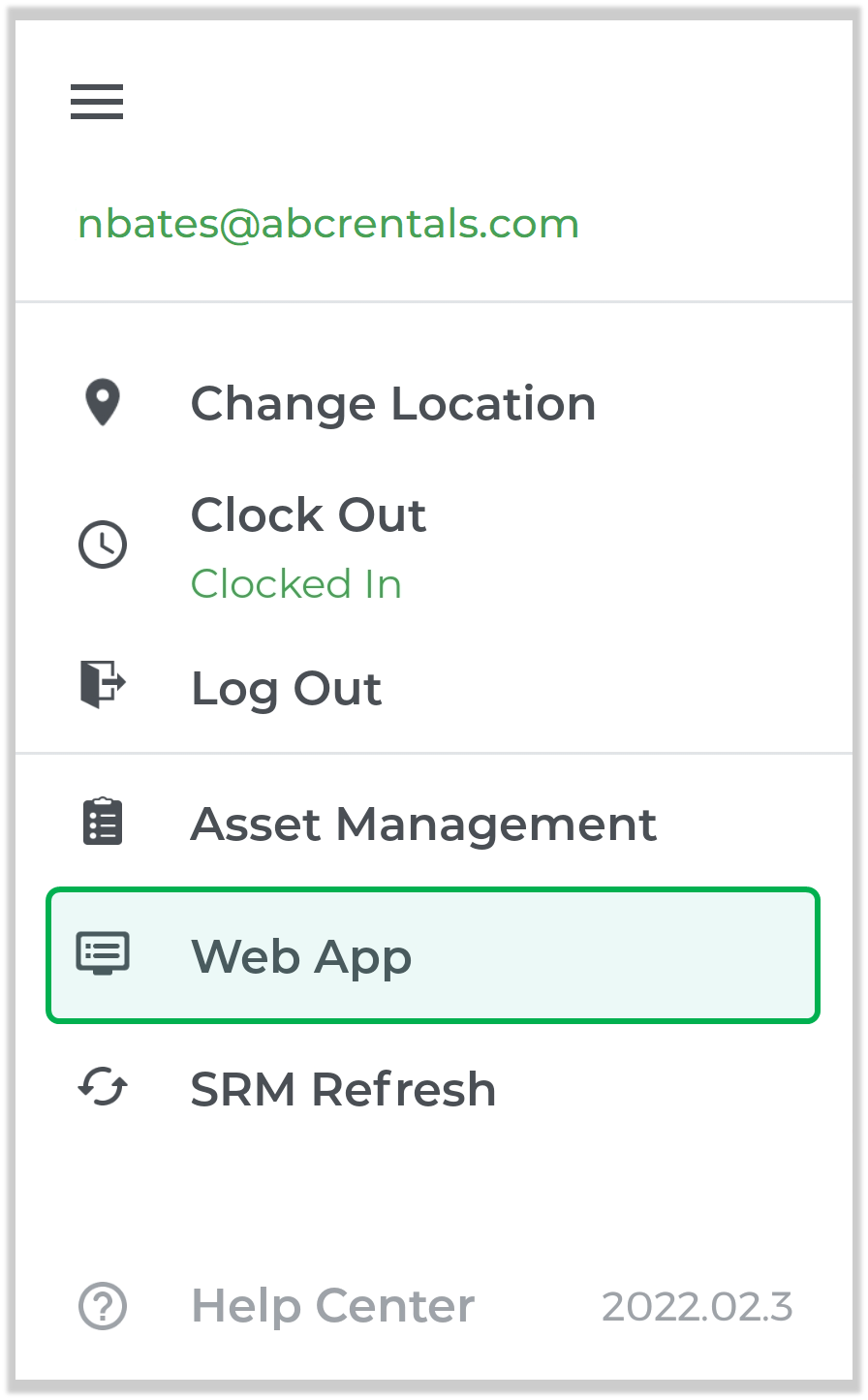
Following a brief connection screen, you will be taken to the Service, Rental, and Financials (Next) dashboard.
Service, Rental, and Financials (Next) in Service & Rental Mobile
Service, Rental, and Financials (Next) is fully mobile-responsive and offers all of the same functionality whether accessed from a personal computer, tablet, or smartphone. Its user interface will adapt to the size of your device’s screen, meaning that the application may look unfamiliar if you are used to accessing it from a PC.
The images below show the Dashboard Console (left) and the navigation menu (right), adapted for a smartphone screen.
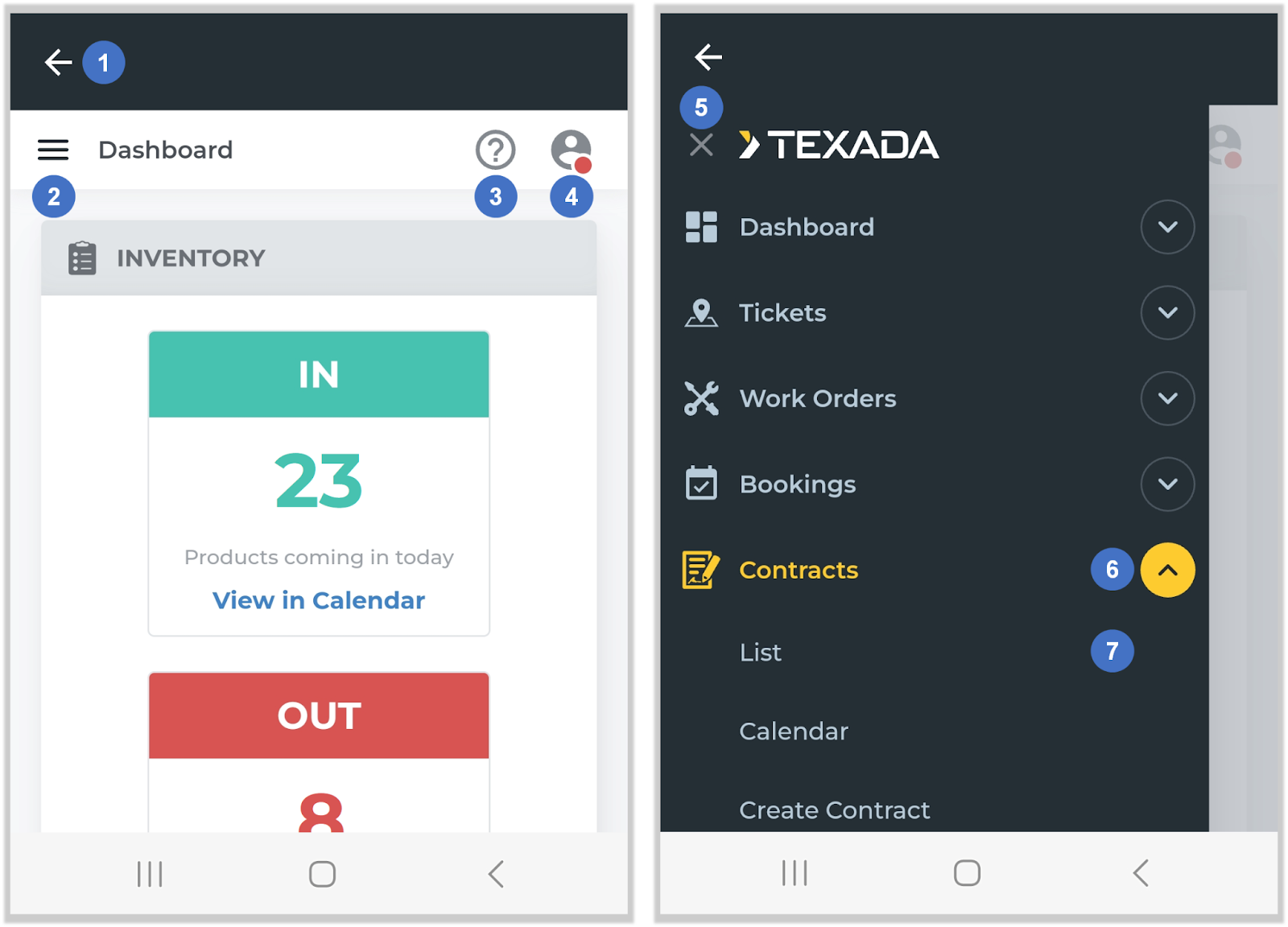
- Back to Service & Rental Mobile
Tap the back arrow in the top-left corner of the screen to return to Service & Rental Mobile.
 - Navigation Menu
Tap the hamburger icon to open the navigation menu (right).
 - Help and Feedback
Tap the question mark to open the Help and Feedback menu.
 - User Menu
Tap the profile icon in the top-right corner of the screen to open the User Menu.
 - Close Navigation Menu
Tap the X to close the navigation menu. - Expand/Collapse Menu
Tap the down arrow next to a menu item to expand it. Tap the up arrow
  next to an expanded menu to collapse it again.
 - Menu Item
Tap on a menu item to navigate to that page. Note that tapping on a top-level menu item, such as “Contracts”, will open the topmost page under that menu. To access the other pages, tap the down arrow to expand the submenu, then select the desired page.