
In This Article
Introduction
The User Menu provides you with a number of important options for managing your Service & Rental Mobile session, including the ability to change your Division and Location, clock in and out of the Time Tracker, access the Asset Management tool, and log in to Service, Rental, and Financials (Next). The following article will cover all of the options available from the User Menu in Service & Rental Mobile.
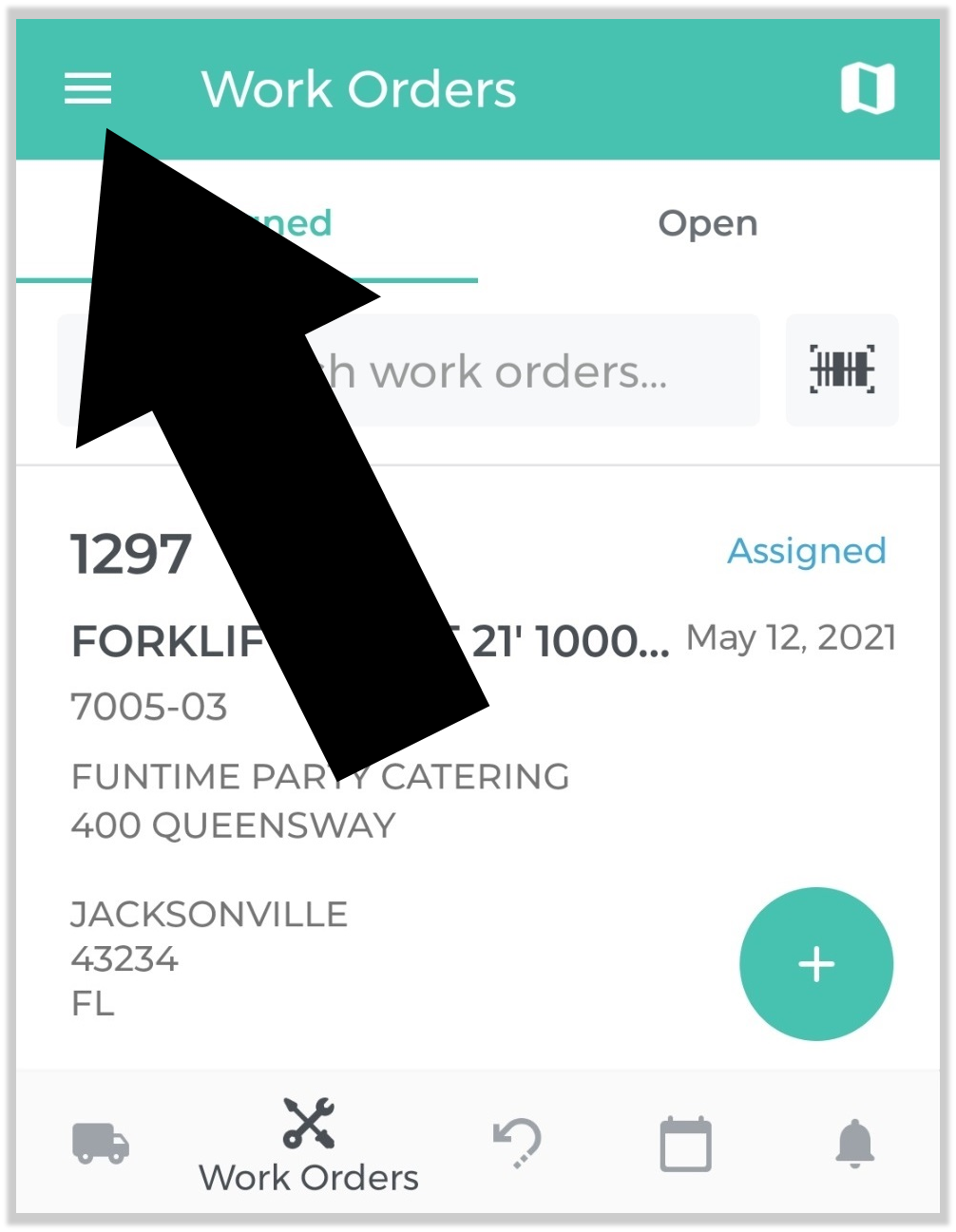
To reach the User Menu, tap on the hamburger icon  in the top-left corner of the screen. Note that this menu is only available from the main screens of Service & Rental Mobile; if you are in the Asset Management tool or are looking at a Ticket, Work Order, or In-Yard Return, you will need to back out of that tool before you are able to access the User Menu.
The User Menu
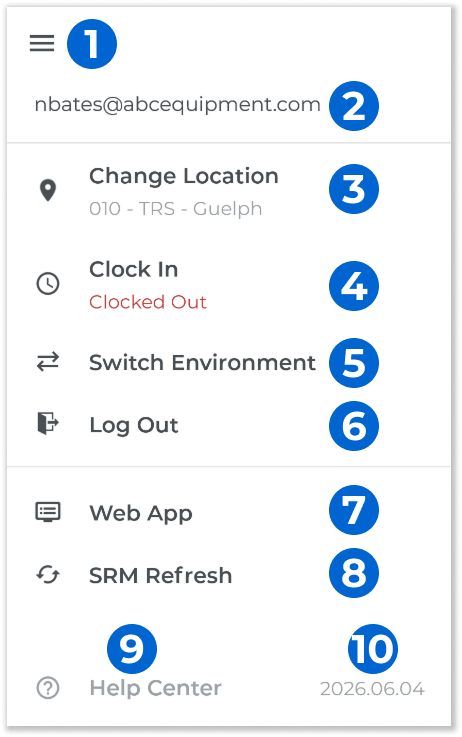
- Hamburger Icon
Tap the hamburger icon again to close the User Menu. - User Email Address
The current User’s email address. If you are clocked in, your email address will be displayed in green. Otherwise, it will be displayed in black. - Change Location Button
Tap to change your active Location and Division. See “Change Location and Division in Service & Rental Mobile” for more information. - Clock In / Clock Out Button
Tap to clock in to the Time Tracker, or clock out and save your session if you are already clocked in. See “Clock In and Out of Service & Rental Mobile” for more information. - Switch Environment Button
Tap to switch your current Environment (e.g. Production or Sandbox) or Tenant (company). - Log Out Button
Tap to log out of Service & Rental Mobile. See “Log In and Out of Service & Rental Mobile” for more information. - Web App Button
Tap to log in to Service, Rental, and Financials (Next) from your mobile device. This is a powerful feature that allows you to access functionality specific to Service, Rental, and Financials (Next) without needing to leave Service & Rental Mobile. Once you are finished with Service, Rental, and Financials (Next), tap the back arrow in the top-left corner of the screen to return to Service & Rental Mobile.
See “Access Service, Rental, and Financials (Next) from Service & Rental Mobile” for more information. - SRM Refresh Button
Tap to synchronize Service & Rental Mobile with Service, Rental, and Financials (Classic). Mobile automatically synchronizes with (Classic) whenever you perform an action such as updating a Ticket, Work Order, or In-Yard Return, but you can use this button to manually trigger the process and ensure that Mobile is fully up-to-date. - Help Center Button
Tap to open the Texada Knowledge Center on your mobile device. Once you are finished browsing the knowledge center, tap the back arrow in the top-left corner of the screen to return to Service & Rental Mobile.
 - Current Version
Your current version of Service & Rental Mobile is displayed here. Keeping Service & Rental Mobile updated to the latest version is required to run the app. See “Download, Install, and Update Service & Rental Mobile” for instructions on keeping Service & Rental Mobile up-to-date.