
In This Article
- Introduction
- Asset Tags
- Manage a Product’s Asset Tags
- Single and Multiple Asset Tags for Bulk Products
Introduction
In the context of Service, Rental, and Financials, a “Product” is any asset held in inventory for the purposes of rental, sale, or use in repairs or maintenance.
There are two main types of Product: Rental Products and Sale Products. Rental Products, also known as Assets, are large, complex assets that are rented out to generate revenue, while Sales Products, also known as Parts, are smaller assets intended for resale or use in repairs or maintenance. Rental Products can be further classified into bulk Products and non-bulk Products.
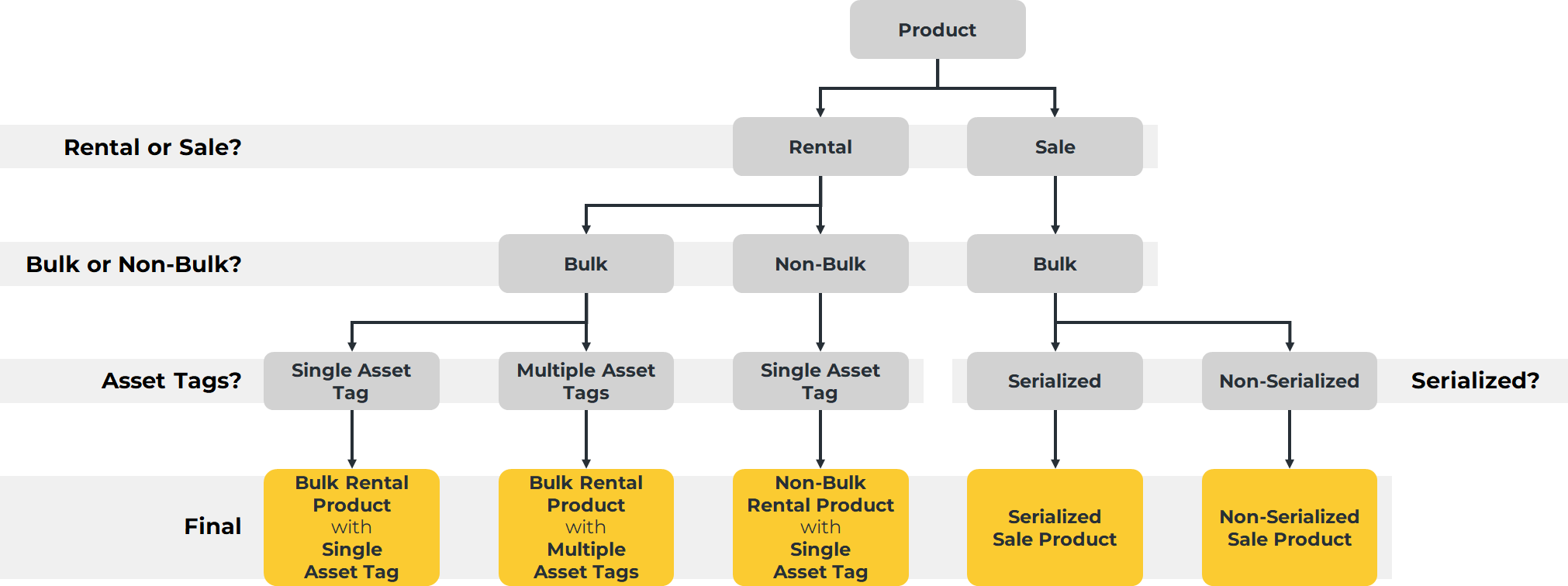 Diagram illustrating the different ways Products can be classified based on Rental or Sales status, bulk status, Asset Tags, and serialization. Click to view the full-sized image.
Asset Tags
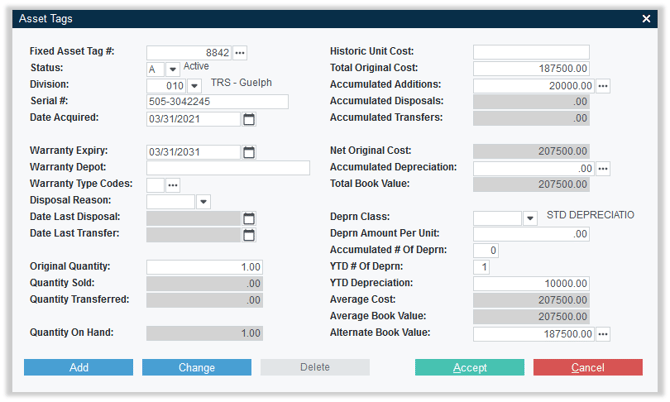
Every Rental Product has an attached Asset Tag - a document containing information about the Product. Non-bulk Products each have their own Asset Tag, whereas bulk Products may share an Asset Tag.
The following information is contained in a Product’s Asset Tag:
|
|
Manage a Product’s Asset Tags
A Product’s Asset Tags are managed via the Asset Tags utility in Service, Rental, and Financials (Classic). To manage a Product’s Asset Tags:
- Log in to Service, Rental, and Financials (Classic) and navigate to Inventory Control → Rental Inventory.
- Enter the Product Number of the Product you’d like to view and press Enter.
- Click on the three dots
 next to “Asset Tags”.
 - If the Product you are viewing is a non-bulk Product or a bulk Product with a single Asset Tag, the Asset Tag Detail utility will now open.
- If the Product you are viewing is a bulk Product with multiple Asset Tags, the Asset Tag Search utility will now open. Double-click the Asset Tag you would like to manage to open it.
- Edit the Asset Tag as desired and click “Accept” to save your changes. Click the “Add” button to add a new Asset Tag to the Product, or the “Delete” button to remove the current Asset Tag from the Product (bulk Products with multiple Asset Tags only).
Single and Multiple Asset Tags for Bulk Products
Each non-bulk Product in the system has exactly one associated Asset Tag. Bulk Products, by contrast, can either share a single Asset Tag or have multiple Tags.
Whether a bulk Product has a single Asset Tag or multiple Asset Tags is determined by the “Multiple Tags” checkbox in the Rental Inventory utility in Service, Rental, and Financials (Classic):
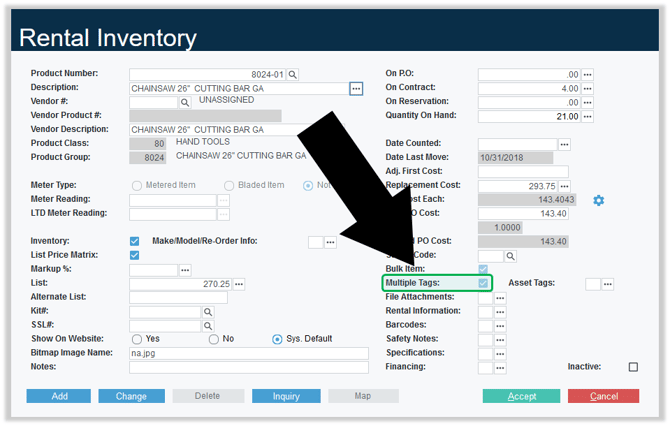
If this checkbox is unchecked, the Product has a single Asset Tag that is shared among the bulk Products. You can check this checkbox to enable multiple Asset Tags for the Product and begin adding additional Tags.
If this checkbox is checked, multiple Asset Tags can exist for the Product. This checkbox can only be unchecked if only one Asset Tag exists for the Product: if you have a Product with multiple Tags and would like to reduce this down to a single Tag, you must first use the Asset Tags utility to delete all but one of the Product’s Asset Tags. The remaining Tag will then be used as the singular Tag for the Product.