
In This Article
Introduction
A Customer is a company or individual – often a construction company – who rents or purchases equipment from a rental company. A Site is a location associated with a Customer, such a warehouse or construction site. In Service, Rental, and Financials (Next), it is possible to add one or more Sites to each Customer record. Sites are used in many places throughout the system, particularly when creating Contracts, Tickets, and Work Orders.
The following article will detail the process of adding, editing, or deleting a Site in Service, Rental, and Financials (Next).
Customer Sites and Global Sites
There are two types of Site in Service, Rental, and Financials: Customer Sites and global Sites. Customer Sites are specific to an individual Customer and can only be selected when creating or editing a document for that Customer. Global Sites are shared among all Customers and can always be selected when creating or editing a document.
Both Customer Sites and global Sites are created from the Create / Edit Customer screen. Whenever you create a Site, you have the option of creating it as a Customer Site or a global Site. Once a Site has been created, its type cannot be changed.
Add or Edit a Site
- Access Customer Record
Log in to Service, Rental, and Financials (Next) and navigate to the Create Customer screen or the Edit Customer screen. If you are editing an existing Customer, click the “Edit” button in the bottom-right corner of the screen to enable editing.
 - Select a Site
Scroll down to the Sites panel. Click on an existing Site in the table to edit it, or click the “Add New Site” button to add a new Site.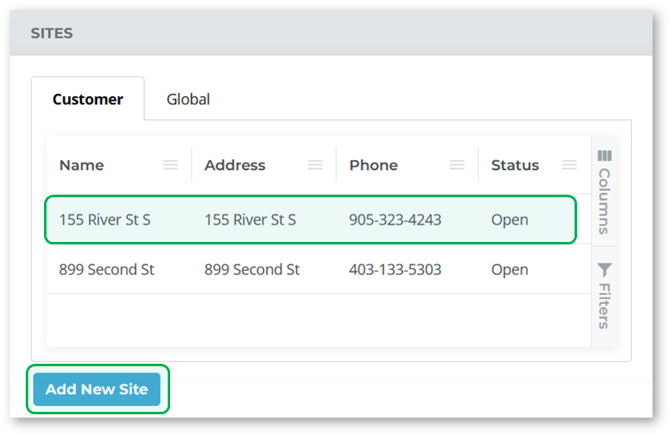
- Add or Edit Site
Fill out or modify the Site’s information. Click “Save Site” to save your changes, or “Close” to cancel.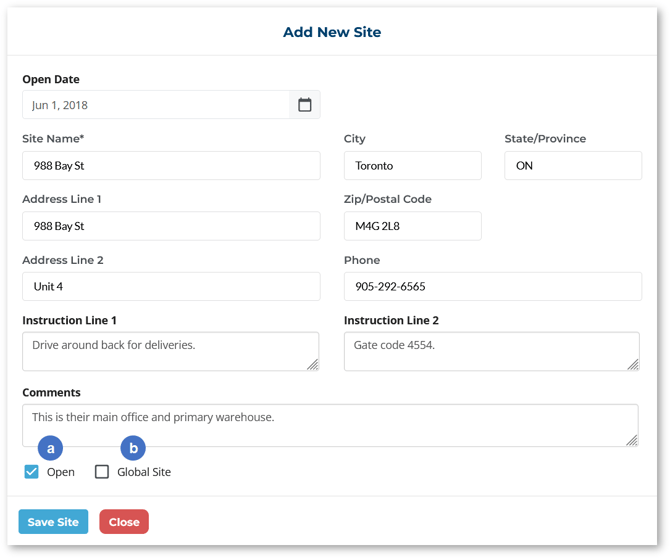
- Open Checkbox
This checkbox indicates whether the Site is currently open or closed. Enabling or disabling this checkbox will not affect the Site’s behavior; it is only meant as an indication of the Site’s current status. - Global Site Checkbox
This checkbox will only be enabled when creating a new Site. Enable this checkbox to create the Site as a global Site; disable it to create the Site as a Customer Site.
- Open Checkbox
- Save Customer Record
Once you are finished modifying Site records, click “Create Customer” if creating a new Customer, or “Save Changes” if editing an existing Customer.
Changes to Site information will only be saved after the Customer record is saved, so make sure to save the Customer record before navigating away from the page!