
In This Article
- Introduction
- Manage Date Ranges Using Manual Administration
- Manage Date Ranges Using Automatic Daily Rollover
- Override Date Range Control
Introduction
Many functions in Service, Rental, and Financials (Classic) are date sensitive. Date range control enables you to restrict the dates that operators can assign to various documents or transactions, reducing human error and helping to ensure accurate bookkeeping.
There are two methods of maintaining date ranges:
- Manual administration
This option involves manually updating the accepted date range for each function.
- Automatic daily rollover
This option allows date ranges to automatically self-update over time. This method simplifies the maintenance and administration of the date range controls, and is the recommended approach.
Manage Date Ranges Using Manual Administration
To manage date ranges manually, follow the steps below.
- Log in to Service, Rental, and Financials (Classic) and navigate to System Maintenance → Configure System Settings → Accounting tab → General Ledger.
- Next to Date Range Control, click more options
 to open the the Date Range Control window.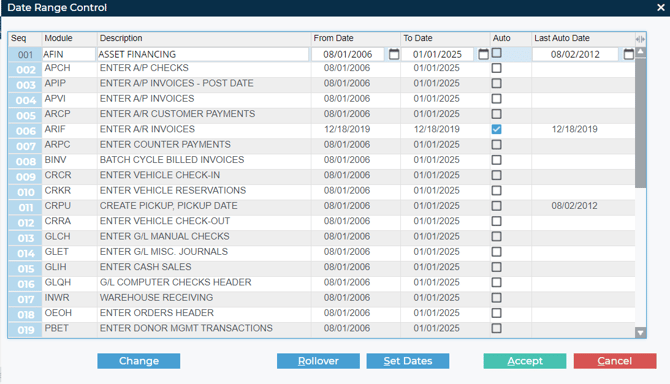
Set a Date Range For a Single Item
- Locate the entry you need to set the date range controls for, and use the From Date calendar menu to select the earliest date in the date range.
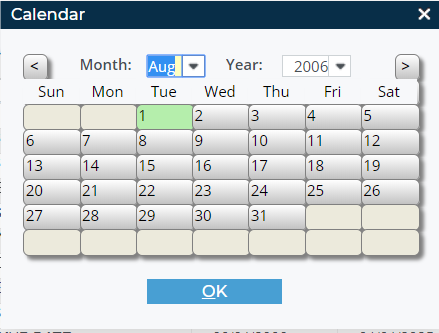
- Use the To Date calendar menu to select the latest possible date in the date range. Operators will be restricted to this range when dating documents of the selected type.
For example, RSCH RENTAL CONTRACT HEADER pertains to new Contracts. If a range is set from January 1st, 2026 (01/01/2026) to July 1st, 2026 (07/01/2026), operators will be only be able to create new Contracts dated within that range.
Set a Date Range For All Items
- Click “Set Dates” to open the Set Dates window.
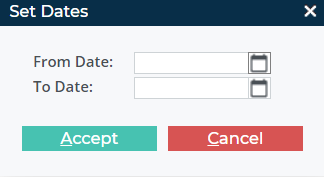
- Use the From Date calendar menu to select the earliest date in the date range.
- Use the To Date calendar menu to select the latest possible date in the date range. Operators will be restricted to this range when dating documents of all types..
Roll Date Ranges Forward by One Month
To roll the date control range forward exactly one month for any number of line items, do the following:
- Click “Rollover” to open the Month End Date Range Roll-Over window.
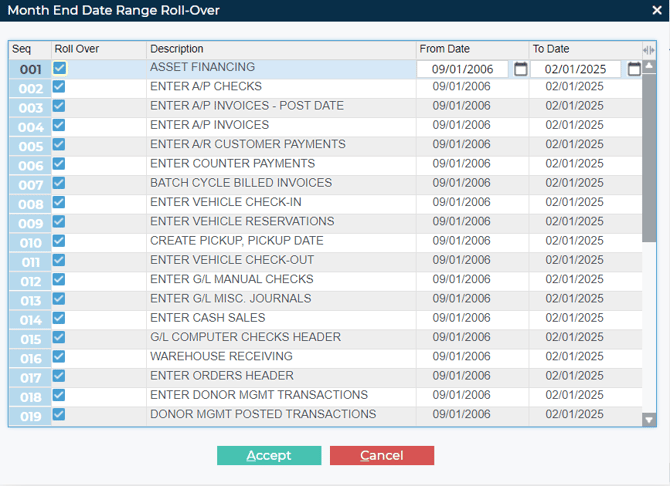
- In the Roll Over column, check any line items whose date range you want to roll forward.
- Click “Accept” to roll the date ranges for the selected line items forward by exactly one month.
Manage Date Ranges Using Automatic Daily Rollover
- Log in to Service, Rental, and Financials (Classic) and navigate to System Maintenance → Configure System Settings → Accounting tab → General Ledger.
- Next to Date Range Control, click more options to open the the Date Range Control window.
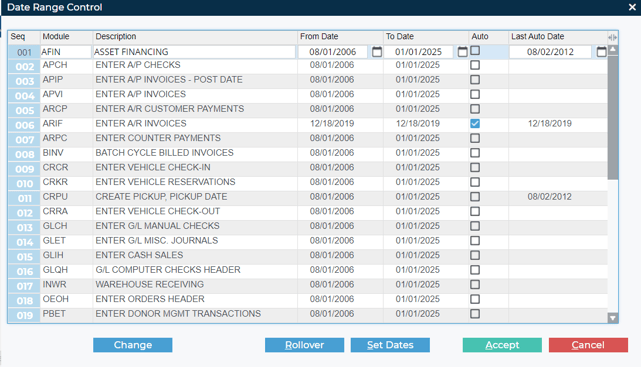
- Check the box under the “Auto” column for each of the items whose date ranges you want to automatically roll over.

- Click “Accept”. The checked line items will now roll over indefinitely on a daily basis.
For example, ARPC ENTER COUNTER PAYMENTS refers to customer payments taken under the Counter menu. By setting this line item to “Auto”, you can maintain a rolling date range that would restrict counter operators to submitting payments for the current date only.
Override Date Range Control
You can enable specific operators to override a date range. This enables the operator to ignore any previously-configured date range controls.
It is strongly advised that you use overrides as the temporary exception for experienced operators, rather than the permanent rule. An operator with override permissions can create entry transactions with any date. As a result, the operator can deliberately or accidentally create postings in closed financial periods or far into the future.
- Log in to Service, Rental, and Financials (Classic) and navigate to System Maintenance → Configure System Settings → Security → General Settings.
- Next to Operators, click more options
 to open the Operators window.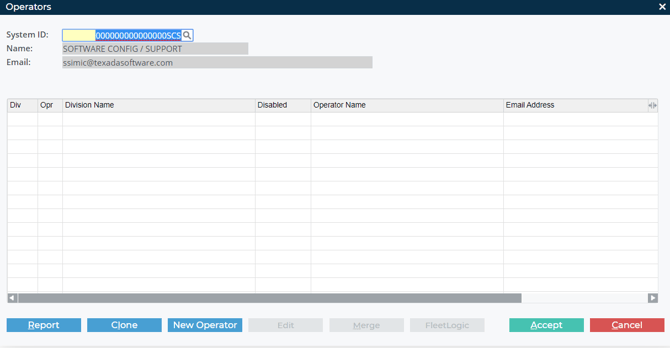
- Locate the operator to which you want to add the override permission and click “Edit” to open the Operator window.
- Check “Date Range Override”.
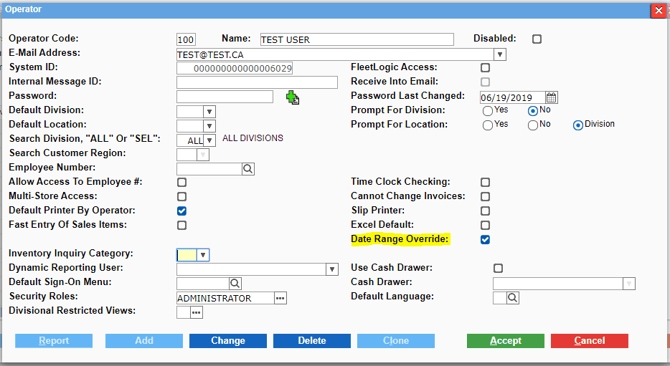
- Click “Accept” to apply the date range override permission to this operator.