.png?width=365&height=50&name=Texada%20Logo%20(Black).png)
In This Article
Introduction
A Work Order is a document indicating that an Asset requires servicing, either for repairs or routine maintenance. Work Orders can be created by a counter operator using Service Management (Classic or Next), or by a Mechanic using Service & Rental Mobile. Once created, Work Orders are assigned to Mechanics for completion and are completed using Service & Rental Mobile.
In Service Management (Next)

Notes
- Work Orders are only automatically billed to a customer when the Work Order is set to the Closed status.
- You can add multiple Mechanics to a Work Order at any point in the workflow except when the Work Order is in the Completed or Closed status.
In Service & Rental Mobile
Work Orders are one of the core functions of Service & Rental Mobile, enabling your Mechanics to complete their work in the field, then report back to your counter in real-time, so that you always have the latest information as to the status of your fleet.
The workflow for completing a Work Order in Service & Rental Mobile is as follows:
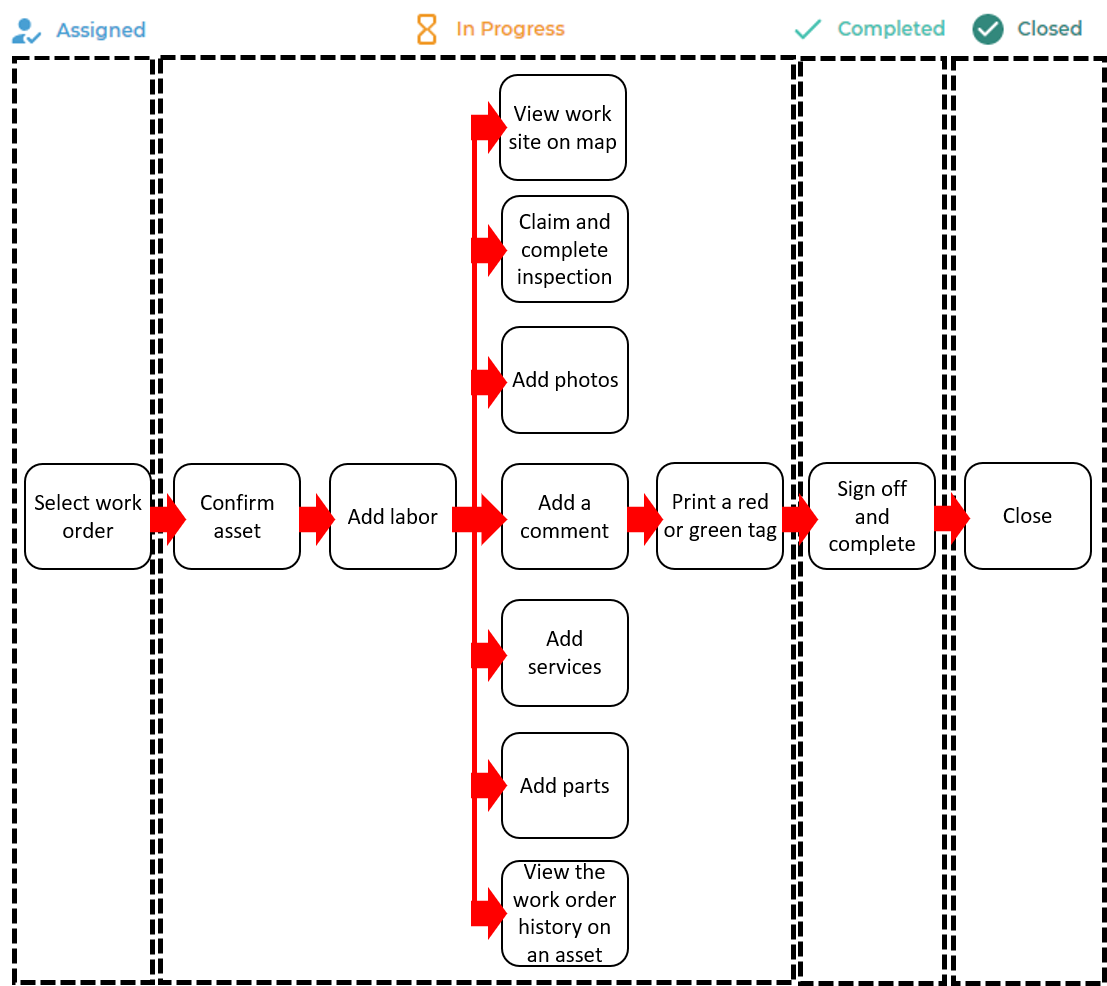
As a Mechanic, you can view the list of Work Orders that are assigned to you, or view a list of open Work Orders that are not assigned. You can then either select an assigned Work Order or request an assignment on an open Work Order. At this point in the workflow, the Work Order is in the Created or Assigned status.
When working with a Work Order that is assigned to you, you are immediately prompted to confirm which asset you are servicing, whether by a keyword search or by using the app to scan the barcode of the asset. At this point, the Work Order enters the In Progress status.
By default, you are then prompted to select the type of labor involved in the Work Order from a user-defined list of options.
Notes:
- You can set whether you are prompted to select the labor type or not.
- Labor types are managed in Service, Rental, and Financials (Classic).
- After adding labor, you can add a number of different pieces of information to the Work Order record:
- Photos of the asset
- Comments
- Services
- Parts
- You can also use the Work Order as a reference by viewing:
- The location of the worksite in Google maps
- The previous Work Order history of the asset being serviced
You can claim and complete a pre-set Work Order inspection form.
Note: The points on the inspection form are set up by your company in Service, Rental, and Financials (Classic).
When you are finished adding or updating information in the Work Order and have completed the work, you can complete the Work Order. If your company’s workflow includes green or red-tagging the asset, you will be prompted to print the appropriate tag. If not, you will be prompted to obtain a digital signature and sign-off confirming the work is completed. At this point, the Work Order enters the Completed status.
Once a Work Order has been Completed, a counter operator using Service Management (Classic or Next) can mark it as Closed. Depending on the nature of the Work Order, a number of outcomes can occur. See: “Close a Work Order in Service Management (Next)” for more information on these outcomes.
Note: You cannot close a flagged Work Order in Service Management (Next), only (Classic).
For more information on Work Order statuses, see “About Work Order Statuses”.
Common Use Cases
- Maintenance
A bulldozer you rented to a customer needs an oil change. The counter worker creates a Work Order in Service Management (Next) and assigns it to a technician. The technician visits the customer’s site, performs the oil change, and signs off on the Work Order in Service & Rental Mobile. Your Service Management (Classic or Next) user closes the Work Order and the customer is billed immediately for the work. - Repairs
Your company offers a dedicated repair service, independent of your rental/sales services. A call comes in to repair a customer-owned boom lift. The counter worker creates a Work Order in Service Management (Next) and assigns it to a Mechanic. The Mechanic visits the customer’s site, performs the repairs, and signs off on the Work Order in Service & Rental Mobile. Your Service Management (Classic or Next) user closes the Work Order and the customer is billed immediately for the work. - Fleet Inspections
A well-maintained fleet is a safe and profitable fleet. To ensure your fleet is in top shape for your customers, create internal Work Orders to inspect and perform regular maintenance on your assets. The counter worker creates a Work Order in Service Management (Next) and assigns it to a Mechanic. The Mechanic visits the yard and performs their inspection. They sign off on the inspection in Service & Rental Mobile. Your Service Management (Classic or Next) user then closes the Work Order and the cost of the work is posted against the history of the asset if parts were required. - In-Yard Returns
Using Service Management (Classic), the application administrator schedules a Work Order inspection whenever a piece of equipment is returned to the yard. The counter worker sees the Work Order in Service Management (Next) and assigns it to a Mechanic. The Mechanic visits the yard and performs an inspection. They sign off on the inspection in Service & Rental Mobile. Your Service Management (Classic or Next) user closes the Work Order and the cost of the work is posted against the history of the asset if parts were required. The piece of equipment is ready to be sent out again.