
In This Article
Introduction
The Projects screen in Equipment CRM Mobile is your main tool for browsing and viewing Projects on your mobile device. It lists all of the active Projects in your system and allows you to search, filter, and view detailed information on each.
To reach this screen, select Sales from the bottom menu, then scroll down to the Leads & Opportunities section and select View Projects.
Projects
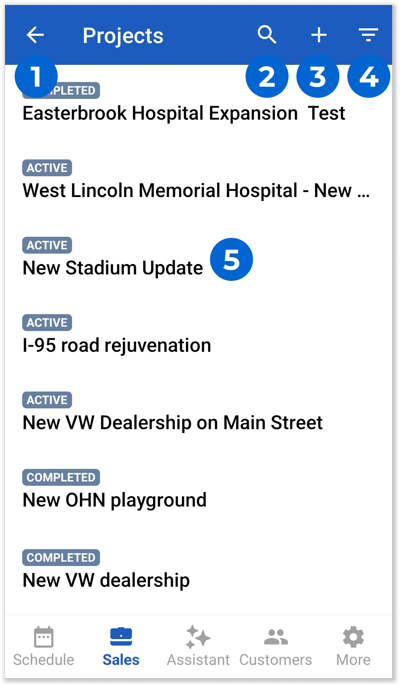
- Back Button
Tap to return to the Sales menu. - Search Icon
Tap on the search icon then begin typing into the search bar to search for a Project by its name. - Add Project
Tap to create a new Project. See “Create a Project” for more information. - Filters
Tap to open the Filters pane and filter the list of Projects. - Project
Tap on a Project to open its details screen.
Filters
Tap the filter icon  in the top-right corner of the Projects screen to open the Filters pane (left). This allows you to filter the Project list by various criteria.
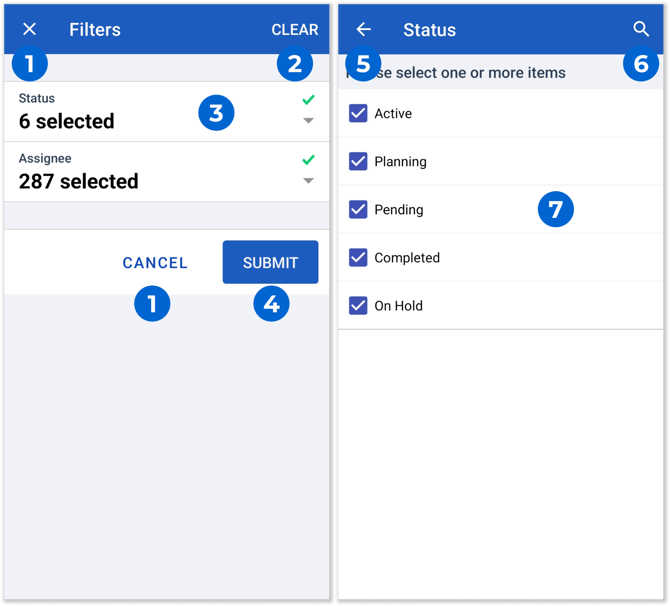
- Cancel
Tap to return to the Projects screen without applying your filters. - Clear
Tap to clear all applied filters and display all Projects. - Filter
Tap on a filter to view the list of options for that filter (right). Two filters are available:- Status: Filters Projects based on their current status. Remember that Project statuses can be edited via the Manage Dropdowns screen in Equipment CRM.
- Assignee: Filters Projects based on their currently-assigned salesperson.
- Submit
Tap to apply the selected filters. - Back Button
Tap to return to the Filters pane. - Search
Tap the search icon, then begin typing into the search bar to search for a specific option under the current filter. - Option
Tap on an option to display or hide matching Projects.
Project Details
Tap on a Project in the Projects list to open its Project Details screen. This screen contains detailed information on the Project in question.
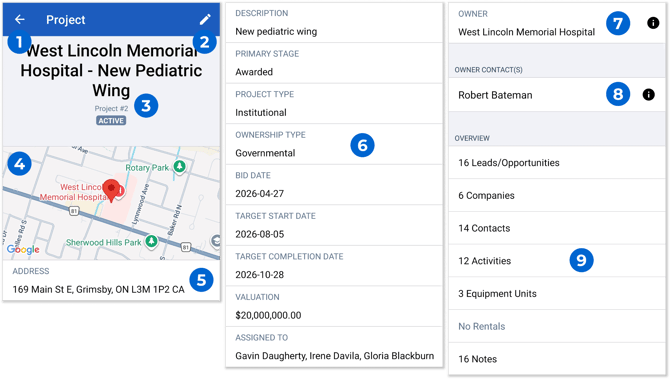
- Back Button
Tap to return to the Projects list. - Edit Button
Tap to edit the Project record. - Project Information
The Project’s name, current status, and Project Number (ID). - Map
A map containing a pin showing the location of the Project. Tap on the pin to open a menu containing additional options.- Apple / Google Maps: Open the Project’s location in Apple / Google Maps.
- Copy: Copy the Project’s location.
- Share: Share the Project’s location via another application.
- Around Here: View nearby Projects via the Around Here function.
- Address
The Project’s address. This is the location shown on the map directly above. - Additional Information
Additional information about the Project, including its description, stage, type, start and completion dates, assignees, and valuation information is listed here. For a detailed description of this information, see “The Project Details Page”. - Owner
The company that owns this Project. Tap the Owner’s name to open its Customer record. - Owner Contacts
The Owner’s primary contact(s) for this Project are listed here. Tap on a Contact’s name to open their Contact profile. - Related Records
Lead/Opportunity, Company, Contact, Activity, Equipment, Rental, and Note records associated with the current Project are listed here. Tap on a record type to view a detailed list of records of that type – see “Related Records” for more information.
Edit Project
Tap the pencil icon  in the top-right corner of the Project Details screen to switch to the Edit Project screen. Here, you can edit the details of a Project.
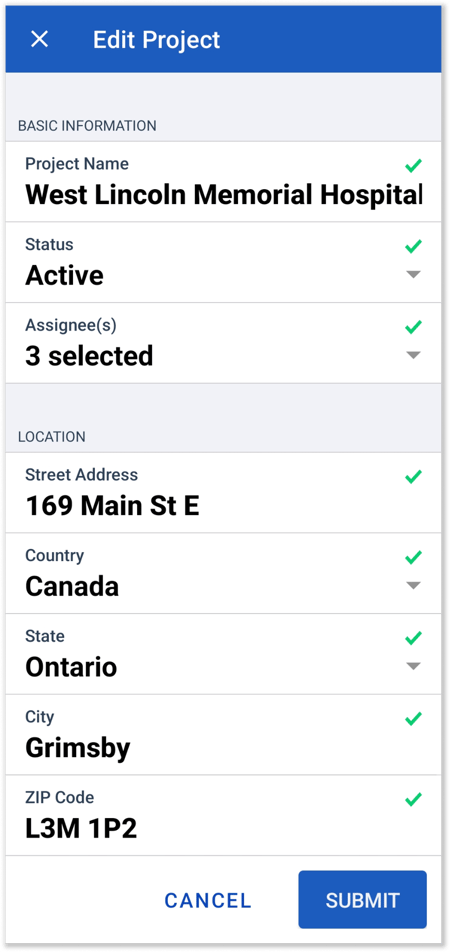
Tap on a field to edit its value. Once you are finished, tap the “Submit” button at the bottom of the screen to save your changes.
Related Records
From the Project Details screen, tap on a record type under “Related Records” to open the Related Records screen. This screen lists the records of the selected type that are associated with the current Project.
For example, tapping on “Companies” will display the All Companies screen (left), which contains the list of subcontractors for the current Project. Tapping on “Contacts” will display the All Contacts screen (right), which contains the list of Customer Contacts associated with the Project.
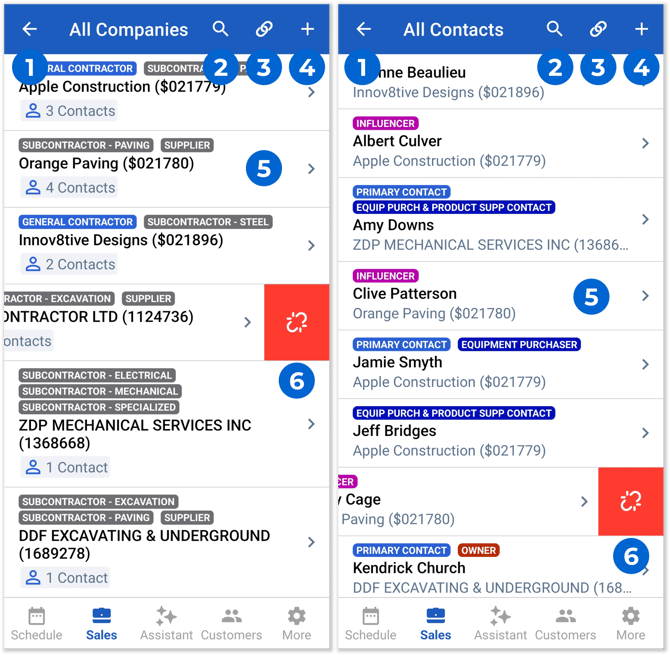
- Back Button
Tap to return to the Project Details screen. - Search Bar
Tap the search icon, then begin typing into the search bar to filter the list of records by the text entered. - Link Record Button
Tap to associate a new record of this type with the current Project.
Depending on the type of records you’re viewing, the information required to associate a record will change. For example, tapping this button while viewing All Companies will allow you to associate a new Customer with this Project by specifying its name and role. Tapping this button while viewing All Contacts will allow you to associate a new Contact with this Project by specifying their company, name, and primary contact status. - Create And Link Record Button
Tap to create a new record of this type, then immediately associate this new record with the current Project.
For example, tapping this button while viewing All Companies will open the Add Prospect screen. - Related Record
Records related to the current Project are listed here.
Depending on the type of records you’re viewing, the information displayed for each record will change. For example, when viewing All Companies, each Company’s role, name, number, and number of Contacts associated with the Project will be displayed. When viewing All Contacts, each Contact’s type, name, and parent company will be displayed.
Tap on a record to open its details. For example, tapping on a Company record will open its Customer details page. - Remove Button
Swipe left on a record to reveal the Remove button. Tap this button to disassociate that record from the current Project. This will NOT delete the record, just remove it from the current Project’s related records.