In This Article
Introduction
The Around Me feature in Equipment CRM Mobile allows sales representatives to take advantage of nearby opportunities while on the road. With the release of Projects in Equipment CRM, Around Me has seen a number of Project-related updates. The following article will cover how to use these two features together to get the most of your mobile experience!
Around Me
The Around Me screen in Equipment CRM Mobile can be found at Customers → Around Me. Tap this option to open a map of nearby Customers, Projects, and equipment.
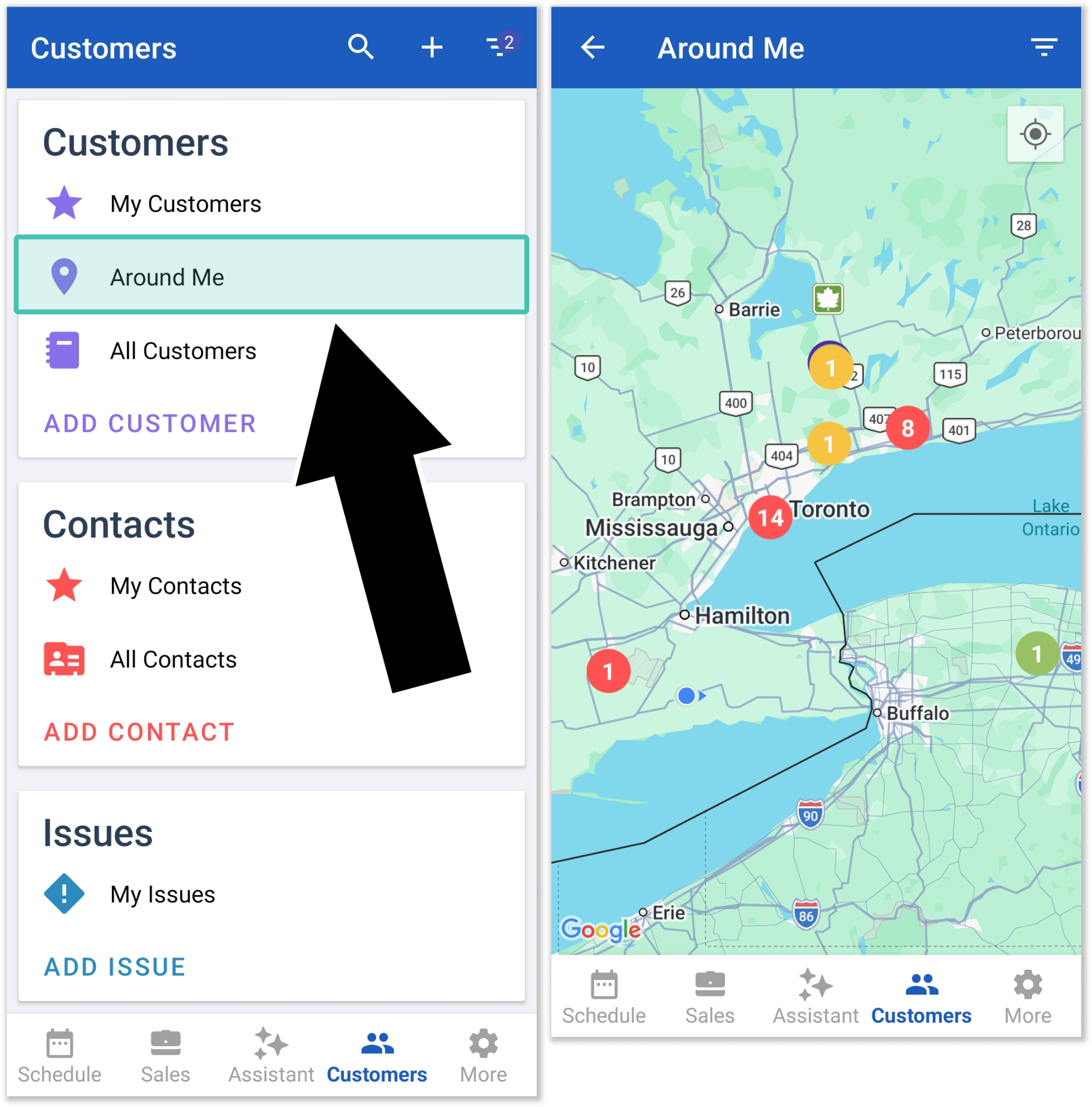
The small blue dot is your current location. Other points of interest are indicated by color-coded dots:
- Yellow dots are rental equipment.
- Green dots are Customer equipment.
- Purple dots are Customer locations.
- Red dots are Project locations.
The number inside each dot indicates the number of records at that location.
Single Record
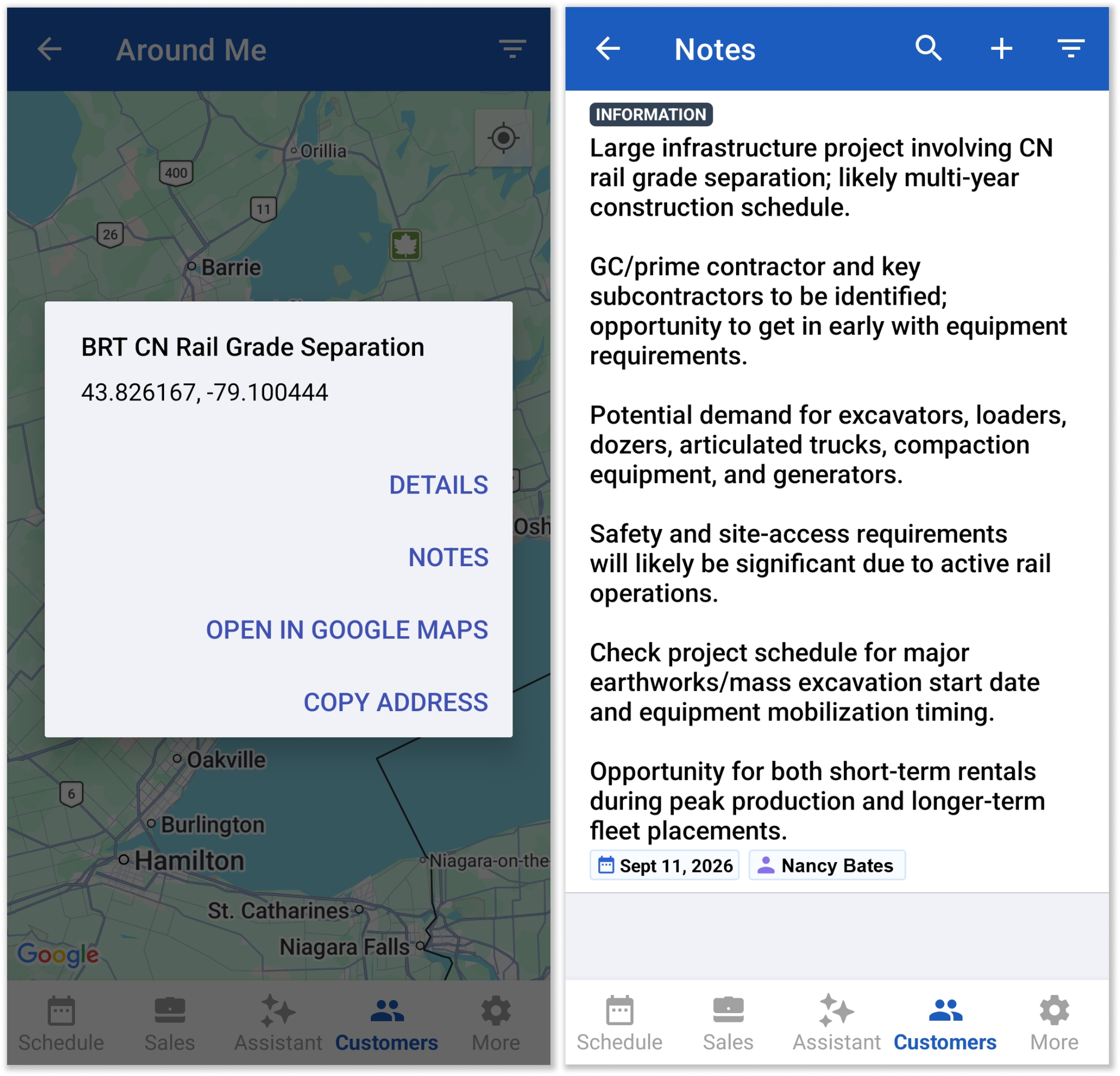
Tap a dot containing a single record to open a pop-up showing its location and some additional options (left). From here, tap “Directions” to navigate to that location, or tap “Details” to open the record.
Project records will have an additional “Notes” option. Tap this option to navigate directly to the Project’s Notes screen (right) and review Project Notes.
Multiple Records
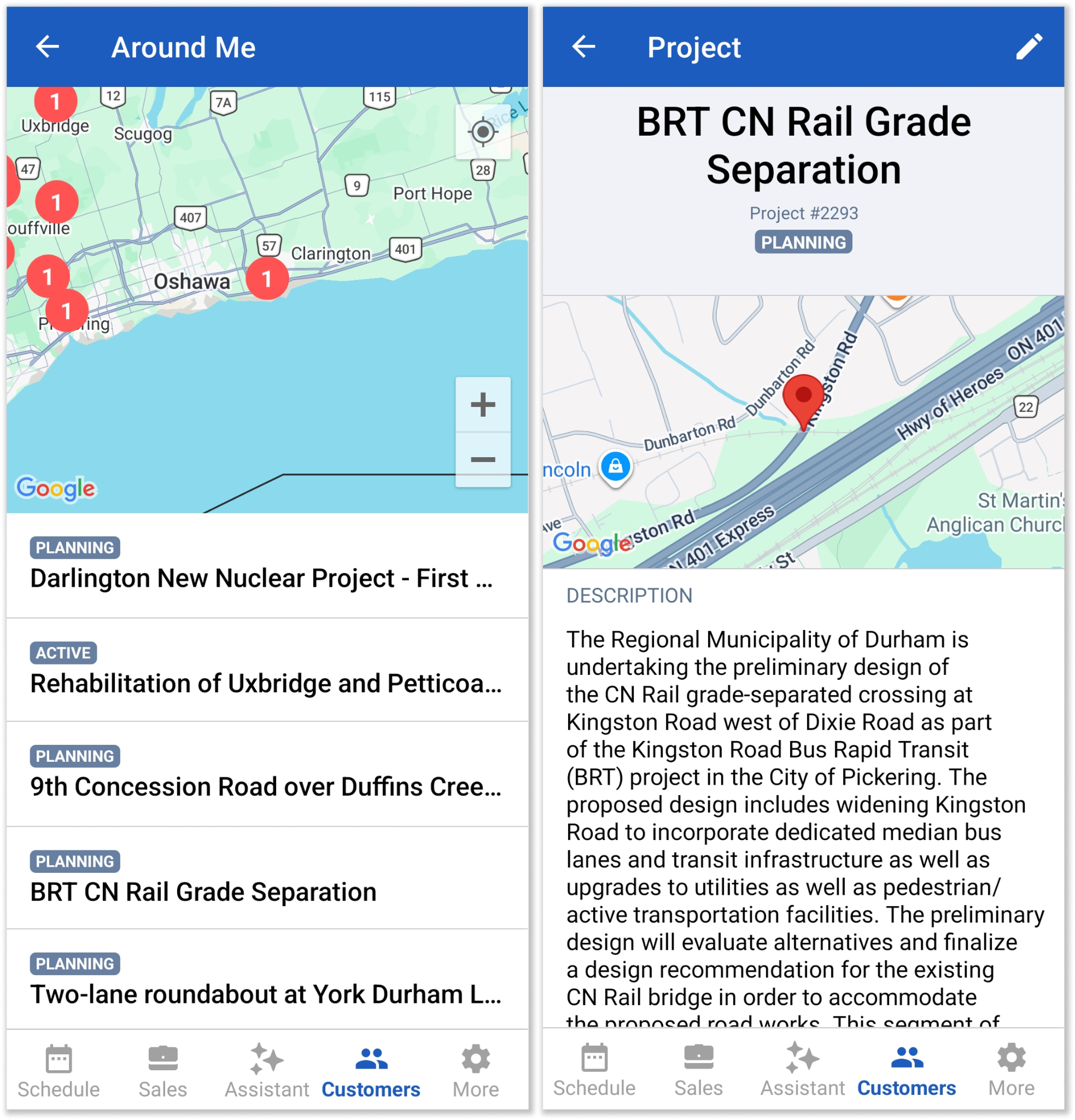
Tap a dot containing more than one record to see the list of records it represents (left). Then, tap a record to view it (right).
Filters
Tap the filter icon  in the top-right corner of the Around Me screen to open the Filters screen. This screen allows you to filter the icons that appear on the map.
The filters you apply here will be preserved the next time you open Equipment CRM Mobile. If you are getting unexpected results on the Around Me screen, check which filters are active!
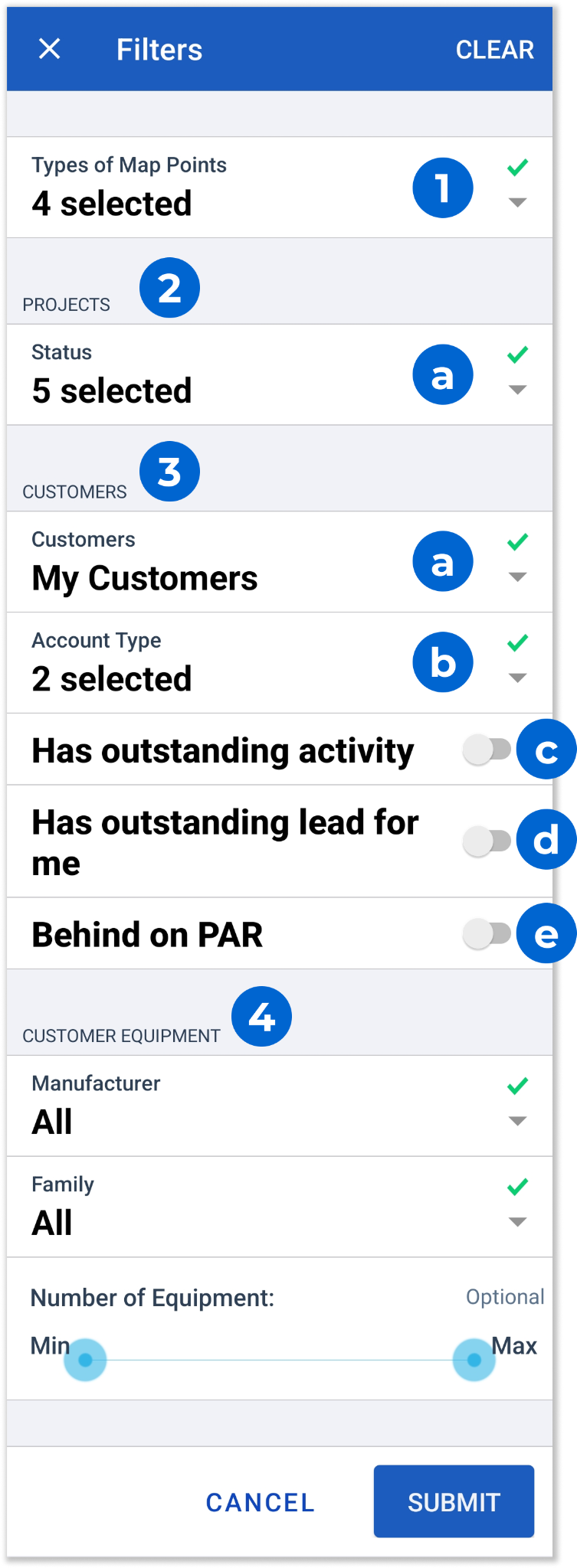
- Types of Map Points
Tap to select which types of map points (Customer, Customer Equipment, Rental Equipment, and Projects) should be displayed. - Projects
This section contains options for filtering Project (red) map points.- Status
Filter Projects by Project status. By default, all statuses except “Completed” will be displayed. Note that the list of Project statuses can be modified by an Equipment CRM administrator via the Project Settings screen.
- Status
- Customers
This section contains options for filtering Customer (purple) map points.- Customers
Select between viewing My Customers (Customers assigned to the current user) and All Customers. - Account Type
Filter Customers by Account Type. - Has Outstanding Activity
Enable to display only Customers that have at least one outstanding sales Activity. - Has Outstanding Lead for Me
Enable to display only Customers that have at least one outstanding Lead for the current user. - Behind on PAR
Enable to display only Customers that are currently behind on their Planned Activity Rate (PAR).
- Customers
- Customer Equipment
This section contains options for filtering Customer equipment (green) map points.
Default Homepage
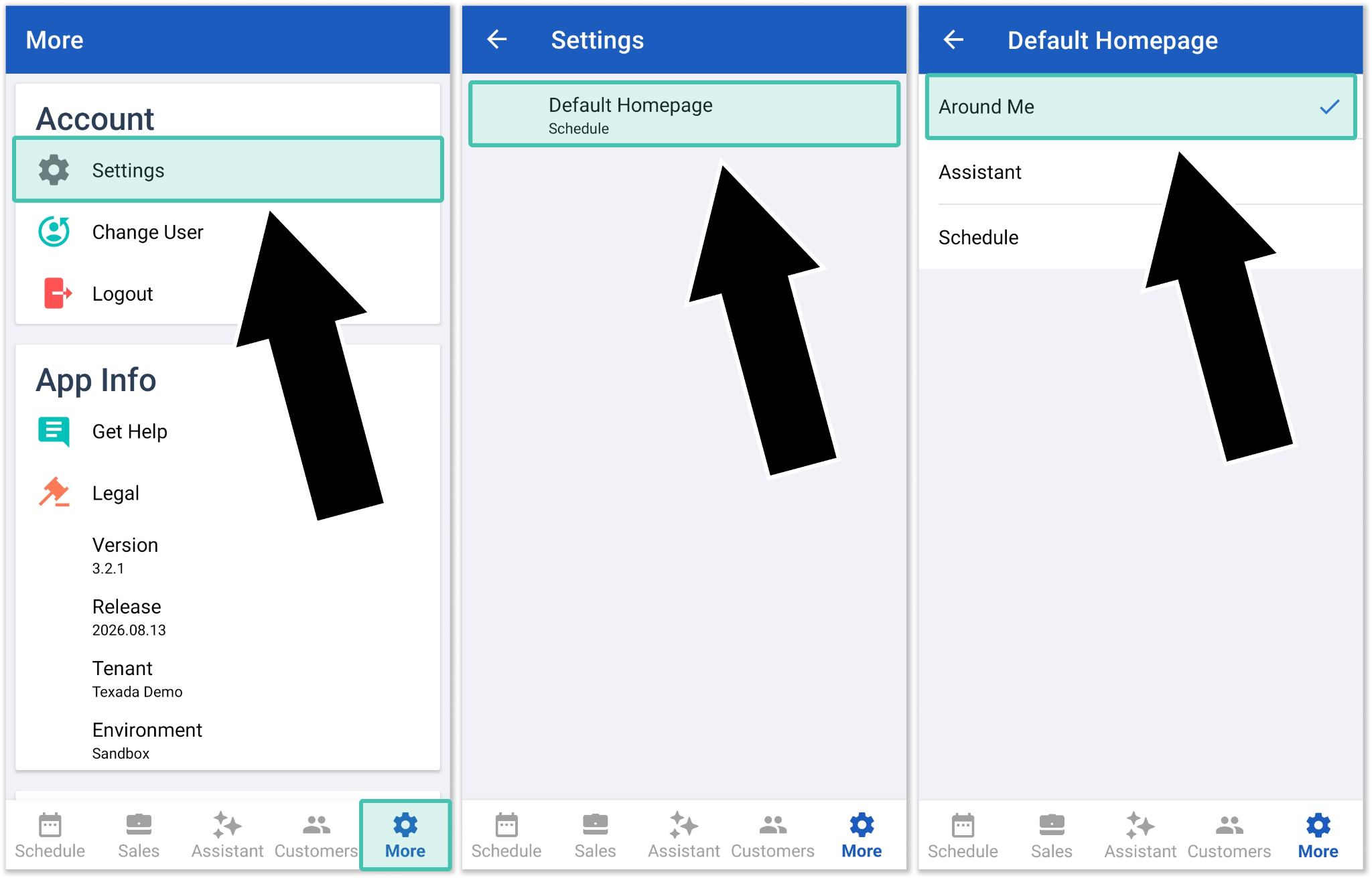
The Default Homepage feature allows you to select which screen will be opened when you first launch Equipment CRM Mobile. By setting Around Me as your default homepage, you can quickly return to this screen each time you log in.
To do this, navigate to More → Settings → Default Homepage, then tap “Around Me”. Equipment CRM Mobile will now launch to the Around Me screen.