.png?width=365&height=50&name=Texada%20Logo%20(Black).png)
In This Article
- Introduction
- Project Files
- Engineering Services Register
- Outstanding Activities
- Adding an Outstanding Activity
- Viewing Outstanding Activities
- Marking an Activity as Complete
- Completed Activities
Introduction
Once a Quote has been saved, several new tabs are added to it.
Project Files
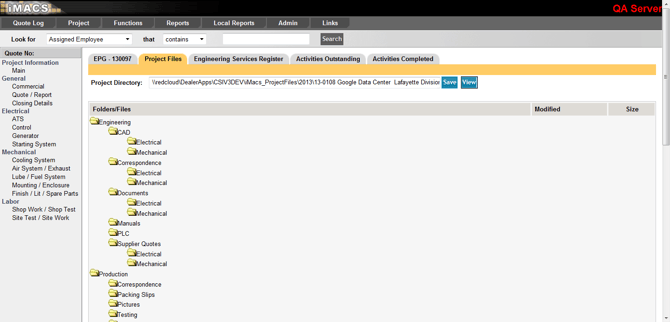
With each quote, iMACS automatically creates a file structure on a dealer-specified, internal shared drive. These folders will be used as the ‘one safe source’ to house all your quote and project files. Simply save files to the appropriate folder located within the Project Directory on your server, and iMACS will create visibility to that file and a link to access it.
Engineering Services Register (ESR)
The Engineering Services Register is a way to log employee time against a stock number and/or service segment. Go to Functions > Engineering Services Register from the Global Menu to populate by stock number and service segment.
Outstanding Activities
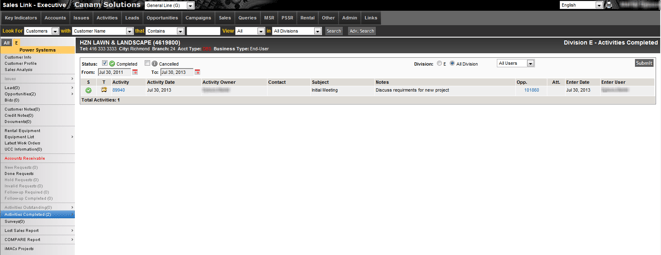
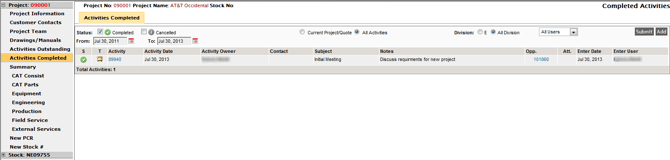
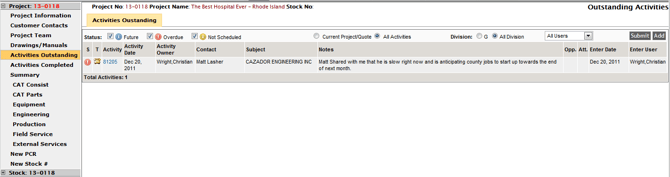
Activities (both Outstanding and Completed) can be added and viewed in iMACS, and are shared and visible within SalesLink and Customer Search. Filter by activities entered on the current project/quote or view all activities at the customer level. You can also view by status, division and user.
Adding an Outstanding Activity
Within the project menu, select the ‘Activities Outstanding’ link and click ‘Add’. Some information populates based on the customer information on the quote or project. Enter all your pertinent information and Save Activity.
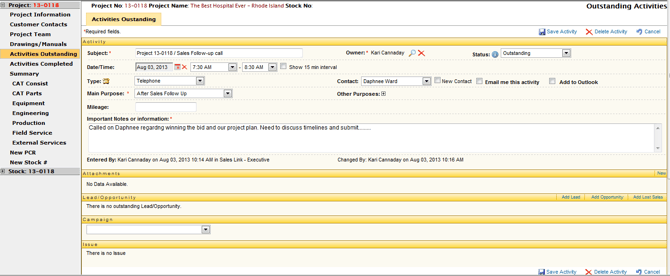
Subject: A short description of the activity.
Owner: This will be defaulted to the person who is logged in but can be assigned to another individual. By selecting the search icon  , a user can search for a rep or another user by last name. The activity will be saved on that individual’s calendar.
Status: The following options can be chosen when adding an activity:
|
|
Outstanding – activity is scheduled and has not occurred yet |
|
|
Completed – activity has been completed (a follow up activity can now be scheduled) |
|
|
Cancelled – a planned activity has been cancelled for any reason |
|
|
Overdue (visible on reports only) – if an activity has a scheduled date before the current date, the status will automatically change to Overdue |
|
|
Not Scheduled (visible on reports only) – activity does not have a scheduled date |


Date/Time: Click on the calendar icon to add or change the date of the activity. The time is broken down into half hour intervals by default. The user can also choose 15 minute intervals by placing a checkmark in the box beside ‘Show 15 min interval’.
Type: Activity Types are configured per the dealers’ requirements, but some examples are
|
|
Email – best practice: upload the email in the attachment section |
|
|
Fax – it’s a good idea to record fax information in Notes (subject, date, time, etc.) |
|
|
Letter – if digital copy is available, attach it in the attachment section |
|
|
Meeting – keep notes of what was discussed in the notes section and create a follow up activity with any outstanding items |
|
|
Message – if the message was left with someone other than the contact’s voicemail, be sure and notate the contact |
|
|
Special Event – examples could be a trade show or an open house |
|
|
Telephone – thoroughly detail the information from the conversation |


Contact: If the customer is an existing DBS customer or Prospect, the influencers associated with the account will appear in the drop down list. If is a new contact or new customer, click on the New Contact box and a text box will appear to enter the contact’s name. When saving the activity, the system will prompt you to save the contact as an influencer on the customer account.
Email Me This Activity: Selecting this will send a copy of the activity in email to the user that is logged in. This gives the option to add notes, and share the activity with others.
Main Purpose: Choose from the dealer-defined drop down list.
Other Purpose: If there are additional reasons for the activity, select the + sign and choose all that apply.
Important Notes or Information: Any notes pertaining to the activity
Follow up Activity: This option will only appear if the status of the opportunity is set to Completed. If yes is chosen, the fields will appear as if entering in a new activity and default the follow-up activity date based on the customer’s PAR. If the activity is Not Customer Related or is associated with a new customer, the system will assume the PAR is 0.

After saving, the system will automatically add the follow up activity to the user’s SalesLink calendar and it will include a link to the new activity via the activity number.
Attachments: Any file pertaining to the activity can be added. Click on the New link located on the right of the title bar to add an attachment. Browse for the file and enter a description. Select Add when complete.
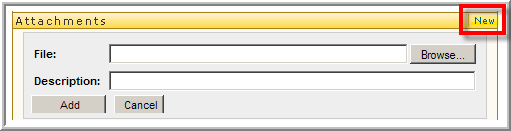
After the attachment has been added, only the user who entered the file has the ability to edit  the description or delete
  the file.

Viewing Outstanding Activities
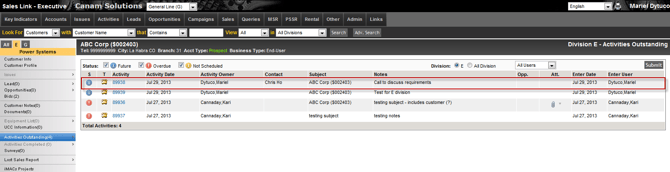
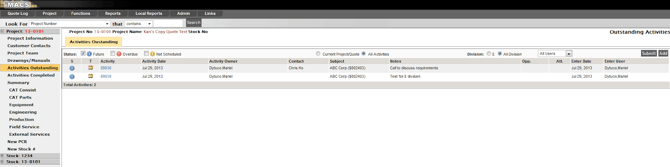
Outstanding activities can be viewed in iMACS and by anyone who has access to SalesLink. The activity can be edited in either application.
Marking an Activity as Complete
In either iMACS or SalesLink, select the blue activity number from the Activity column in the ‘Activities Outstanding’ page and select ‘Edit Activity’.
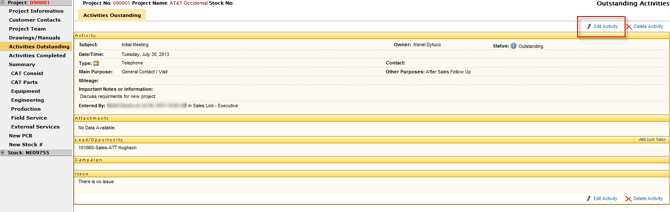
After entering in any additional information pertaining to the activity, select ‘Complete’ from the status drop down menu and ‘Save’ the activity.
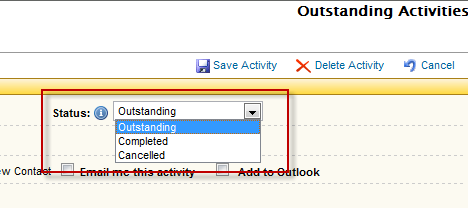
The activity will move to the ‘Activities Completed’ page.
Completed Activities
Any completed activity pertaining to this project, or all activities completed on the customer account can be viewed within the project in iMACS or in SalesLink / Customer Search.