
In This Article
Introduction
Rental Management’s Check-In / Check-Out functionality allows yard workers to inspect Products and collect Customer signatures at the start and end of rental Contracts.
Check-Outs are performed at the beginning of a rental Contract, when the customer arrives to pick up rented equipment. Check-Outs are configured in Rental Management (Classic), completed in Service and Rental Mobile, and can be reviewed in Rental Management (Next).
The following article provides an overview of the Check-Out List page in Rental Management (Next). To reach this page, select Bookings → Check Outs from the left navigation menu.
The Check-Out List
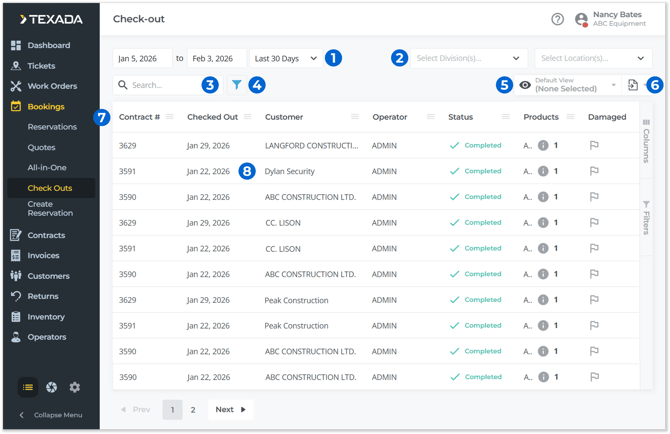
- Date Range Selector
The range of dates for which Check-Outs will be displayed. Use the start and end date selectors to create a custom date range, or use the drop-down to pick from a list of ranges. - Division / Location Selectors
Select one or more Divisions or Locations from the drop-downs to filter the list of Check-Outs by those locations. - Search Bar
Begin typing into the search bar to filter the list of Check-Outs by the text entered. This will search by Contract #, Customer, Operator, and Products. - Filter Button
Click to view advanced filtering options for the Check-Out list. See “Working with Tables” for more information. - View Manager
Click to manage views for the Check-Out list. See “The View Manager” for more information. - Export Button
Click to export the contents of the Check-Out list. See “Exporting the Contents of a Table” for more information. - Check-Out List
Check-Outs that match the currently-selected filters are displayed here. See “Working with Tables” for information on customizing this table. - Check-Out
Click on a Check-Out to view its details. See “Check-Out Info” for more information.
Check-Out List - Columns
The Check-Out list comprises the following columns:
- Contract #: The number of the Contract associated with this Check-Out.
- Checked Out: The date and time on which the Check-Out was performed in Service and Rental Mobile.
- Customer: The name of the Customer associated with the Check-Out.
- Operator: The Service and Rental Mobile user who performed the Check-Out.
- Division: The Division at which the Check-Out was performed.
- Location: The Location at which the Check-Out was performed.
- Status: The Check-Out’s status (Created or Closed).
- Products: The number of Products that were checked out. Hover your mouse over the info icon
 for information on these Products.
 - Damaged: If any of the Products on the Check-Out were flagged as damaged, its row will be colored red, and this field will display a red flag icon
 . Further information can be seen via the Check-Out Info window.
Check-Out Info
Click on a Check-Out in the list to open the Check-Out Info window. This window contains more information about the Check-Out and allows you to review photos and Inspection results.
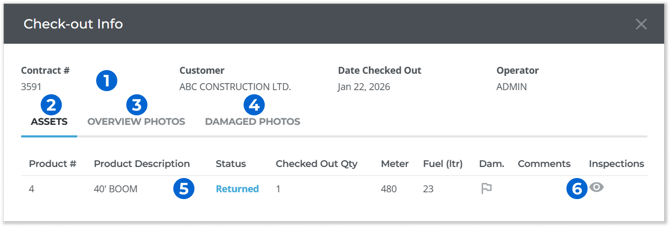
- Check-Out Information
Basic information about the Check-Out is displayed here, including its Contract #, Customer, Check-Out date, and the name of the Operator who performed the Check-Out. - Assets
Click to display the Assets tab, which lists the Products that were checked out. - Overview Photos
Click to display the Overview Photos tab, where overview photos taken during the Check-Out process can be viewed. - Damaged Photos
Click to display the Damaged Photos tab, where damage photos taken during the Check-Out process can be viewed. - Asset Information
Information on each of the Products included in the Check-Out can be found here. - Inspections Icon
Click the eye symbol next to a Product’s row to view completed Inspections for that Product.