
In This Article
Introduction
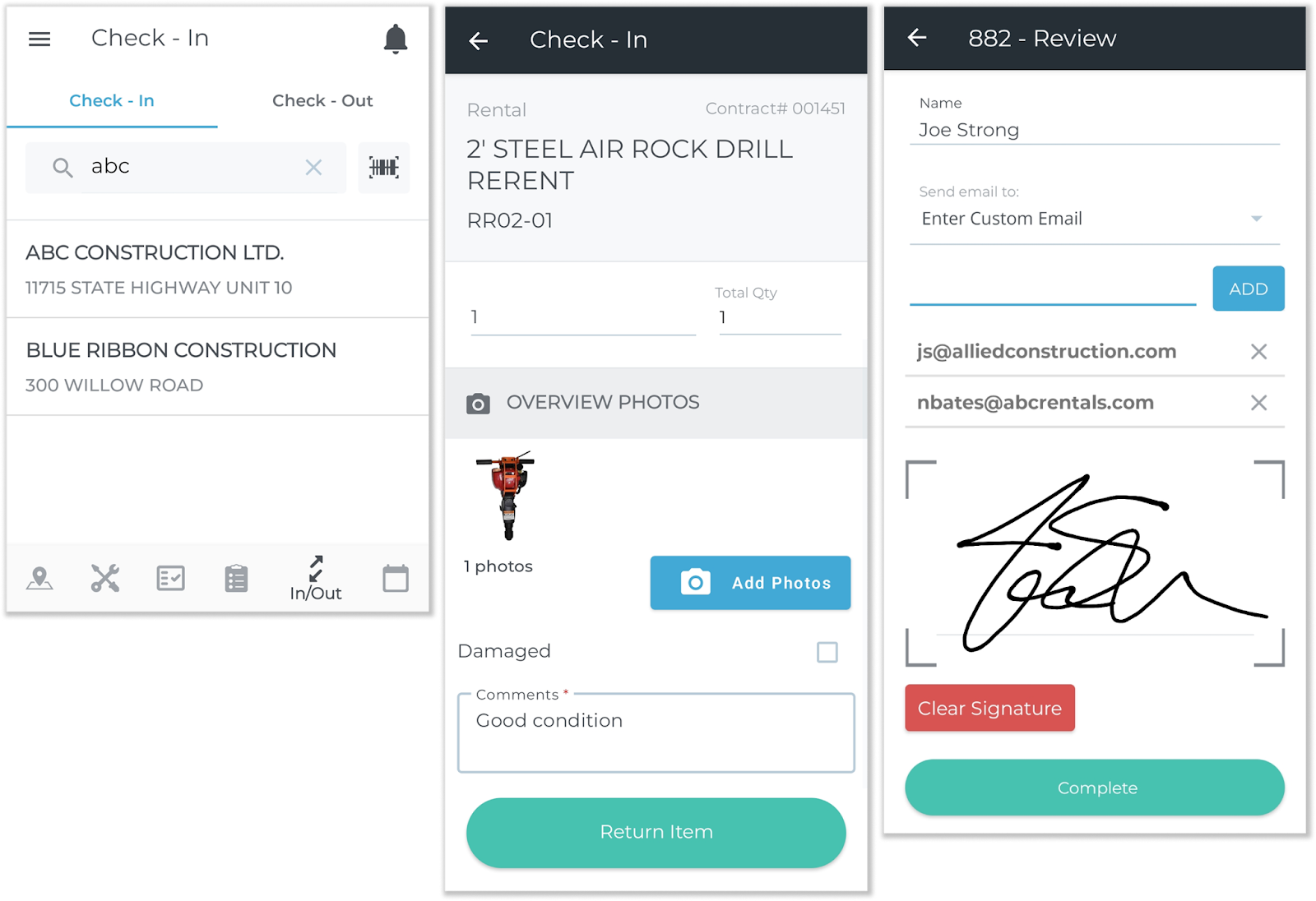
Rental Management’s Check-In / Check-Out functionality allows yard workers to inspect Products and collect Customer signatures at the start and end of rental Contracts. By leveraging the flexibility of the Service and Rental mobile application, your staff can replace paper inspection forms with digital checklists and handwritten notes with photographic evidence of equipment damage.
Check-Outs are performed at the beginning of a rental Contract, when the customer arrives to pick up rented equipment. Check-Ins are performed at the end of a Contract, when the customer returns equipment to the yard. Both give your staff the opportunity to fill out an Inspection form and collect the customer’s signature for a snapshot of the equipment’s condition at the time it changes hands.
Check-Ins and Check-Outs are configured in Rental Management (Classic), completed in Service and Rental Mobile, and can be reviewed and processed in Rental Management (Next). Keep reading to learn more about how Check-Ins and Check-Outs work.
Rental Management (Classic)
Configuring Inspection Forms
Inspections are an important part of the Check In / Check Out process. By requiring Inspections on both incoming and outgoing equipment, you can catch and document issues early, protecting your organization and improving customer satisfaction.
For an Inspection form to be available for Check Ins / Check Outs, it must be created with a type of “Contract”. Note that existing Inspection forms cannot be modified to work with Check In / Check Out; new forms need to be created.
To create a new Inspection form, log in to Rental Management (Classic) and navigate to the Maintain Inspection Forms utility, located at System Maintenance → Configure System Settings → Operations → Inspection Forms. Click “Add”, fill out the form’s Id and Description, then click the three dots  next to the “Form Type” field to open the Inspection Field Types window. Select “CONTRACT”, then click “OK”.
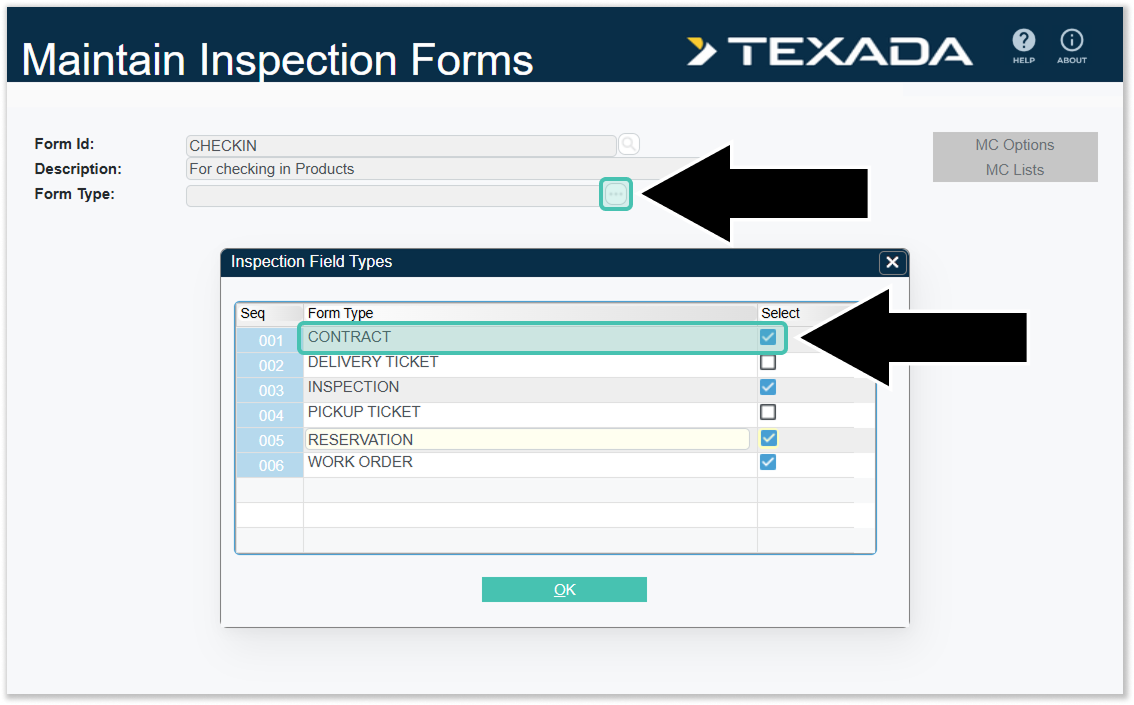
Once you’ve finished adding fields to your new Inspection form, click “Accept” to save it. You can now add it to Product Groups as well as to individual Contracts.
Adding Inspection Forms to Groups
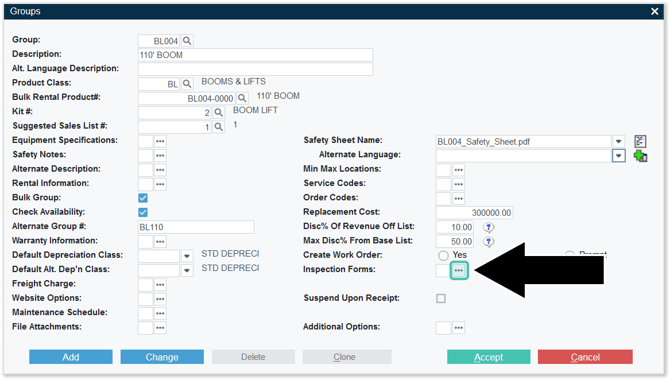
Once a Check In / Check Out Inspection form has been created, it can be added to a Product Group. To do this, navigate to System Maintenance → Configure System Settings → Operations → Groups. Select the Group you’d like to edit, then select “Inspection Forms”.
In the Auto-Assign Inspection Forms window, click “Add” to add a new Inspection form to the Group. To make an Inspection form available for Check In / Check Out, ensure that the “Con” (Contract) checkbox is checked. Once you’re finished making changes, click “Accept”.
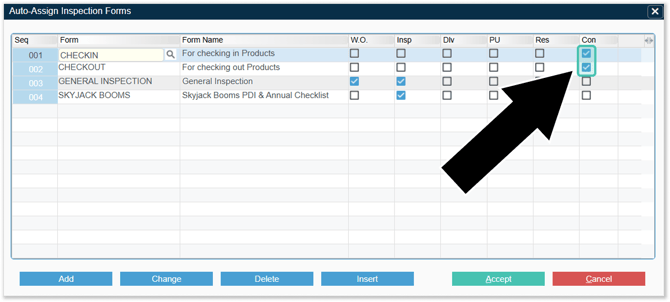
The selected Inspection forms will now be automatically added to any Contracts containing Products of that Group.
Adding Inspection Forms to Contracts
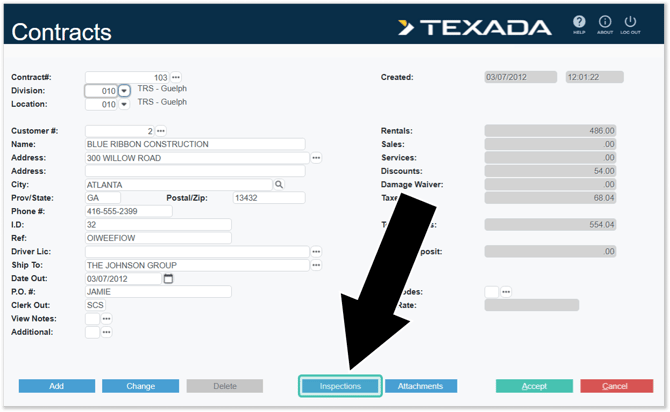
Check In / Check Out inspection forms can also be manually added to Contracts via the Contracts utility in Rental Management (Classic), located at Counter → Contracts. To do this, open the Contract to which you’d like to add an Inspection form, then click “Inspections” to open the Inspection Forms window.
This window lists all of the Inspection forms that have been attached to the Contract. To add an Inspection form, click “Add”, then fill out the form’s details.
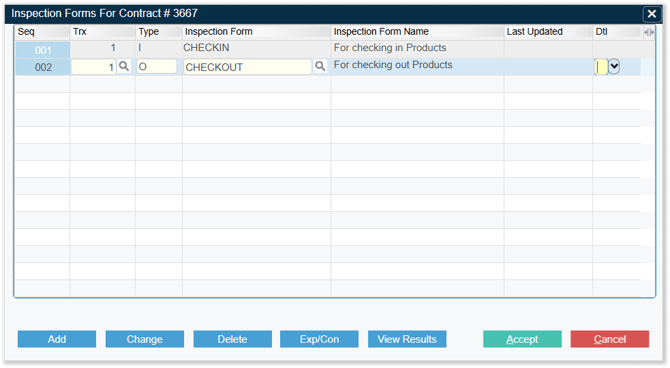
- Trx: The Product to which the Inspection form applies. Click the search icon
 to search the list of Products on the Contract. Multiple forms can be assigned to the same Product.
 - Type: The Inspection form’s type. Enter “I” for “Check In” or “O” for “Check Out”.
- Inspection Form: The form’s Id.
- Inspection Form Name: The form’s Description.
- Dtl: Click the down arrow
 to view results for the selected Inspection form.
Service and Rental Mobile
Check In / Check Out
Once a Contract has been created in Rental Management (Classic or Next), the Check In / Check Out process can be completed by a yard worker using Service and Rental Mobile.
Open Service and Rental Mobile and tap the “In/Out” icon  in the bottom menu to access the Check-In / Check Out screen. From here, you can search the list of Customers that have open Contracts with your organization, then select the Products you’d like to check in or out.
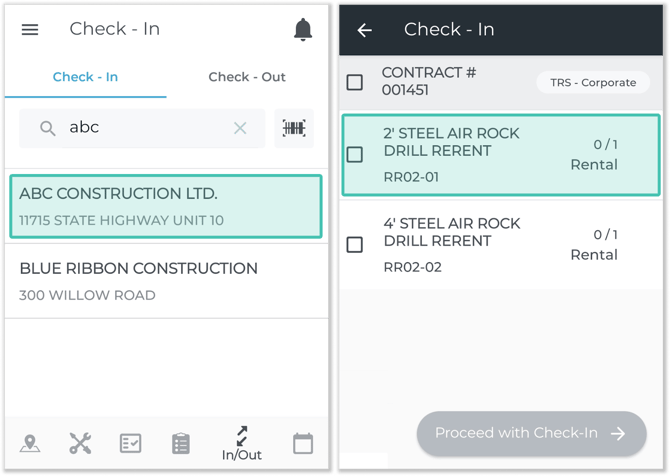
For more information on completing Check-Ins and Check-Outs in Service and Rental Mobile, see “Complete a Check-In or Check-Out”.
Rental Management (Next)
The Check-In / Check-Out List
Check-Ins and Check-Outs each have their respective pages in Rental Management (Next):
- Check-Ins: The Check-In List page, located at Returns → Check Ins.
- Check-Outs: The Check-Out List page, located at Bookings → Check Outs.
These pages list all open and completed Check-Ins and Check-Outs in the system, and allow you to review the results of each one.
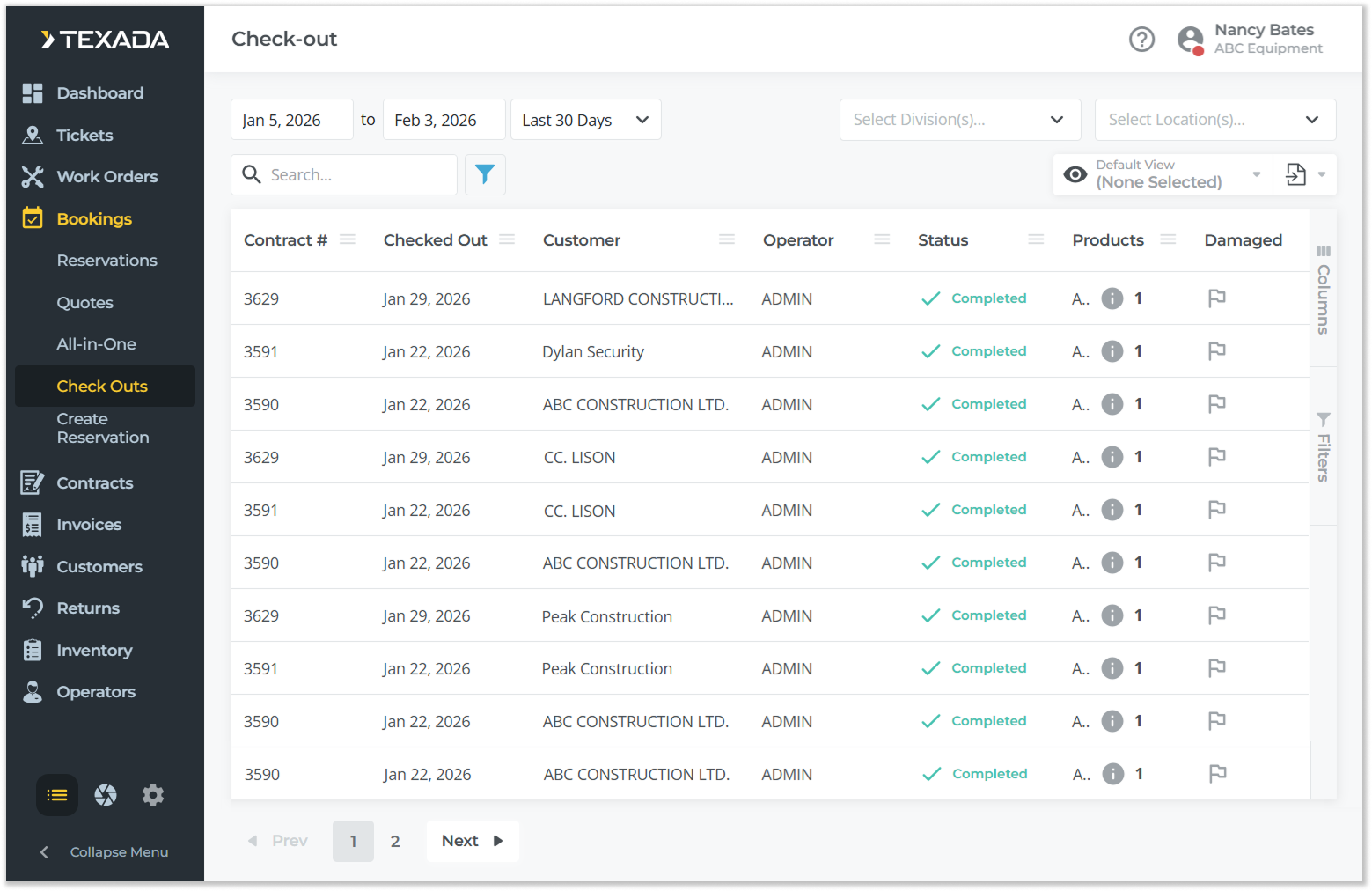
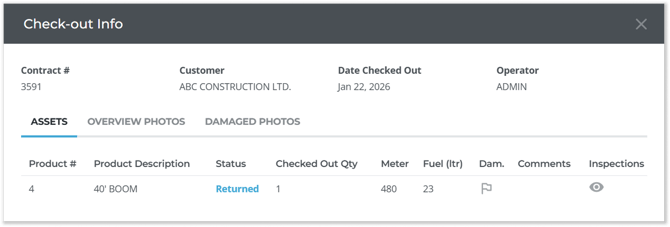
Click on a Check-In / Check-Out in the list to view its information. From the Check-In / Check-Out Info window, you can also click the eye symbol  under the “Inspections” column to view completed Inspections for each Product.
Processing Check-Ins
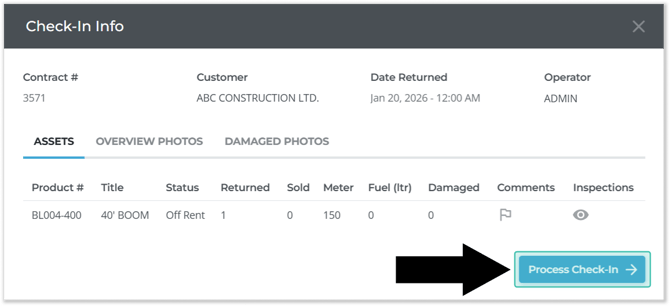
Pending Check-Ins can be processed directly from the Check-In List page. To do this, click on the Check-In you’d like to process, then click the “Process Check-In” button in the bottom-right corner of the Check-In Info window:
For more information on processing Rental Returns, see “Process a Return in Rental Management (Next)”.