
In This Article
Introduction
Rental Management’s Check-In / Check-Out functionality allows yard workers to inspect Products and collect Customer signatures at the start and end of rental Contracts.
Check-Ins are performed at the end of a Contract, when the customer returns equipment to the yard. Check-Ins are configured in Rental Management (Classic), completed in Service and Rental Mobile, and can be reviewed and processed in Rental Management (Next).
The following article provides an overview of the Check-In List page in Rental Management (Next). To reach this page, select Returns → Check Ins from the left navigation menu.
The Check-In List
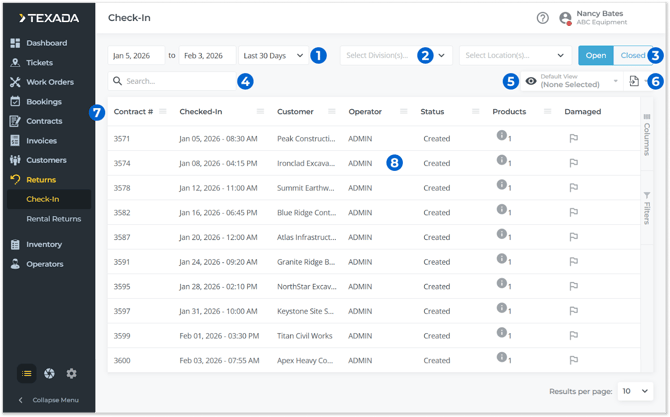
- Date Range Selector
The range of dates for which Check-Ins will be displayed. Use the start and end date selectors to create a custom date range, or use the drop-down to pick from a list of ranges. - Division / Location Selectors
Select one or more Divisions or Locations from the drop-downs to filter the list of Check-Ins by those locations. - Open / Closed Toggle
Use these buttons to toggle between viewing open Check-Ins and closed Check-Ins. - Search Bar
Begin typing into the search bar to filter the list of Check-Ins by the text entered. This will search by Contract #, Customer, Operator, and Products. - View Manager
Click to manage views for the Check-In list. See “The View Manager” for more information. - Export Button
Click to export the contents of the Check-In list. See “Exporting the Contents of a Table” for more information. - Check-In List
Check-Ins that match the currently-selected filters are displayed here. See “Working with Tables” for information on customizing this table. - Check-In
Click on a Check-In to view its details. See “Check-In Info” for more information.
Check-In List - Columns
The Check-In list comprises the following columns:
- Contract #: The number of the Contract associated with this Check-In.
- Checked-In: The date and time on which the Check-In was initiated in Service and Rental Mobile.
- Customer: The name of the Customer associated with the Check-In.
- Operator: The Service and Rental Mobile user who performed the Check-In.
- Status: The Check-In’s status (Created or Closed).
- Location: The Location at which the Check-In was performed.
- Division: The Division at which the Check-In was performed.
- Products: The number of Products that were checked in. Hover your mouse over the info icon
 for information on these Products.
 - Damaged: If any of the Products on the Check-In were flagged as damaged, its row will be colored red, and this field will display a red flag icon
 . Further information can be seen via the Check-In Info window.
Check-In Info
Click on a Check-In in the list to open the Check-In Info window. This window contains more information about the Check-In and allows you to review photos and Inspection results. Check-Ins can also be processed from this window.
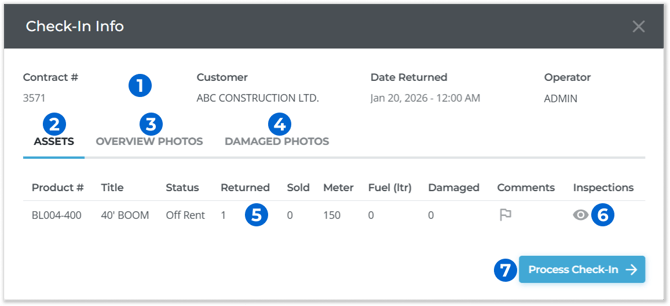
- Check-In Information
Basic information about the Check-In is displayed here, including its Contract #, Customer, Check-In date, and the name of the Operator who performed the Check-In. - Assets
Click to display the Assets tab, which lists the Products that were checked in. - Overview Photos
Click to display the Overview Photos tab, where overview photos taken during the Check-In process can be viewed. - Damaged Photos
Click to display the Damaged Photos tab, where damage photos taken during the Check-In process can be viewed. - Asset Information
Information on each of the Products included in the Check-In can be found here. - Inspections Icon
Click the eye symbol next to a Product’s row to view completed Inspections for that Product.
 - Process Check-In Button
Click to process a Rental Return for the Check-In. For more information on processing Rental Returns, see “Process a Return in Rental Management (Next)”.