
In This Article
Introduction
The AI Damage Detection List page in Rental Management (Next) is a component of Rental Management’s AI Damage Detection functionality. It allows counter operators to browse and review Assets which were flagged for damage while being returned on a Pickup Ticket or Check-In.
AI Damage Detection List
To reach the AI Damage Detection List page, select Returns → AI Damage Detection from the left navigation menu.
Only Pickup Tickets and Check-Ins that were flagged by the AI Damage Detection agent will appear on this page. If the agent did not detect any damage, or if detection could not be completed due to insufficient or low-quality photos, no entry will be created. See “Service & Rental Mobile - AI Damage Detection” for more information.
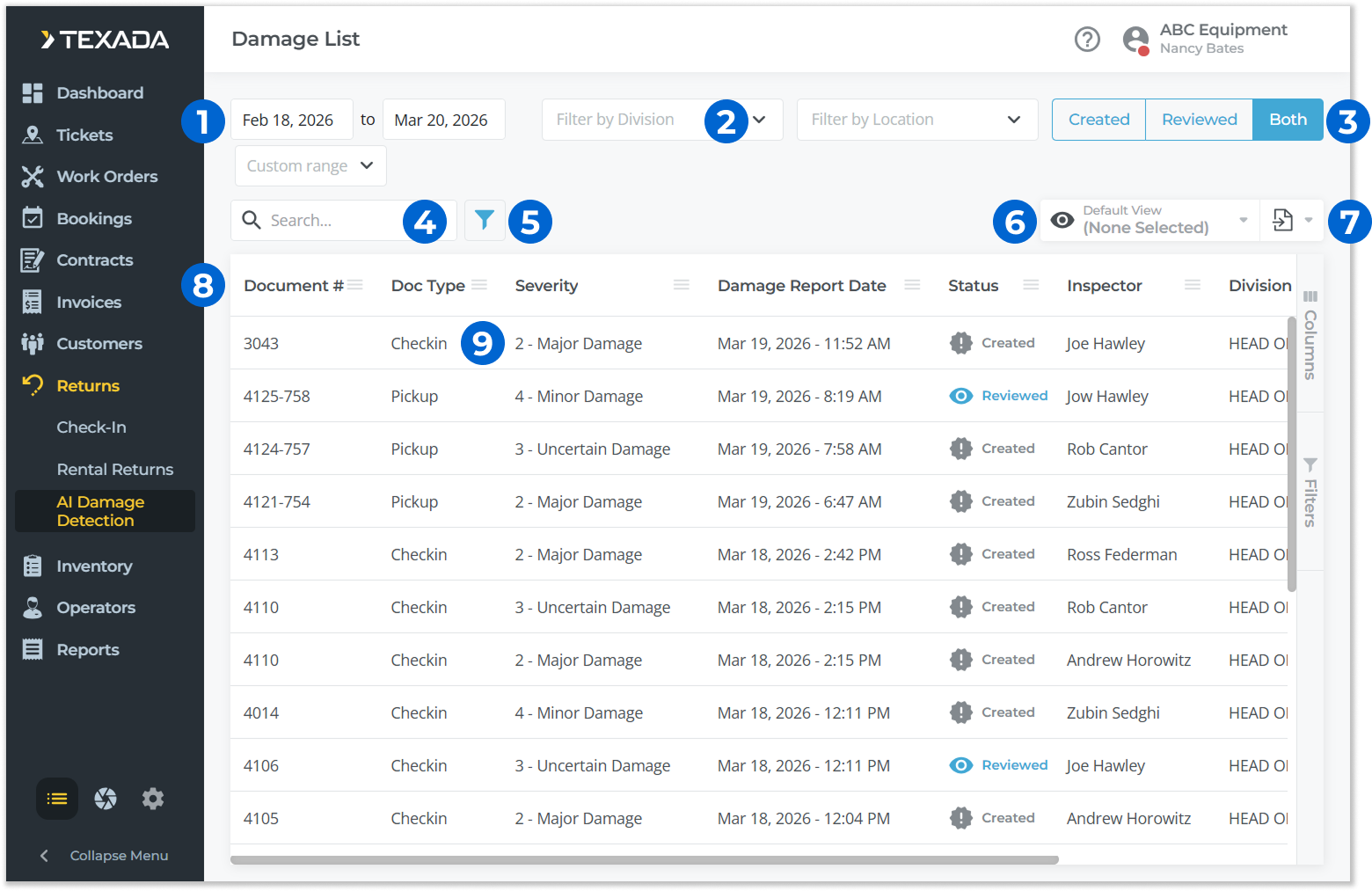
- Date Range Selector
The range of dates for which damage reports will be displayed. Use the start and end date selectors to create a custom date range, or use the drop-down to pick from a list of ranges. - Filter by Division / Filter by Location
Select one or more Divisions or Locations from the drop-downs to filter the AI Damage Detection List table by those locations. - Created / Reviewed / Both Toggle
Click to filter the AI Damage Detection List table by Status – Created, Reviewed, or both. - Search Bar
Begin typing into the search bar to filter the AI Damage Detection List table by the text entered. This will search by Document # and Inspector. - Filter Button
Click to view advanced filtering options for the AI Damage Detection List table. See “Working with Tables” for more information. - View Manager
Click to manage views for the AI Damage Detection List table. See “The View Manager” for more information. - Export Button
Click to export the contents of the AI Damage Detection List table. See “Exporting the Contents of a Table” for more information. - AI Damage Detection List Table
Pickup and Check-In damage reports that match the currently-selected filters are displayed here. See “Working with Tables” for information on customizing this table. - Damage Report
Click on a damage report to view and update it. See “Damage Detection Review” for more information.
AI Damage Detection List Table - Columns
The AI Damage Detection List table comprises the following columns:
- Document #: The ID of the Pickup Ticket or Contract (for Check-Ins) to which the damage report applies.
- Doc Type: Indicates whether the damage report applies to a Pickup Ticket or Check-In.
- Severity: The severity of the damage reported:
- 2 - Major Damage: Major damage to the equipment was detected.
- 3 - Uncertain Damage: Damage to the equipment was detected, but the model was unable to determine the scope of the damage.
- 4 - Minor Damage: Minor damage to the equipment was detected.
- Damage Report Date: The date on which the damage report was filed.
- Status: The status of the damage report.
- Created: The report has been submitted from Service & Rental Mobile but has not been reviewed.
- Reviewed: The report has been reviewed in Rental Management (Next).
- Inspector: The inspector who submitted the inspection in Service & Rental Mobile.
- Division: The Division of the document to which the damage report belongs.
- Location: The Location of the document to which the damage report belongs.
Damage Detection Review
Click on a damage report in the AI Damage Detection List table to open the Damage Detection Review window. This window allows you to compare the photos that were taken when the Asset was checked out with those taken when it was picked up from the customer’s job site.
Images that were flagged by the AI Damage Detection agent are displayed at the top of this window. If the damage detected was legitimate, a Work Order for the affected Asset can be opened using the “Create Work Order” button.
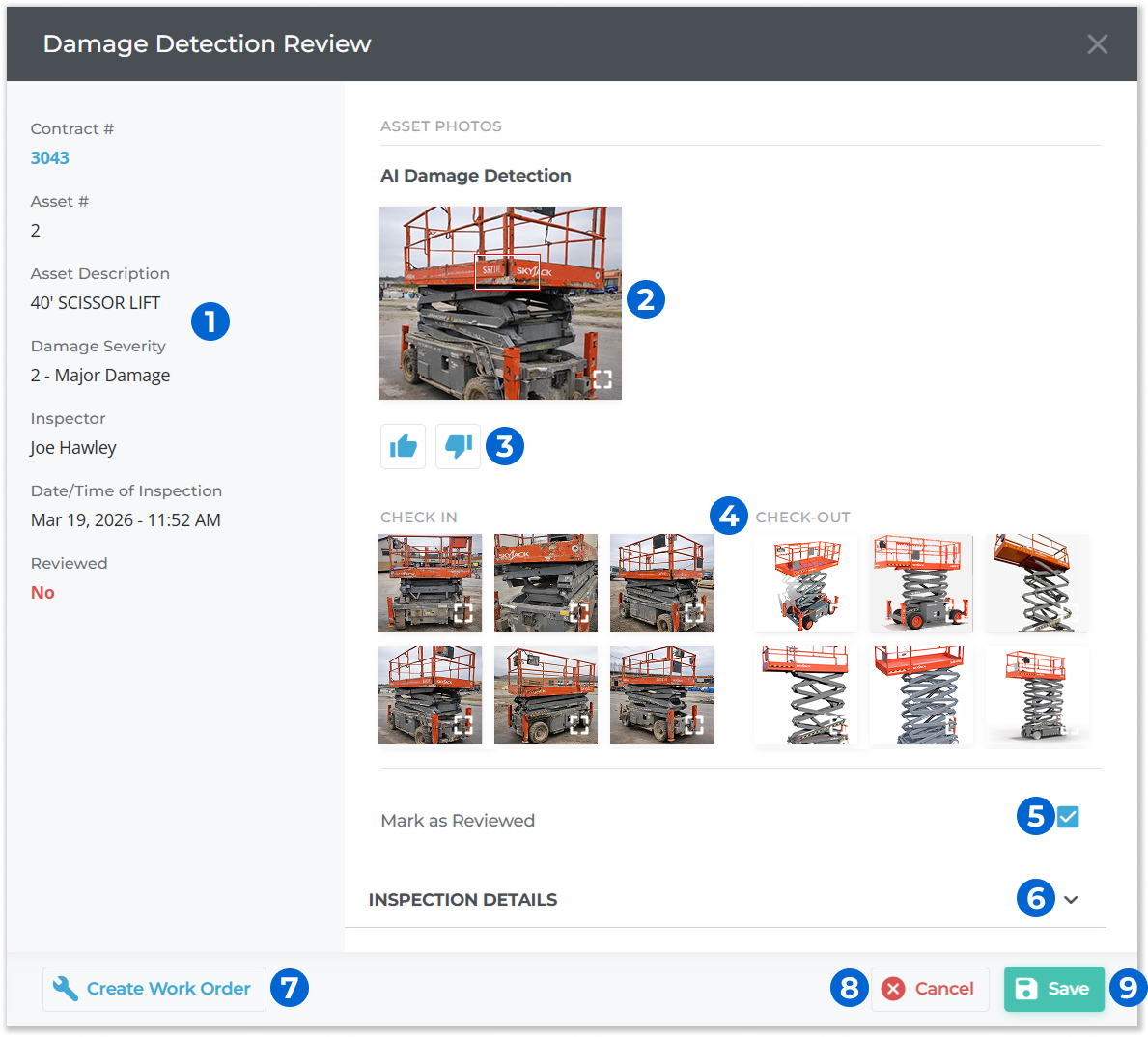
- Contract / Ticket Information
Information about the Contract or Ticket associated with the damage report is displayed in this panel. Click the Contract # or Ticket # to open it in a new tab. - AI Damage Detection Image
Photos that were flagged by the AI Damage Detection agent are displayed here, with damaged area(s) highlighted by a red-and-white border. Click on an image to view the full-size version. - Thumbs Up / Thumbs Down Buttons
Use these buttons to indicate whether or not the AI Damage Detection agent succeeded in flagging legitimate equipment damage. This feedback will be used to improve the agent’s accuracy in the future. - Check-In / Check-Out Images
Images taken by drivers and warehouse workers during the check-in and check-out processes are displayed here, allowing you to compare the equipment’s state at the beginning and end of the rental period. Click on an image to view the full-size version. - Mark as Resolved Checkbox
Check this box to mark the damage report as reviewed, indicating that no further action needs to be taken. - Inspection Details
Click to view the full results of any inspections that were filled out when the Asset was returned. - Create Work Order Button
Click to open the Create Work Order page and open a Work Order for the affected Asset. - Cancel Button
Close the Damage Detection Review window without saving your changes. - Save Button
Save your changes and close the Damage Detection Review window.