
In This Article
Introduction
Designed to be used alongside Service, Rental, and Financials (Classic and Next), Service & Rental Mobile is a powerful tool that allows Mechanics, Drivers, and other field workers to manage Tickets, Work Orders, and In-Yard Returns. The following article will detail the process of logging in and out of Service & Rental Mobile.
Log In
- Download and install the Service & Rental Mobile application on your mobile device.
- Open Service & Rental Mobile
 to access the login screen. Enter your email address and password and select a server, then tap the “Login” button to log in.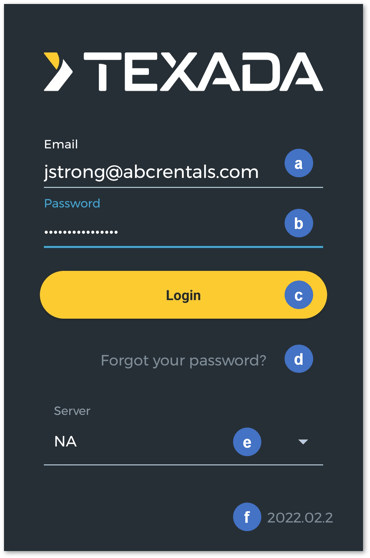
- Email
The email address associated with your account. - Password
Your login password. - Login Button
Once you have entered your email address and password and selected a server, tap this button to log in. - Forgot your password? Button
If you have forgotten your password, tap this button to initiate the password reset process. See “Reset Your Password in Service & Rental Mobile” for more information. - Server Select
Tap to select the server (environment) to which you are logging in. Most systems include a Live (production) and Play (test) environment at minimum. Note that your login credentials may differ between environments. - Version Number
Your current version of Service & Rental Mobile is displayed here. For information on keeping the application updated to the latest version, see “Download, Install, and Update Service & Rental Mobile”. - The following loading screen will display the Location and Division to which you are logging in. Tap the Location or Division drop-downs to pause the login process and select a different Location or Division. If you miss your chance to change Location or Division when logging in, you can always do so later via the User Menu.
Once your session is finished loading, you will automatically be redirected to Service & Rental Mobile.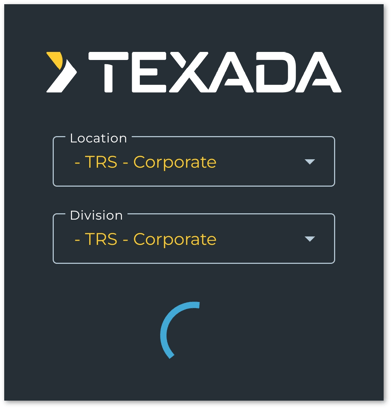
Log Out
Logging out of Service & Rental Mobile will also clock you out of the Time Tracker. See “Clock In and Out of Service & Rental Mobile” for more information.
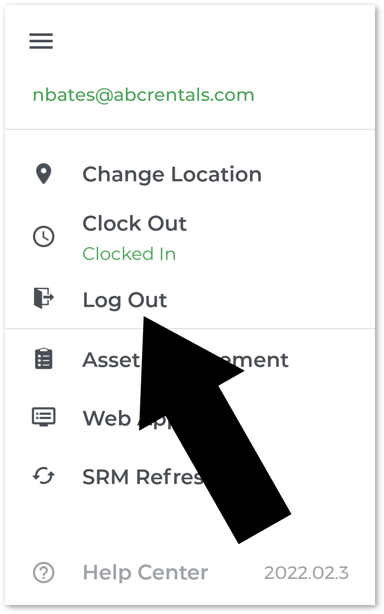
- Open the User Menu by tapping the hamburger icon
 in the top-left corner of the screen.
 - Tap “Log Out”.
Common Login Issues
If you are having issues logging in to Service & Rental Mobile, try the following:
- Make sure your email address is correct.
Make sure you are logging in using your primary email address as displayed in the “E-Mail Address” field on your Operator record in Service, Rental, and Financials (Classic). See “Operator Codes” for more information. Note that you cannot log in using your Operator Code as you do in Service, Rental, and Financials (Classic). - Reset your password.
If you do not know your password, you may need to reset it by tapping the “Forgot your password?” button on the login page. See “Reset Your Password in Service & Rental Mobile” for more information.
- Make sure your User account has been given access to Service & Rental Mobile.
In order to log in to Service & Rental Mobile, your User account must first be given access. This is done by checking the “Texada Web Access” checkbox on your Operator record in Service, Rental, and Financials (Classic). See “Grant a User Access to Service & Rental Mobile” for more information.