
In This Article
- Introduction
- The Contract / Reservation Details Page
- Contract/Reservation Info Panel
- Customer Panel
- Products Tab
- Services Tab
- Ticket Info
- Comments Panel
- Attachments Panel
- Associated Documents Panel
- History Panel
- Total Panel
- Assigned To Panel
Introduction
A Contract is a binding document between a rental company and their Customer, containing details of a rental or sale. A Reservation, meanwhile, is a pre-Contract document that allows an equipment salesperson to estimate the cost of a potential Contract and reserve equipment at the Group level.
Contracts, Draft Contracts, and Reservations can be created, viewed, and edited in Rental Management (Next). All of these functions make use of different versions of the Contract / Reservation Details page:
|
Versions of the Contract / Reservation Details Page |
|
|
|
The following article will provide an overview of the information included on all versions of the Contract / Reservation Details page.
For information on creating or editing Contracts, see:
For information on creating or editing Reservations, see:
The Contract / Reservation Details Page
This screen contains all of the information for a Contract or Reservation. Information is organized into ten panels: Contract/Reservation Info, Customer, Products, Services, Comments, Attachments, Associated Documents, History, Total, and Assigned To.
Required fields are marked with a red asterisk  .
.
The below image shows the Edit Contract version of this page. Because multiple versions of this page exist, not all possible elements will be visible. Throughout this article, the visibility of each element will be expressed next to the element’s name:
|
|
Always visible. |
|
|
Visible when creating a Contract. |
|
|
Visible when viewing or editing a Contract. |
|
|
Visible when editing a Draft Contract. |
|
|
Visible when creating a Reservation. |
|
|
Visible when viewing or editing a Reservation. |
|
|
The element is not shown in the accompanying image. |







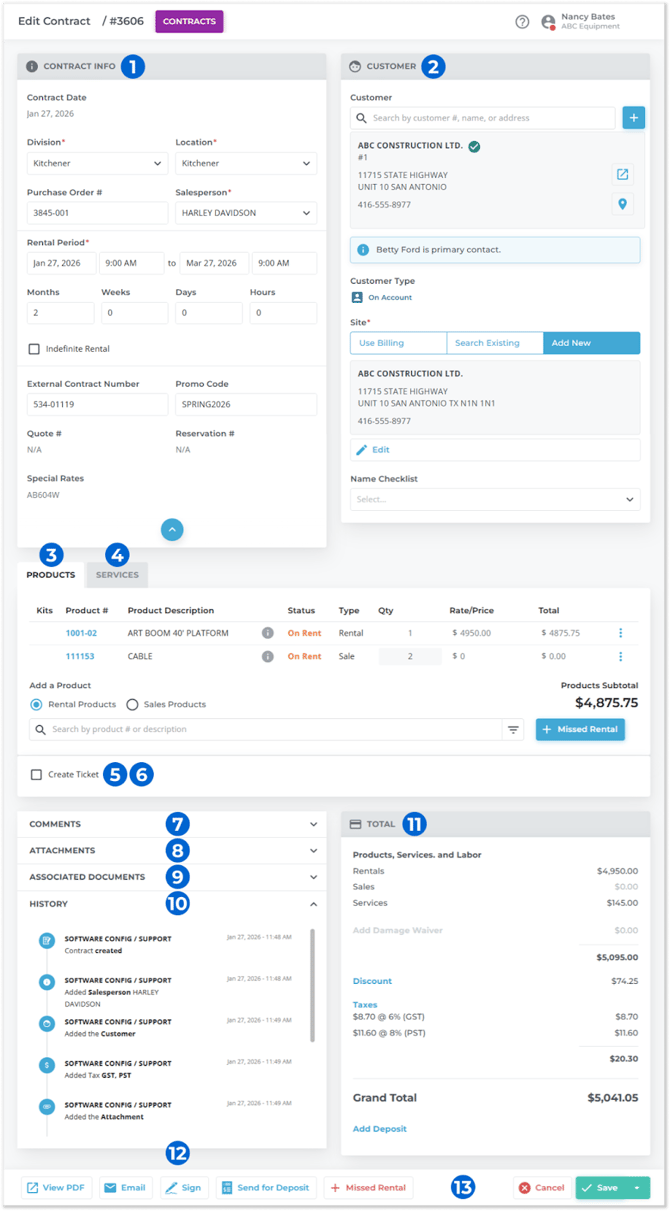
- Contract/Reservation Info Panel

Contains basic information about the Contract or Reservation, including its Division, Location, and rental period. - Customer Panel
Contains information on the Customer and Site associated with the Contract or Reservation. - Products Tab
Contains the list of Products that the Customer is renting or purchasing. - Services Tab
Contains the list of additional Services, such as cleaning, refueling, or dismantling services, that the Customer is purchasing alongside their rental. - Create Ticket Toggle

When editing a Contract, check this box to open the Ticket Info window and create one or more Delivery or Pickup Tickets for the Contract. - Create Delivery Ticket Toggle


When creating a Contract, check this box to automatically create a Delivery Ticket alongside the new Contract. The Delivery Ticket will be generated using the information entered on the Contract:- Delivery will be scheduled for the first date of the rental period.
- The Origin Address will be the address of the Contract’s Location.
- The Destination Address will be the address of the Customer Site.
- The Products to be delivered will be those specified in the Contract.
- Comments Panel
Additional notes and comments, both Customer-facing and internal, can be entered here. - Attachments Panel
Contains any URLs or files that have been attached to the Contract or Reservation. - Associated Documents Panel

Allows you to associate other documents in the Texada system to the Contract or Reservation. - History Panel
Displays the edit history of the Contract or Reservation. - Total Panel
Contains financial information, such as rental, sale and service costs, damage waiver information, discounts, and taxes. - Assigned To Panel

This panel allows you to assign a Mechanic to a Reservation for the purposes of Asset Staging. - Action Buttons
The various actions you can take with a Contract or Reservation appear as buttons in the bottom bar. Available actions will vary based on which version of the Contract / Reservation Details Page you are on:- View PDF
Click to open a printable .PDF version of the Contract or Reservation in a new browser tab. - Email
Click to email a .PDF version of the Contract or Reservation to an address of your choosing. - Sign
Click to electronically sign the Contract. See “Electronically Sign a Contract in Rental Management (Next)” for more information. - Send for Deposit

Once you have entered the details of the Contract or Reservation, use this button to save it and email it to the Customer with a request for a deposit. See “Send a Contract or Reservation for Deposit” (article forthcoming) for more information. - Missed Rental
Click to log a missed rental on the Contract. - Discard Changes
Click to discard your changes and return to the Contract List. - Cancel
Click to cancel Contract creation or editing. - Create Contract / Reservation
Once you have entered the details of the Contract or Reservation, use this button to save it. If the ‘Create Delivery Ticket’ toggle is enabled, a Delivery Ticket will also be created at this time. - Save Draft
To reveal this button, click the drop-down arrow next to the “Create Contract” button. Click to save your Contract as a draft. Draft Contracts can be managed via the Draft Contract List.
 - Delete Contract / Reservation / Draft
To reveal this button, click the drop-down arrow next to the “Save” button. Click to delete the current Contract, Reservation, or Draft. - Convert to Contract
To reveal this button, click the drop-down arrow next to the “Save” button. Click to convert the current Reservation to a Contract. - Save as Contract
To reveal this button, click the drop-down arrow next to the “Save” button. Click to save the current Draft as a Contract. - Clone
This button is only available for Reservations that have been staged. Click to edit the Reservation, then click “Clone Reservation” to clone the Reservation to a new Reservation. - Save
Click to save your changes and stop editing.
- View PDF
Contract/Reservation Info Panel
This panel contains basic information about the Contract or Reservation.
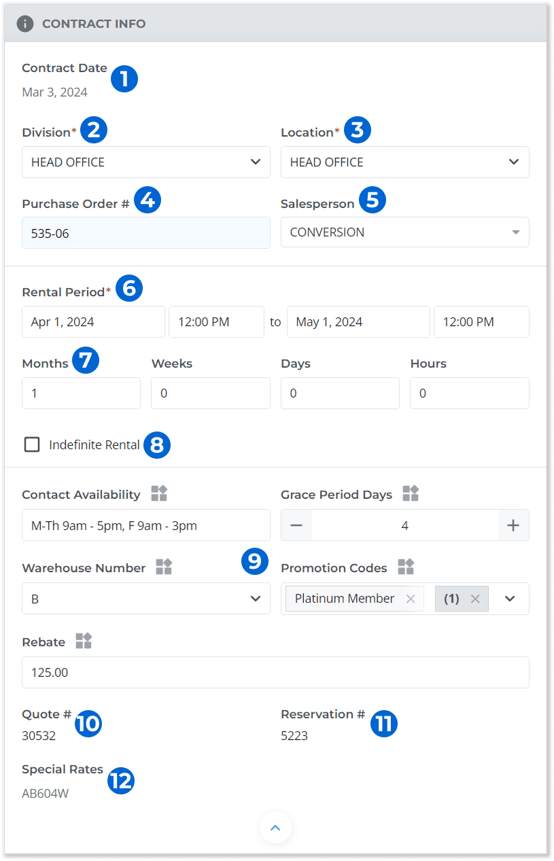
- Contract/Reservation Date
The creation date of the Contract. This is automatically set to the current date and cannot be altered. - Division
The Contract’s Division. - Location
The Location from which Assets are being rented or purchased. If a Pickup Ticket is created with a Contract, this will be used as the Origin Address. Note that each Contract is associated with exactly one Location. If you wish to rent Assets from multiple locations, multiple Contracts will be needed. - Purchase Order #
The purchase order number associated with this Contract. If the Customer has provided you with a purchase order number, it can be entered here for the purposes of cross-referencing the Contract with the original purchase order. - Salesperson
The salesperson responsible for securing this Contract. Salesperson codes are managed via the Salesman Codes utility in Rental Management (Classic), at System Maintenance → Configure System Settings → Customer Management → Salesman Codes. - Rental Period
The rental period of this Contract. The first date is the start date, and the second date is the end date. These dates will be used to calculate the rental cost of the Assets entered in the Product panel. - Rental Period Months / Weeks / Days / Hours
These fields allow you to generate an end date for the rental period by entering the length of the rental period in months, weeks, days, and/or hours. After selecting a start date, enter a number into any of these fields to automatically generate an end date. For example, if May 15, 2023 is selected as a start date, entering “2” into the “Months” field will generate an end date of July 15, 2023. - Indefinite Rental Checkbox
Enable this checkbox to mark the Contract as an indefinite rental, i.e. a Contract with no set end date. Enabling this checkbox will disable the end date and months / weeks / days / hours fields. Products rented out on indefinite Contracts will not appear as available in inventory until they are actually returned. Selecting this option will cause rental calculations to default to the monthly rental rate. - Custom Fields
Any custom fields included on Contracts will appear here, and will be marked with the custom field icon . Custom fields are managed via the Custom Fields screen, at the User Menu (click on your name in the top-right corner of the screen) → Settings → Company Settings → Custom Fields.
 - Quote #
The number of the Quote from which this Contract was created, if any. - Reservation #
The number of the Reservation from which this Contract was created, if any. - Special Rates
Displays the Customer’s special Rate Level, if one has been established using the Special Pricing window in Rental Management (Classic).
Customer Panel
This panel contains information on the Customer who is renting or purchasing the equipment on the Contract. Site information is also included in this panel.
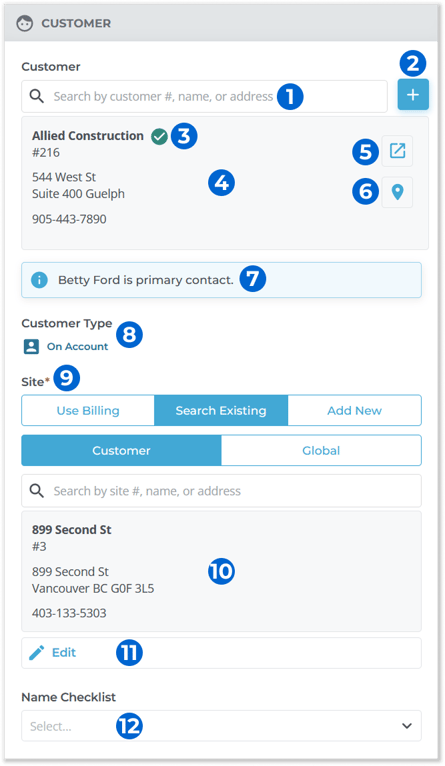
- Customer Search
Begin typing into the search bar to locate and select a Customer from the list of existing Customers. This will search by Customer number, name, and address. - Quick-Create Customer Button
Click this button to create a new Customer record and associate them with the Contract. See “Quick-Create a Customer in Rental Management (Next)” for more information. - Customer Credit Status
Indicates the selected Customer’s credit status. Customers with good credit will be marked with a green check mark , while Customers with credit issues will be marked with a red X
  . Hover your mouse over this icon to view the Customer’s credit limit, account balance, and credit rating.
 - Customer Information
Once a Customer has been selected, their basic information will appear below the search bar. - View Customer Button
Click to open the Customer’s profile in a new browser tab. See “View and Edit a Customer in Rental Management (Next)” for more information. - View on Map Button
Click to view the Customer’s primary (billing) address on a map in a new browser tab. - Customer Comment
If a comment has been left on the Customer’s profile, it will be displayed here as a notification. - Customer Type
Whether the selected Customer is On Account or a Cash Customer. Selecting "On Account" will cause the system to bypass deposit prompts when creating a Contact or converting a Reservation to a Contract. Selecting "Cash Customer" will cause the system to require a deposit upfront. - Site Selector
Use this tool to select the Site to which the Assets on this Contract will be delivered.- Use Billing: Use the primary (billing) address saved to the Customer’s profile. This is the same address that appears in this panel under the Customer’s name.
- Search Existing: Search existing Sites to find the appropriate Site. If you select this option, two additional options will appear:
- Customer: Search through this Customer’s existing Sites.
- Global: Search the list of global Sites.
- Add New: If the desired Site is not yet in the system, use this option to create a new Site and associate it with this Contract. See “Quick-Create a Customer in Rental Management (Next)” for more information.
- Site Information
Once a Site has been selected, its Site number and address will appear below the search bar. - Edit Site Button
Click to edit the selected Site. See “Quick-Create a Customer in Rental Management (Next)” for more information. - Name Checklist
Select a name checklist to associate with this Contract. Name checklists for each Customer can be managed in Rental Management (Classic).
Products Tab
Use this tab to manage the Products to be rented or purchased on the Contract.
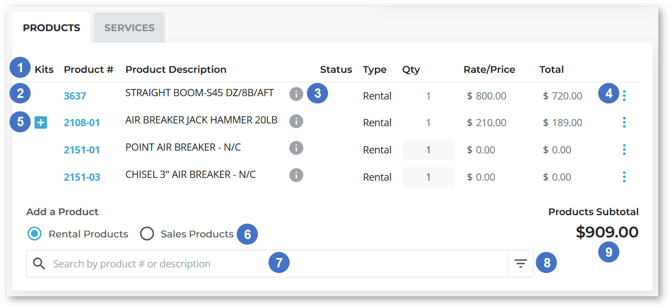
- Product Information
This table contains information on the Products (Rental and Sale) that have been added to the Contract.- Product #: The Product’s number.
- Product Description: The Product’s description.
- Status: The Product’s current rental status. This column will be blank when creating a new Contract.
- Type: Whether this is a Rental Product or a Sale Product.
- Qty: The quantity of the Product being rented or purchased. For non-bulk Products, this quantity will always be 1. For bulk Products, this quantity can be edited by clicking on the displayed number.
- Rate/Price: The rental rate for the entire rental period (Rental Products), or the sale price (Sale Products).
- Total: The total cost of renting/purchasing this Product. Equal to Qty * Rate/Price.
- Product
Click on a Product’s number to open its details in a new browser tab. See “View and Edit an Asset in Rental Management (Next)” or “View and Edit a Part in Rental Management (Next)” for more information. - View More Info
Hover your mouse over the information icon to view more detailed information about the Product.
 - Product Menu
Click the three vertical dots to view additional options for the Product:
- Edit: Edit the Product’s rental period, rates, discounts, and taxes. See “Edit Line Details” for more information.
- Asset Details: Open the Product’s details in a new browser tab. See “View and Edit an Asset in Rental Management (Next)” or “View and Edit a Part in Rental Management (Next)” for more information.
- Availability Calendar: Click to view the Product’s availability. See “Availability Calendar” for more information.
- Off Rent: Edit mode only. Click to place the Product off rent. See “Off Rentals” for more information.
- Exchange: Edit mode only. Click to exchange the Product with another. See “Product Exchanges” for more information.
- Delete: Remove the Product from the Contract.
- Add Kit Items
Products with an associated Product Kit will be marked with a blue plus icon . Click this icon to add and modify included Kit items. See “Product Kits” for more information.
 - Rental Products/Sales Products Toggle
Use this to switch between adding Rental and Sale Products to the Contract. The type of Products that appear when using the search bar is determined by this toggle. - Search Bar
Begin typing in this field to search for Products to add to the Contract. Note that only Products whose Availability is a positive number can be added to a Contract.
To reserve equipment at the Group level instead of the Product level when creating a Reservation, add a plus sign (+) before the Group number when entering it into the search bar (e.g. “+SMDW1”). - Filter Products
Click the filter icon to open the filter menu. This allows you to apply a number of filters that will take effect when searching for Products to add to the Contract. See “Product Filters” for more information.
 - Products Subtotal
The total pre-tax cost of all Products included in the Contract. This is equal to the sum of all totals for each individual Sale and Rental Product, minus any applied discounts (see “Total Panel” for more information).
Edit Line Details
Clicking the three vertical dots next a Product in the Products Tab, then clicking “Edit” will open the Edit Line Details window. This window allows you to edit the rental period, rates, discounts and taxes for a single Product.
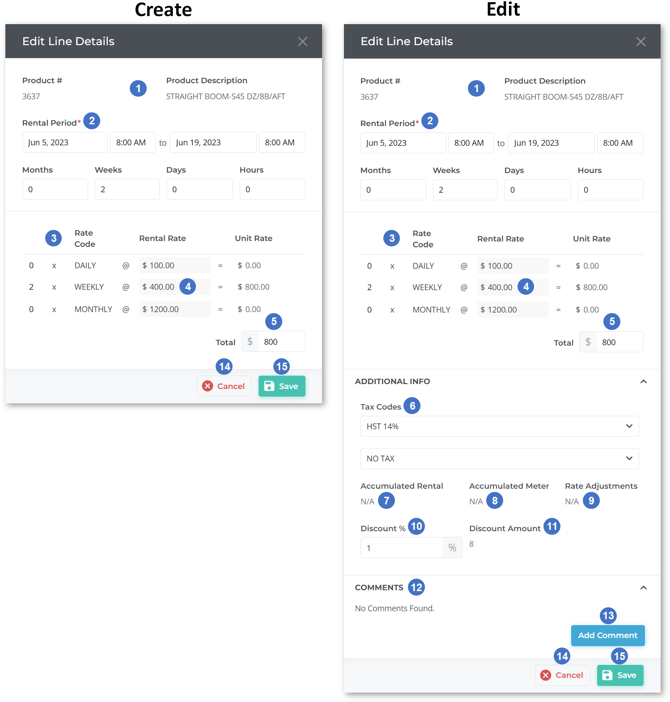
- Product Information
The Product’s number and description. - Rental Period
The rental period of the Product. By default, this will be the same as the rental period of the Contract, as set in the Contract/Reservation Info panel. This can be overridden on a per-Product basis, giving individual Products a different rental period from the Contract as a whole. - Rental Rate Calculation
This section provides a breakdown of how the cost of rental is calculated for the Product. The Product’s Daily / Weekly / Monthly / 28-Day rental rates are displayed, along with the quantity of each to be charged based on the Product’s rental period. The “Unit Rate” column on the right side of the table then lists the total cost for each Rate Code (Rental Rate * quantity).
A Product’s rental rates are set in Rental Management (Classic). They can be set at the Group level via the Group Rates utility located at System Maintenance → Configure System Settings → Operations → Groups → Rental Information → Group Rates [gear icon]. They can also be set at the Product level via the Rental Information window of the Rental Inventory utility, located at Inventory Control → Rental Inventory → Rental Information → Product Rates. - Rental Rate
Click on a rental rate to override it. This will cause the Unit Rate and Total to be automatically recalculated. - Total
The total cost of renting the Product for the specified period. Equal to the sum of all Unit Rates. Click on the total to override it. Once the total has been overridden, editing one of the Product’s Rental Rates will cause it to be recalculated. - Tax Codes
The taxes applied to this Product. Select different tax codes from this window to override the taxes for this Product only. - Accumulated Rental
The accumulated rental amount billed to date for this Product on this Contract. This value is useful for predicting the cost of future Invoices and can also be used to determine when a Customer should consider purchasing an Asset instead of continuing to rent it. This is equivalent to the “Accum Rental Amt” field found in the Rental Period Calculations window in Rental Management (Classic). - Accumulated Meter
For metered Products, the accumulated meter amount that has been billed for this Product on this Contract. This is equivalent to the “Accum Meter Amt'” field found in the Rental Period Calculations window in Rental Management (Classic). - Rate Adjustments
If the rates for this Product have been changed using the Update Contract Rental Pricing utility in Rental Management (Classic), displays the amount by which the rental cost of this Product has been adjusted. This is equivalent to the “Rate Adjustments” field found in the Rental Period Calculations window in Rental Management (Classic). - Discount %
The percentage discount applied to the rental or sale cost of this Product. Enter a percentage into this field to apply a discount to this Product only. - Discount Amount
The dollar discount applied to this individual Product. Equal to the Product’s rental or sale cost (5) multiplied by its discount percentage (10). - Comments
Any comments left on this Product. - Add Comment
Click to add a new comment to this Product. - Cancel Button
Click to close the window without saving your changes. - Save Button
Click to save your changes and return to the Create / Edit Contract screen.
Product Filters
Clicking the filter icon to the right of the search bar in the Products tab will open the filter menu. This allows you to apply a number of filters that will take effect when searching for Products to add to the Contract.
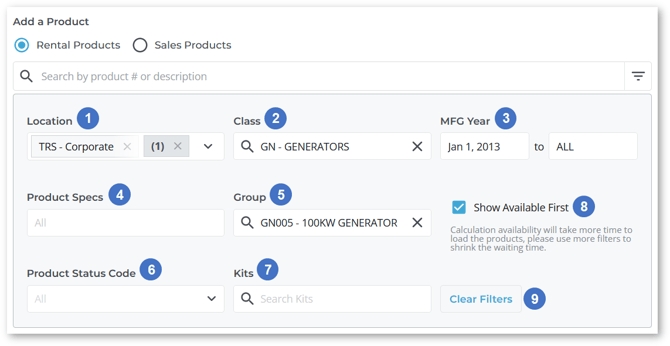
- Location
Select one or more Locations to only show Products at those Locations. - Class
Filter Products by Class. - MFG Year
Enter a range of dates to only show Products manufactured between those dates. - Product Specs
Filter Products by Equipment Specifications. - Group
Filter Products by Group. - Product Status Code
Filter Products by Status Code. - Kits
Select a Product Kit to only show Products with that Kit. - Show Available First
Check this checkbox to show available Products first when searching. - Clear Filters Button
Click to reset all filters.
Services Tab
Use this tab to select additional Services to be added to the Contract, such as refueling, relocating, or dismantling services. Services are managed via the Service Codes utility in Rental Management (Classic), located at System Maintenance → Configure System Settings → Accounting → Service Codes.
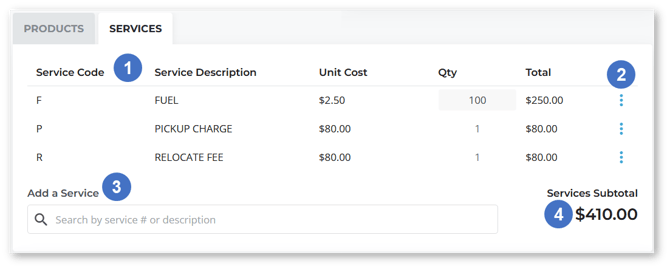
- Service Information
This table contains information on the Services that have been added to this Contract.- Service Code: The Service’s code.
- Service Description: The Service’s description.
- Qty: The quantity of the Service ordered. For Services with an editable quantity, you can enter the desired quantity directly into this field. A Service’s quantity will be editable if the “Prompt for Quality” option is selected for that Service in Rental Management (Classic). See “Service Codes” for more information.
- Rate/Price: The per-unit cost of the Service. Click on this value to override it. This will cause the Total for this Service and the Services Subtotal to be automatically recalculated.
- Total: The total cost of this Service. Equal to Qty * Rate/Price.
- Service Menu
Click the three vertical dots to view additional options for the Service:
- Edit: Edit the details of the Service. See “Edit Service Details” for more information.
- Delete: Remove the Service from the Contract.
- Search Bar
Begin typing into the search bar to search the list of Services. Click on a Service to add it to the Contract. - Services Subtotal
The total pre-tax cost of all Services included in the Contract. This is equal to the sum of all totals for each individual Service.
Edit Service Details
Clicking the three vertical dots next a Service in the Services Tab, then clicking “Edit” will open the Edit Service Details window. This window allows you to edit the tax codes of and add comments to a single Service.
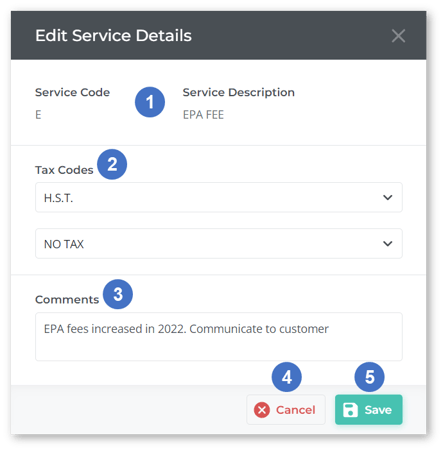
- Service Information
The Service’s code and description. - Tax Codes
The taxes that will be applied to the Service. Up to two tax codes can be selected. Changing these tax codes will only change the taxes for this particular Service. - Comments
Any additional comments about the Service. - Cancel Button
Click to cancel your changes. - Save Button
Click to save your changes.
Ticket Info
Clicking the “Create Ticket” toggle when editing a Contract will open the Ticket Info window. This window allows you to create Delivery and Pickup Tickets for the Contract.
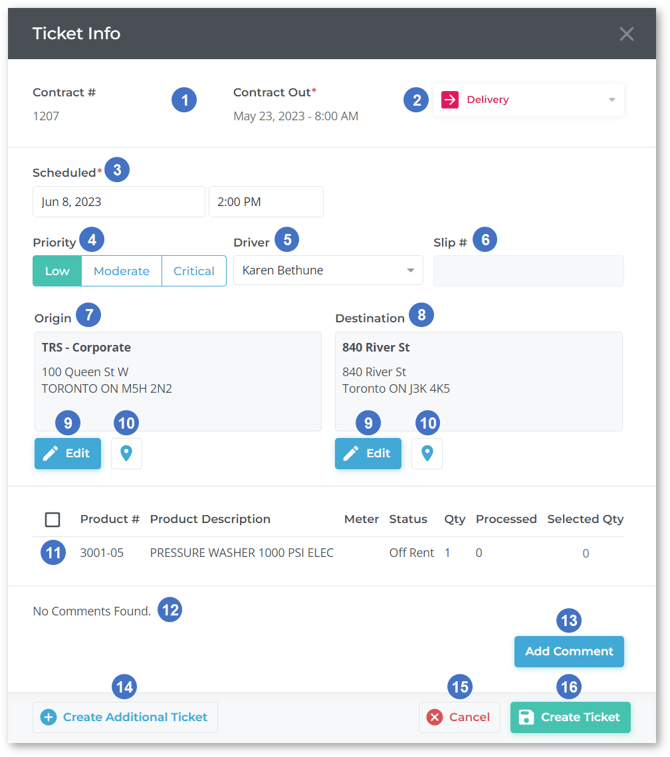
- Contract Information
The Contract’s number and start date. - Delivery / Pickup Selector
Use the drop-down to toggle between creating a Delivery Ticket and creating a Pickup Ticket. - Scheduled Date and Time
The date and time for which the Ticket is scheduled. This is the date the Driver will see when reviewing the Ticket in Service and Rental Mobile. This date must be after the parent Contract’s date/time out. - Priority
The Ticket’s priority - Low (green), Moderate (orange), or Critical (red). This will be visible in a number of places throughout Rental Management, providing a quick visual indication of which Tickets should be prioritized. - Driver
The Driver responsible for fulfilling the Ticket. Click on the drop-down to open the list of registered Drivers, then begin typing to filter the list and click on a Driver’s name to assign them to the Ticket. - Slip #
Pickup Tickets only. An optional pickup slip number that will be displayed on the printed and .pdf versions of the Ticket. - Origin Address
The address from which the Assets on the Ticket are being picked up. - Destination Address
The address to which the Assets on the Ticket will be delivered. - Edit Address Button
Click to edit the Origin or Destination Address. See “Edit the Origin or Destination Address of a Ticket in Rental Management (Next)” for more information. - Open in Google Maps Button
Click to view the Origin or Destination Address in Google Maps. This will open Google Maps in a new browser tab. It is highly recommended to use this feature to ensure that Google Maps is able to recognize the Origin and Destination Addresses and provide accurate directions to the Driver. - Products
The Products on the Contract are listed here. Check the checkbox to the left of a Product to include it on the Ticket. - Comments
Any comments left on the Ticket. - Add Comment Button
Click to add a new comment to the Ticket. - Create Additional Ticket
Once you have entered the information for your Ticket, click this button to create the Ticket and leave the Ticket Info window open, allowing you to quickly create an additional Ticket. - Cancel Button
Click to close the Ticket Info window without creating a Ticket. - Create Ticket
Once you have entered the information for your Ticket, click this button to create the Ticket and close the Ticket Info window.
Comments Panel
Use this panel to capture any additional information about the Contract not covered elsewhere.
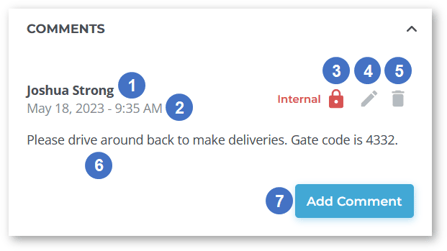
- Commenter Name
The name of the User who posted the comment. - Timestamp
The date and time at which the comment was posted. - Comment Visibility
Indicates whether the comment is customer-facing or internal only. Customer-facing comments will be included on the printed and .pdf versions of the Contract. - Edit Comment
Click the pencil icon next to a comment to edit it.
 - Delete Comment
Click the bin icon next to a comment to delete it. This action cannot be undone.
 - Comment Body
The contents of the comment. Comment bodies are limited to 250 characters. - Add Comment Button
Click to add a new comment.
Attachments Panel
This panel allows you to attach external files and URLs to the Contract.
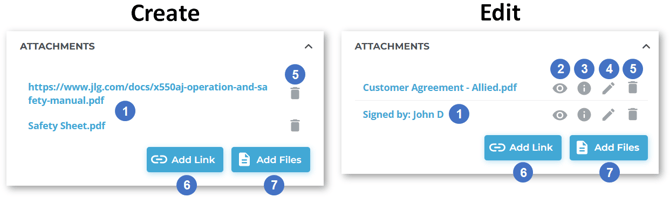
- Attachments
Attachment filenames and URLs are listed here. Click on an attachment to open it in a new browser tab. - Preview Attachment
Hover your cursor over the eye icon to see a preview of the attached file.
 - Attachment Information
Hover your cursor over the information symbol to view additional information about the attachment. - Edit Attachment
Click the pencil icon to change the attachment URL or rename the attached file. - Delete Attachment
Click the bin icon next to an attachment to delete it.
 - Add Link Button
Click to add a new URL attachment to the Contract. URLs must be valid in order to be attached; the easiest way to ensure this is to navigate to the desired page in your browser, then copy and paste the URL from the address bar. - Add Files Button
Click to add new file attachments to the Contract. Clicking this button will open your computer’s file explorer, allowing you to select files to upload. You can attach multiple files at once by ctrl+clicking or clicking and dragging to select multiple files.
Associated Documents Panel
The Associated Documents panel (left) allows you to associate other documents in the Texada system with the Contract. These associations make it easy to track the relationships between documents. Documents that can be associated with Contracts include Quotes, Invoices, Inspections, Reservations, Tickets, Work Orders, and other Contracts.
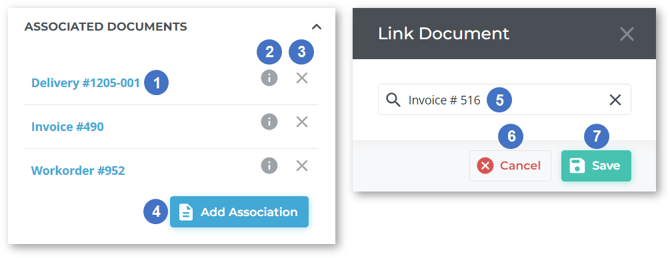
- Associated Document
Documents associated with the Contract are listed here. Click on a document’s name to open its details in a new browser tab. - Document Information
Hover your cursor over the information symbol to view additional information about an associated document. The information available will change depending on the document’s type. - Remove Association
Click the X icon next to a document to disassociate it. This will not delete the associated document, only remove its association to this Contract.
 - Add Association Button
Click to open the Link Document window (right) and add an association. - Search Bar
Begin typing into the search bar to search for documents to associate with this Contract. This will search by document number and document type. Click on a document to select it. - Cancel Button
Close the Link Document window without saving changes. - Save Button
Click to associate the currently-selected document with this Contract.
History Panel
This panel contains a record of the changes that have been made to the Contract since its creation. Changes are automatically added to the History panel as they are made.
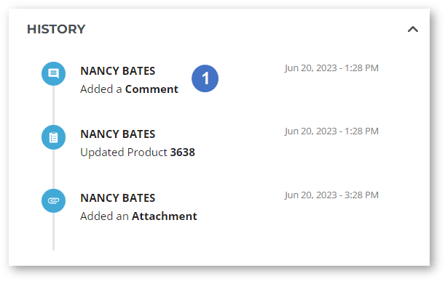
- History Entry
Historic changes to the Contract are listed in chronological order. Each change includes its type, the name of the User who made the change, and the date and time at which the change was made.
Total Panel
This panel contains financial information for the Contract, including rental, sales, and services costs, damage waiver information, discounts, and taxes.
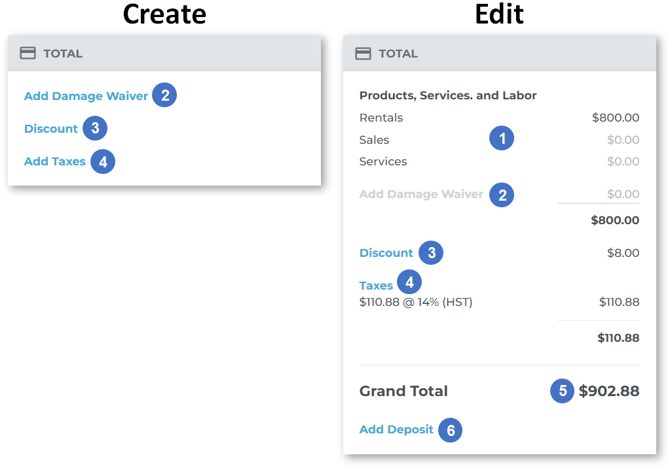
- Rentals, Sales, and Services Subtotals
The total costs of the Rental Products, Sales Products, and Services included on the Contract. - Damage Waiver
The cost of the damage waiver included on the Contract, if any. Click “Add Damage Waiver” to add a damage waiver to the Contract. You can only add a damage waiver when first creating a Contract. - Discount
The total discount amount (rental and sales) applied to this Contract. Click “Discount” to manage the discounts applied to the Contract. - Taxes
The total amount of tax applied to this Contract. Click “Taxes” to manage the Contract’s tax codes and enter tax exemption numbers. - Grand Total
The total cost of the Contract. Equal to Rentals + Sales + Services + Damage Waiver - Discount + Taxes. - Add Deposit
Click to add a deposit to the Contract. See “Add A Deposit to a Contract in Rental Management (Next)” (article forthcoming) for more information.
Damage Waiver
Clicking “Add Damage Waiver” in the Total panel will open the Damage Waiver window, allowing you to add a damage waiver to the Contract.
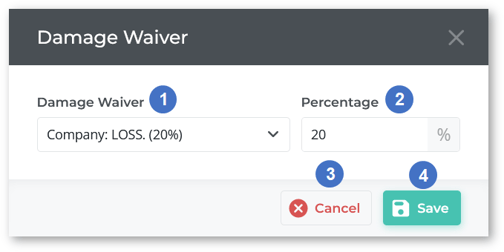
- Damage Waiver
Click on the drop-down to select a damage waiver to apply to the Contract.
Damage waivers are managed via the Waiver Codes utility in Rental Management (Classic), located at System Maintenance → Configure System Settings → Accounting → Waiver Codes. Once a damage waiver has been created, it can be set as a company-wide code via the Company Waiver Code Maintenance utility, or as a Division-specific code via the Division Standard Waiver Settings utility.
The damage waivers available in this drop-down will be a combination of the company-wide codes for your company, and the Division-specific codes for the Contract’s Division. - Percentage
The amount of the damage waiver expressed as a percentage of the total Contract cost. This value can be overridden. - Cancel Button
Click to close the window without saving your changes. - Save Button
Click to apply the selected damage waiver to the Contract.
Discount
Clicking “Discount” in the Total panel will open the Discount window, allowing you to apply a rental or sale discount to the Contract.
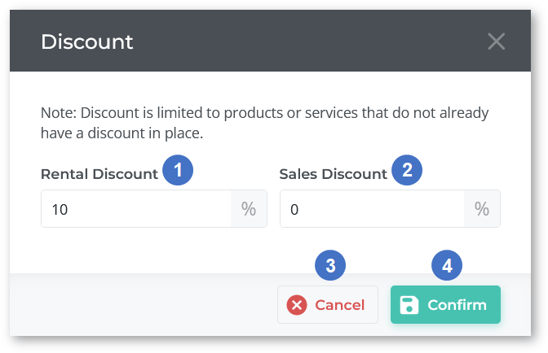
- Rental Discount
The percentage discount to be applied to all Rental Products on the Contract. Discounts applied here will be reflected in the “Products Subtotal” amount in the Products tab. - Sales Discount
The percentage discount to be applied to all Sale Products on the Contract. Discounts applied here will be reflected in the “Products Subtotal” amount in the Products tab. - Cancel Button
Click to close the window without saving your changes. - Confirm Button
Click to apply the selected discounts to the Contract.
Taxes
Clicking “Add Taxes” in the Total panel will open the Taxes window, allowing you to manage the taxes and tax exemptions applied to the Contract.
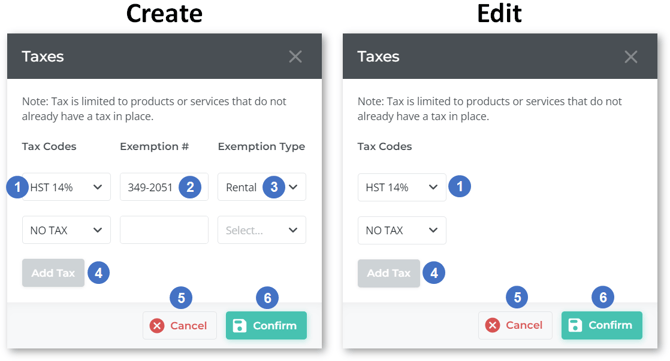
- Tax Code
Select a tax code from the drop-down list to apply it to the Contract. Tax codes are managed via the Tax Codes utility in Rental Management (Classic), at System Maintenance → Configure System Settings → Accounting → Tax Codes. - Exemption #
The Customer’s tax exemption number for the selected tax type, if any. - Exemption Type
The type of transaction to which the exemption number applies:- Rental: Applies to equipment rentals.
- Sale: Applies to sales.
- Both: Applies to both rentals and sales.
- Neither: Does not apply to rentals or sales. Use this option when a tax exemption number does not apply to rentals or sales, but you still wish to capture it.
- Add Tax Button
Click to add an additional tax type to the Contract. This option is available if your company’s Taxing Method is set to Enhanced in Rental Management (Classic), at System Maintenance → Configure System Settings → System → Company Parameters → Taxing Parameters. - Cancel Button
Close the window without saving changes. - Confirm Button
Save your changes and apply the selected tax rates to the Contract.
Assigned To Panel
Exclusive to Reservations, this panel allows you to assign a Mechanic to the Reservation for the purposes of Asset Staging.
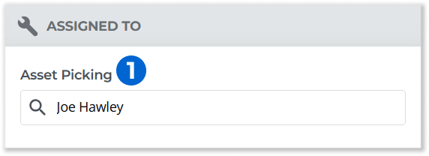
- Asset Picking
Select a Mechanic from the drop-down to assign them as the asset picker for this Reservation.