In This Article
- Introduction
- Accessing the Project Details Page
- The Project Details Page
- Project Information Panel
- Leads & Opportunities Panel
- Companies Panel
- Activities Panel
- Customer Equipment Panel
- Notes Panel
Introduction
The Project Details page in Equipment CRM contains detailed information about a single Project. From here, you can view and modify a Project’s location, owner, assignee, associated Customers and equipment, and other information. You can also browse and create Activities, Leads, and Opportunities associated for the Project.
Accessing the Project Details Page
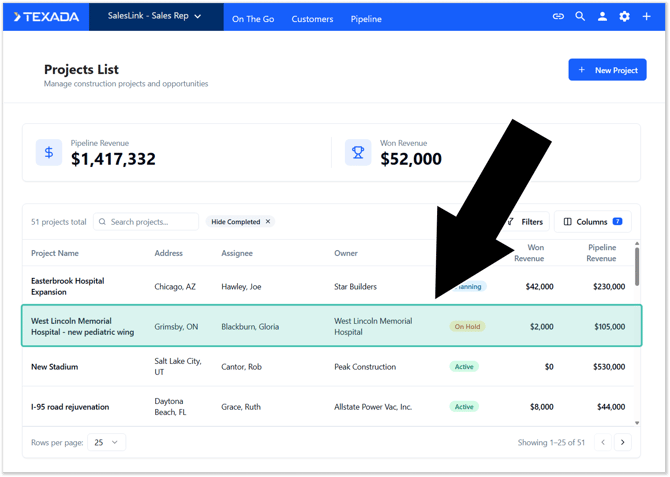
The Project Details page can be accessed via the Project List in Equipment CRM (Sales Rep and Executive). Locate the Project you’d like to view, then click anywhere on its row to view its details.
The Project Details Page
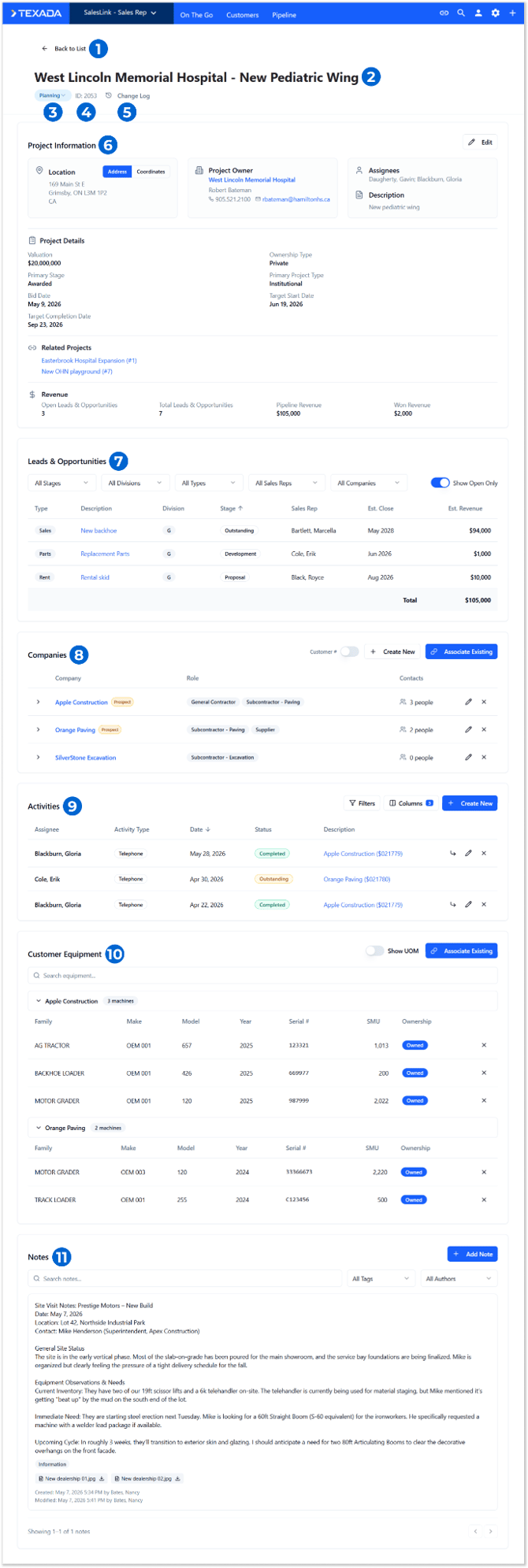
- Back to List Button
Click to return to the Project List. - Project Name
The Project’s name. - Project Status
The Project’s current status. Click the dropdown to select a new status. Project statuses can be managed via the Settings menu, under Manage Dropdowns → Project Status.
Setting a Project’s status to Completed will disassociate all equipment from that Project. For this reason, an additional confirmation window will appear when selecting this option from the dropdown. Click “Complete Project and Disassociate Equipment” to proceed, or “Cancel” to cancel.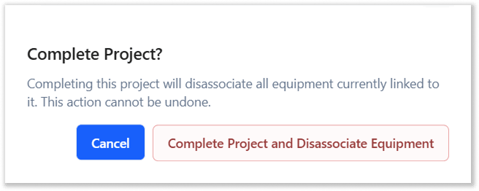
- Project ID
The Project’s unique ID. This is automatically assigned when the Project is created and cannot be changed. - Change Log Button
Click to view the Project’s Change Log. - Project Information Panel
Contains basic information about the Project, including its location, owner, assignee(s), details, related projects, and revenue information. - Leads & Opportunities Panel
Lists the Leads and Opportunities associated with this Project. - Companies Panel
Lists the Customer companies associated with this Project. - Activities Panel
Lists the sales Activities associated with this Project. - Customer Equipment Panel
Lists the pieces of customer equipment associated with this Project - for example, those that are in use at the Project site. - Notes Panel
Contains notes about the Project left by Equipment CRM users.
Change Log
Click the Change Log button  at the top of the Project Details page to view the Change Log. This screen allows you to view the timeline of changes that other Equipment CRM users have made to the Project.
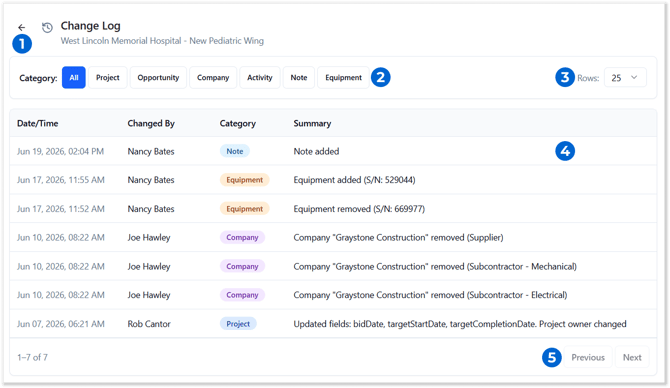
- Back Button
Click to return to the Project Details page. - Category Filters
Click to filter changes by category. - Rows Per Page
Use the dropdown to modify how many changes are displayed on a single page. - Change Log
Each change made to the Project is logged as a row in this table. Information available for each change includes:- Date/Time: The time at which the change was made.
- Changed By: The Equipment CRM user who made the change.
- Category: The type of information that was modified.
- Summary: A summary of the changes made.
- Previous / Next Page
Use these buttons to navigate between pages of changes.
Project Information Panel
This panel contains basic information about the Project.
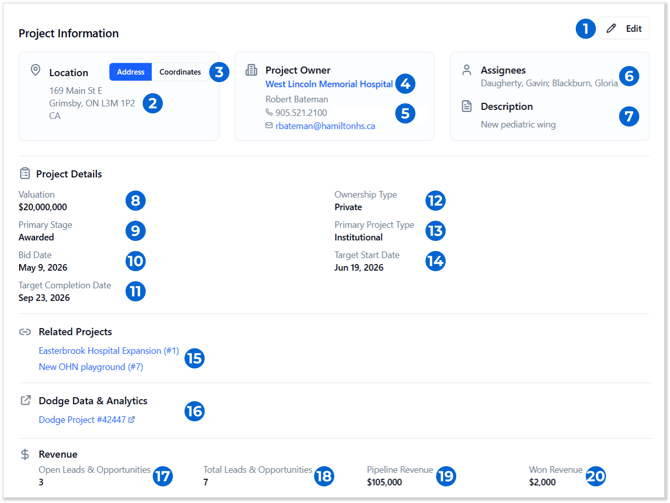
- Edit Button
Click to edit the information in this panel. See “Create or Edit a Project” for more information. - Location
The Project’s location. This can be expressed as a street address or as a set of coordinates. If both a street address and coordinates exist, the street address will be shown by default. - Address / Coordinates Toggle
Use these buttons to toggle between viewing the Project’s location as a street address or as latitude/longitude coordinates. - Project Owner
The company that owns this Project. This must be an existing Customer in Equipment CRM. Click on the owner’s name to jump to their Customer Profile. - Contact(s)
The project owner’s primary contact(s) for this Project. More than one contact can be specified. Click on a contact’s email address to start composing an email. - Assignees
The Equipment CRM user(s) currently assigned to this Project. - Description
A brief description of the Project. - Valuation
The Project’s total valuation. - Primary Stage
The Project’s primary stage (pre-construction, bidding, completed, etc.) Primary stages can be managed via the Settings menu, under Manage Dropdowns → Primary Stage. - Bid Date
The Project’s bid deadline date. - Target Completion Date
The Project’s target completion date. - Ownership Type
The Project’s ownership type (private, public, governmental, etc.) Ownership types can be managed via the Settings menu, under Manage Dropdowns → Ownership Type. - Primary Project Type
The Project’s primary project type (commercial, residential, industrial, etc.) Primary project types can be managed via the Settings menu, under Manage Dropdowns → Primary Project Type. - Target Start Date
The Project’s target start date. - Related Projects
Other Equipment CRM Projects related to the current Project are listed here. Click on a Project’s name to open its details. - Dodge Data & Analytics
The name and number of the Dodge project from which this Project was created, if any. Click on the Dodge project’s name to open its Dodge Project Detail page. - Open Leads & Opportunities
The number of open Leads and Opportunities associated with this Project. - Total Leads & Opportunities
The total number of Leads and Opportunities, open and closed, associated with this Project. - Pipeline Revenue
The total revenue represented by the open Leads and Opportunities for this Project. - Won Revenue
The total revenue of all won opportunities for this Project.
Leads & Opportunities Panel
This panel lists the Leads and Opportunities associated with this Project.
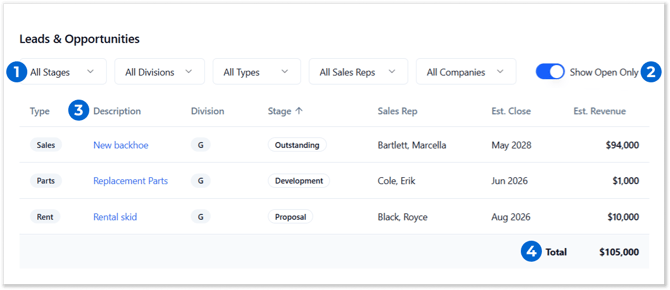
- Filters
Use the dropdowns to filter the list of Leads and Opportunities by stage, Division, type, sales rep, and company.
The values available in these dropdowns will be limited to the values present in the Opportunity records associated with this Project. For example, if your organization has 5 Divisions, but all the Opportunities associated with this Project belong to the same 2 Divisions, only those 2 Divisions will appear in the “Divisions” dropdown. - Show Open Only
Disable this toggle to show Leads and Opportunities in the stages of Won, Closed, No Lead, and No Deal. - Leads & Opportunities Table
Leads and Opportunities associated with the current Project are listed here. Click on a record’s description to jump to its Opportunity Details page. - Total Estimated Revenue
The total estimated revenue of the Leads and Opportunities matching the current filters. Equal to the sum of values under the “Est. Revenue” column.
Companies Panel
This panel lists the Customer companies associated with the Project.
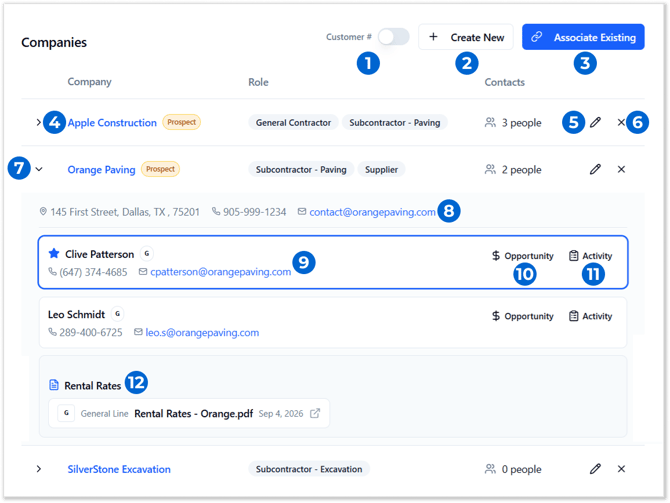
- Customer # Toggle
Enable this toggle to display the “Customer #” column. - Create New Button
Click to create a new Customer record and associate it with the current Project. - Associate Existing Button
Click to associate an existing Customer record with this Project. See “Associate Existing Company” for more information. - Company Name
The company’s name. Click on a company’s name to open their Customer Profile. Prospect companies will be indicated by a yellow “Prospect” label .
. - Manage Company
Click to manage the Customer’s details as they pertain to this Project, including roles and contacts. See “Manage Company” for more information. - Remove Company
Click to disassociate the Customer from this Project. This will not delete the Customer record, only remove the company and all its contacts from the Project. This action cannot be undone. - Expand / Collapse
Click the right / down arrow /
/  next to a company’s name to expand or collapse it, revealing additional information as well as the list of contacts for that company.
 - Company Contact Information
The company’s street address, phone number, and primary contact email. Click on the email address to compose an email. - Company Contact
Expand a company’s details (7) to view contacts for that company. The company’s primary contact will be indicated by a blue star and solid border. Click on a contact’s email address to compose an email.
 - New Opportunity Button
Click to create a new Opportunity for this contact and Project. This will pre-fill the Add New Opportunity screen with information from this Project, including the Customer, Address, Contact, and Project fields. Note that the Address will be the address of the Project, rather than that of the contact’s company. - New Activity Button
Click to create a new Activity for this contact and Project. This will pre-fill the Add New Activity screen with information from this Project, including the Customer, Contact, Owner, and Project fields. - Rental Rates
Rental rates documents uploaded to the company’s Customer profile are listed here. Click on a document to view or download it.
Documents can be uploaded to a company via the Documents tab of the Customer details screen. Uploaded documents are organized by category. To prevent irrelevant documents from being displayed in the Companies panel, only one category of documents will be shown. This category can be set by an Equipment CRM administrator using the “Rental Rates Document Category” drop-down, located at On The Go → Projects → Project Settings (gear icon) → Other Settings. See “Project Settings” for more information.
If no rental rates documents exist for the Customer, an “Open Customer Documents” button will instead be visible. Click this button to jump to the Customer’s Documents screen.
Associate Existing Company
Click the Associate Existing button  in the top-right corner of the Companies panel to associate an existing Customer company with this Project. This, in turn, allows you to associate that Customer’s equipment with this Project via the Customer Equipment panel.
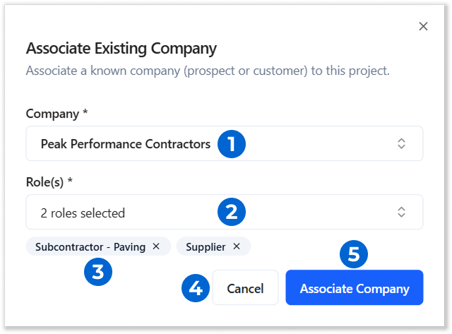
- Company
Begin typing into the search bar to search the list of Customers, then select a Customer to associate with the current Project. Companies already associated with the Project will be excluded from the search results. - Role(s)
Select one or more subcontractor roles which the selected Customer is performing with regards to the current Project. Roles can be managed via the Settings menu, under Manage Dropdowns → Subcontractor Role. - Current Roles
Currently-selected subcontractor roles are listed here. Click the “x” icon next to a role to remove it from the Customer. - Cancel Button
Click to close the window without saving your changes. - Associate Company
Click to associate the selected Customer with this Project. To do this, you must have selected a Company and at least one Role.
Manage Company
Click the pencil icon  next to a company in the Companies panel to edit its details as they pertain to this Project.
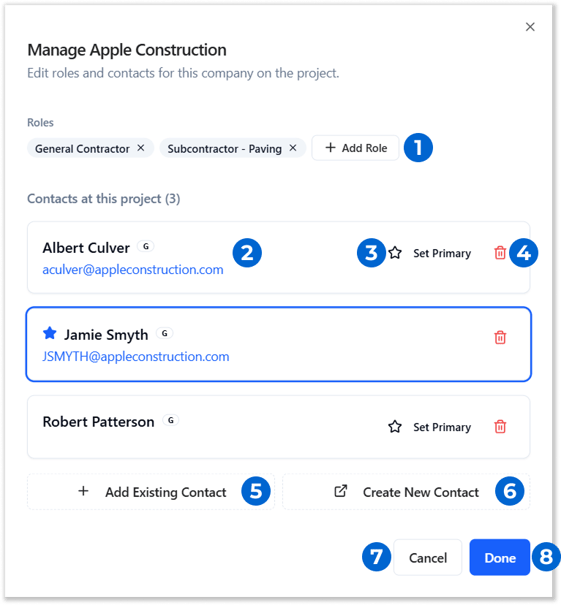
- Roles
The subcontractor roles currently associated with this company for this Project are listed here. Click the “x” icon next to a role to remove it. Click the “Add Role” button to add new subcontractor roles. - Company Contact
Company contacts for this Project are listed here. Click on a contact’s email address to compose an email. - Set Primary
Click the star icon next to a contact to make them the company’s primary contact for this Project.
 - Remove Contact
Click to disassociate a company contact from this Project. This will not delete their contact record, only remove them from this Project. - Add Existing Contact Button
Click to associate an existing contact at this company with this Project. - Create New Contact Button
Click to create a new contact at this company and associate them with this Project. - Cancel Button
Close the Manage Company window without saving your changes. - Done Button
Save your changes and close the Manage Company window.
Activities Panel
This panel lists the sales Activities associated with this Project.
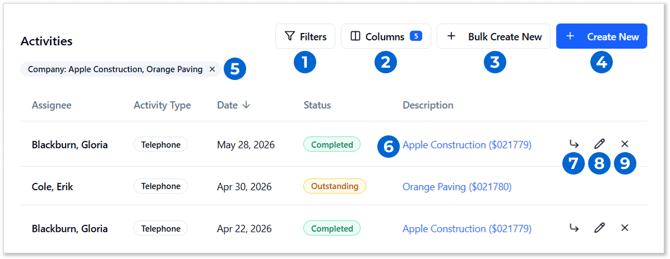
- Filters Button
Click to filter the list of Activities. See “Activity Filters” for more information. - Columns Button
Click to manage the columns displayed in the Activities List. The number next to this button indicates the number of columns currently displayed.- Check or uncheck a column to display or hide it.
- Click and drag the displayed columns to reorder them.
- Bulk Create New Button
Click to bulk create Activities for this Project. See “Bulk Create Activities” for more information.
The visibility of this button is determined by the “Project bulk activity creation” (ckCommon.Projects.BulkCreateActivities.Enabled) configuration key in CloudLink Console. See “Manage Configuration Keys” for more information. - Create New Button
Click to create a new Activity for this Project. This will pre-fill the Add New Activity screen with information from this Project, including the Owner and Project fields. - Current Filters
Currently-applied filters are listed here. Click the “x” icon next to a filter to remove it. - Activity Description
Click on an Activity’s description to open its details. - Follow Up
Click to create a follow up Activity for the selected Activity. This button will only be visible to the sales rep who owns the Activity. - Edit Activity
Click to edit an Activity. This button will only be visible to the sales rep who owns the Activity. - Remove Activity
Click to disassociate the selected Activity from the Project. This will not delete the Activity. This button will only be visible to the sales rep who owns the Activity.
Activity Filters
Click the Filters button  in the top-right corner of the Activities panel to open the Activity Filters window.
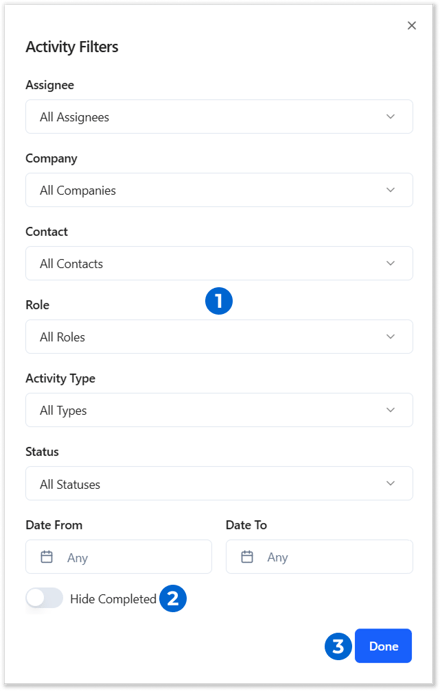
- Activity Filters
Use the dropdowns to filter the list of Activities by assignee, company, contact, role, type, status, or date. - Hide Completed Toggle
Enable this toggle to hide completed Activities from the list. - Done Button
Click to apply your filters and close the window.
Bulk Create Activities
Click the “Bulk Create New” button in the top-right corner of the Activities Panel to open the Bulk Create Activities window. Using this window, you can create multiple Activities associated with the Project at once.
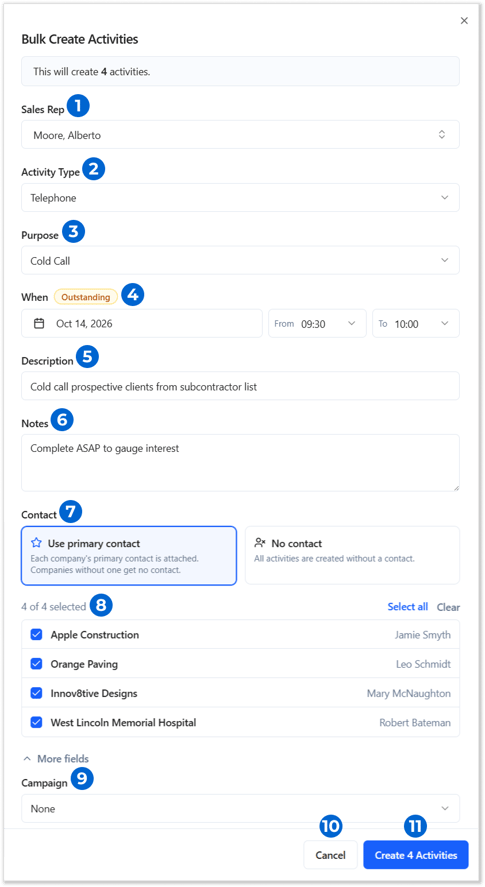
- Sales Rep
The sales rep to which the created Activities will be assigned. - Activity Type
The Type of the created Activities. - Purpose
The Main Purpose of the created Activities. This will also be included under the Activity’s Important Notes or information. - When
The Date/Time of the created Activities. If this time is in the past, the Activities will be created with a status of Completed. If this time is in the future, they will be given a status of Outstanding. This can be seen directly above the date selector. - Description
The Subject of the created Activities. - Notes
Enter any additional notes for the created Activities. These will be included under the Activity’s Important Notes or information. - Contact
Select which Contacts will be associated with the created Activities:- Use primary contact: Each Company’s primary Contact will be associated with the created Activity, if one exists.
- No contact: The Activities will be created without a Contact.
- Company Selection
The subcontractor Companies associated with the current Project are listed here. Check the checkbox next to a Company to create an Activity for that Company. Click “Select All” to select all Companies, or “Clear” to deselect them.
Each Company’s primary Contact is listed to the right of that Company’s name. This is the Contact that will be assigned to the created Activity if “Use primary contact” is selected under “Contact” (7).
Note that the Project Owner is excluded from this list. - Campaign
Select a campaign from the drop-down list to associate the created Activities with that campaign. - Cancel Button
Click to close the Bulk Create Activities window without creating Activities. - Create Activities Button
Click to create Activities for the selected Companies. As you select and deselect Companies (8), this button will automatically update to indicate the number of Activities that will be created.
Customer Equipment Panel
This panel lists Customer equipment associated with the Project.
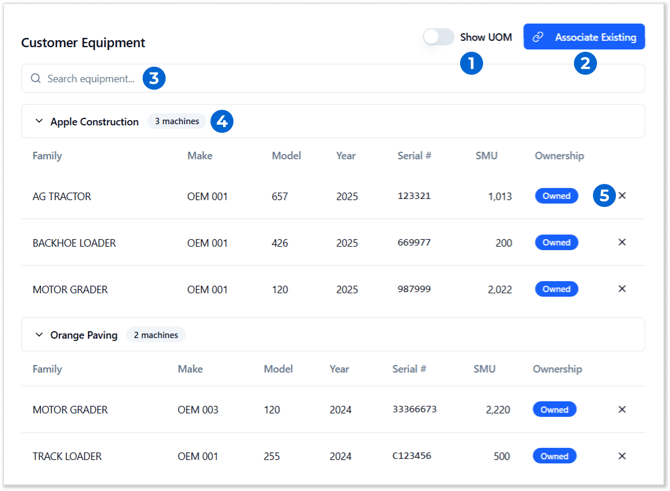
- Show UOM Toggle
Enable this toggle to display the UOM column in the equipment list. This is the unit of measurement in which the equipment’s Service Meter Units are measured (e.g. hours, miles, or kilometers). - Associate Existing Button
Click to associate an existing piece of equipment with the current Project. See “Associate Existing Equipment” for more information. - Search Equipment
Begin typing into the search bar to search the list of equipment by family, make, model, year, and serial #. - Customer
Equipment in the equipment list is organized by Customer. Click on a customer’s name to display or hide equipment associated with that Customer. - Remove Equipment
Click to disassociate the selected piece of equipment from the Project. This will not delete the equipment record. This action cannot be undone.
Associate Existing Equipment
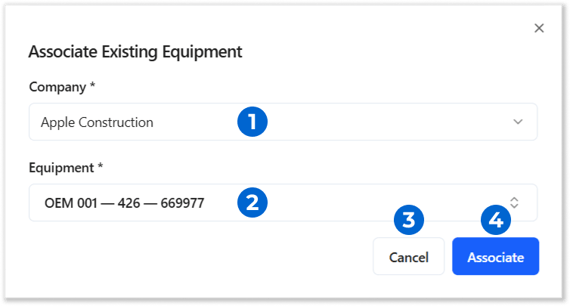
Click the Associate Existing button in the top-right corner of the Customer Equipment panel to associate an existing piece of Customer equipment with the Project.
- Company
Select the company whose equipment you would like to associate with the Project. Only companies already associated with this Project will appear in the dropdown. - Equipment
Begin typing into the search bar to select a piece of equipment to associate with the Project. This will search by serial number, model, make, and equipment number. - Cancel Button
Click to close the window without saving your changes. - Associate Button
Click to associate the selected piece of equipment with the current Project.
A piece of equipment can only be associated with one Project at a time. If the selected piece of equipment is already associated with a different Project, you will be prompted to disassociate it from that Project in order to associate it with the new one.
Notes Panel
This panel allows you to add notes to the Project, for the benefit of other Equipment CRM users. Notes are highly flexible and are an invaluable tool for recording miscellaneous information about a Project.
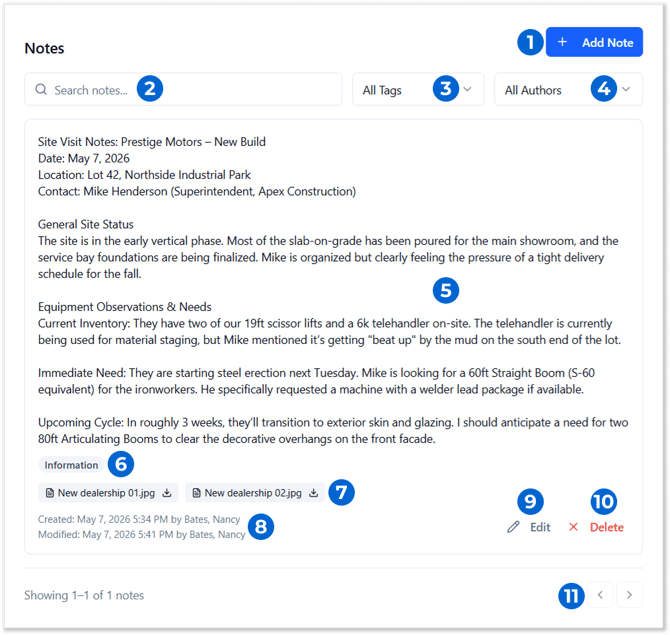
- Add New Button
Click to add a new note. See “Add/Edit Note” for more information. - Search Notes
Begin typing into the search bar to search existing notes by their content. - Filter by Tag
Select a tag from the dropdown to only display notes with that tag. - Filter by Author
Select an Equipment CRM user from the dropdown to only display notes authored by that user. - Note Content
The contents of the note. - Tags
Tags associated with the note are listed here. Note Tags can be managed via the Settings menu, under Manage Dropdowns → Note Tags. - Attachments
Additional files attached to the note are listed here. Click the download icon next to an attachment to download it.
 - Created / Modified By
The times at which the note was first created and last edited are listed here, along with the name of the user who made these changes. - Edit Note Button
Click to edit the selected note. See “Add/Edit Note” for more information. This button will only be visible next to notes for which you are the author. - Delete Note Button
Click to delete the selected note. This button will only be visible next to notes for which you are the author. - Previous / Next Page
Use the left and right arrows in the bottom-right corner of the list of notes to navigate between pages of notes.
Add/Edit Note
Click the Add Note button  in the top right corner of the Notes panel to add a new note. Click the Edit button
  next to a note you authored to edit it.
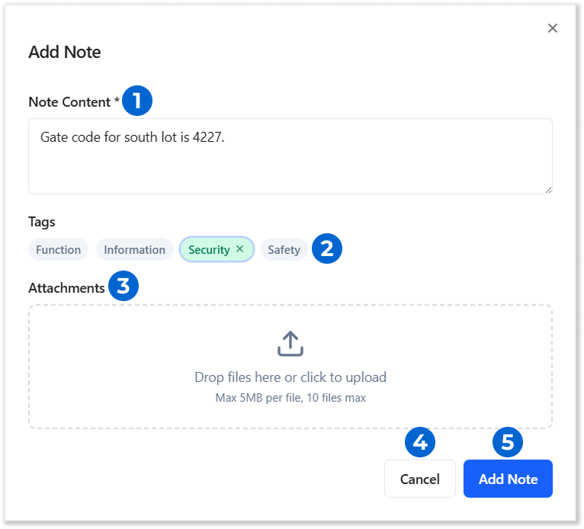
- Note Content
The contents of the note. - Tags
Click on a tag to attribute it to the note. Click the “x” icon next to a selected tag to remove it. - Attachments
Click on the attachment area and select a file to attach, or drag and drop a file into the attachment area to attach it to the note. Attached files must be smaller than 5MB. Up to 10 files can be attached to each note. - Cancel Button
Click to close the window without saving your note. - Add Note / Save Changes Button
Click to save your changes to the note and close the Add/Edit Note window.