
In This Article
Introduction
The Dodge Report page in Equipment CRM helps equipment dealerships spot new construction projects early, so they can identify buying opportunities before competitors and time outreach to the right contractors and owners. By integrating with Equipment CRM’s Projects functionality, users can easily convert Dodge projects into Equipment CRM Projects.
To reach the Dodge Report page, log in to Equipment CRM (Sales Rep or Executive), then select Pipeline → Dodge Report from the top navigation menu.
Dodge Report
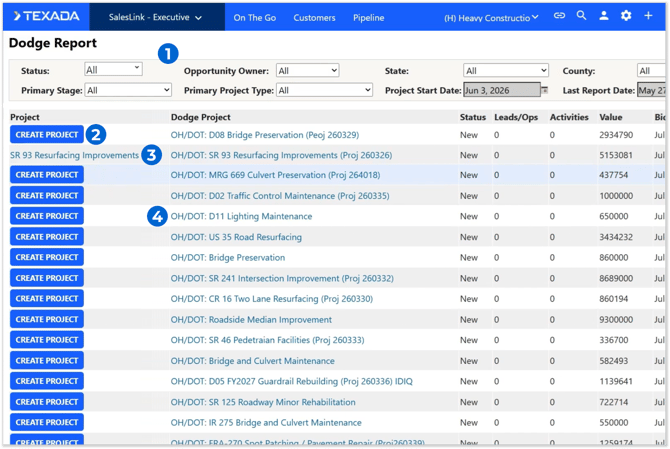
- Filters
Use the filters at the top of the screen to filter the list of Dodge projects by the selected criteria. - Create Project Button
Click to create a new Equipment CRM Project based on the selected Dodge project. See “Create or Edit a Project” for more information.
When creating a new Project from a Dodge project, the Project’s Primary Stage, Primary Project Type, and Ownership Type will be automatically filled out based on the mappings established via Dodge Project Mappings. These values can always be changed later. - Project Name
If an Equipment CRM Project based on a given Dodge project has already been created, the “Create Project” button will be replaced with that Project’s name. Click on it to open its Project Details page.
Note that each Dodge project can only be associated with one Equipment CRM Project at a time. This limitation helps avoid duplication. - Dodge Project Name
Click on a Dodge project’s name in the list to view its details.
Dodge Project Detail
Click on a Dodge project’s name on the Dodge Report screen to open the Dodge Project Detail page. This page contains more information about the project.
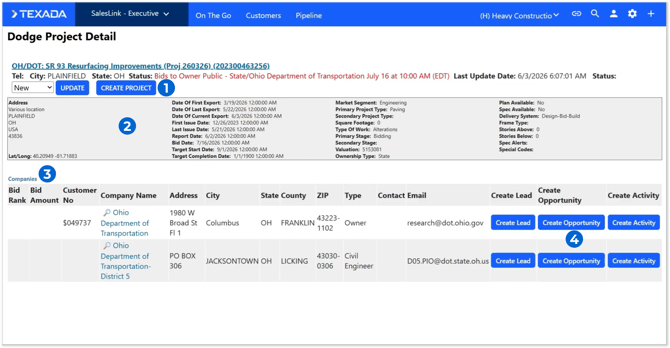
- Create Project Button / Project Name
Click to create a new Equipment CRM Project based on this Dodge project. This button functions identically to the “Create Project” button on the Dodge Report page.
If an Equipment CRM Project based on this Dodge project has already been created, this button will be replaced with that Project’s name. Click on it to open its Project Details page. - Dodge Project Information
Basic information about the Dodge project is displayed in this panel, including its coordinates, bid date, target start date, and valuation. - Companies
Customer companies associated with this Dodge project are listed here. Click on a company’s name to view their Customer Profile. - Create Lead / Create Opportunity / Create Activity Buttons
Use these buttons to quickly create a new Lead, Opportunity, or sales Activity for one of the Customers associated with the Dodge project.