In This Article
Introduction
The Project Settings menu allows administrators to manage the behavior of Projects in Equipment CRM.
Project Settings
Access to the Project Settings menu is controlled via the Manage - Project Administration secured module in Equipment CRM - Executive. If you do not see the gear icon in the top-right corner of the Projects List, you have not been given access to this tool.
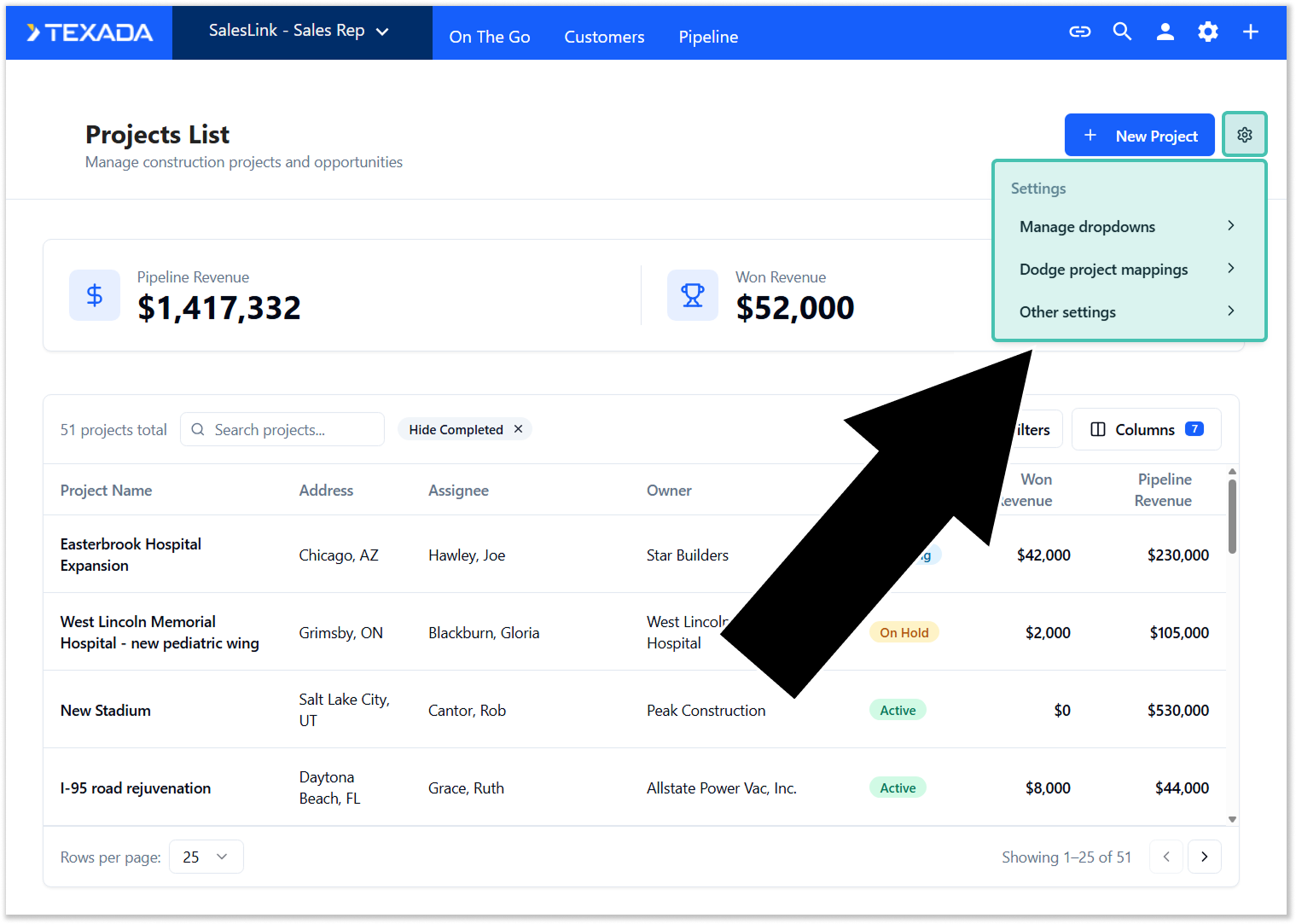
To reach the Project Settings menu, log in to Equipment CRM (Sales Rep or Executive) and navigate to the Project List page by selecting On The Go → Projects from the top menu. Then, click the gear icon  next to the “New Project” button in the top-right corner of the screen:
Manage Dropdowns
This tool allows you to edit the options available in various dropdowns throughout the Project List and Project Details screen, such as a Project’s Status, Subcontractor Role, and Primary Project Type.
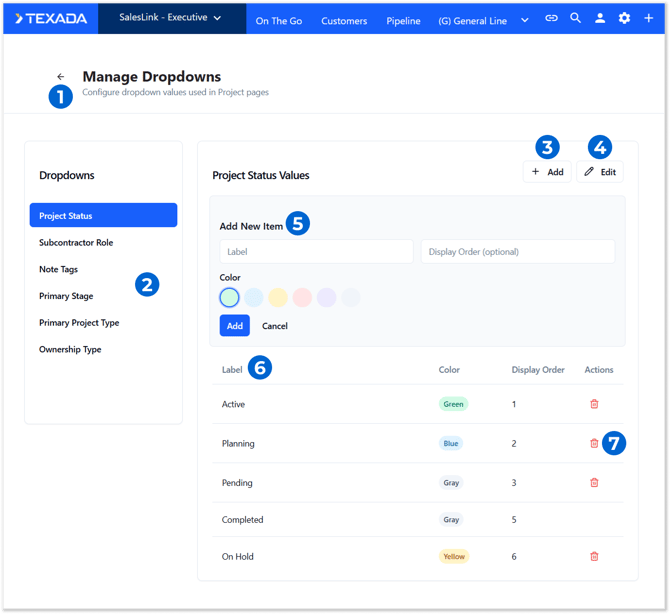
- Back Button
Click to return to the Project List. - Dropdown Selection
Click on a dropdown to view and edit its options. The dropdowns available to edit are:- Project Status: The statuses that a Project can have. The “Completed” status is required and cannot be deleted or modified. A Project must always have exactly one status and cannot be assigned a status of “Completed” upon creation; as such, at least one status other than “Completed” must exist.
- Subcontractor Role: The roles that can be assigned to Customer companies associated with a Project. The “No Role”, “Property Owner”, and “General Contractor” roles are required and cannot be deleted or modified. Companies must have at least one role to be associated with a Project.
- Note Tags: The tags that can attributed to notes left on a Project. Used for categorizing and searching notes. A note can zero, one, or several tags.
- Primary Stage: The primary stages (pre-construction, bidding, completed, etc.) that a Project can be in. A default option of “None” will always be available.
- Primary Project Type: The primary project types (commercial, residential, industrial, etc.) that a Project can have. A default option of “None” will always be available.
- Ownership Type: The ownership types (private, public, governmental, etc.) that a Project can have. A default option of “None” will always be available.
- Add Button
Click to display the Add New Item panel (5). - Edit Button
Click to unlock the existing dropdown options for editing. This will replace the Add and Edit buttons with two new buttons, Cancel and Save. Click “Cancel” to stop editing without saving your changes; click “Save” to save your changes and stop editing. - Add New Item Panel
To add a new option to the current dropdown, fill out its Label, Display Order, and Color, then click “Add”. Click “Cancel” to discard your changes and close the Add New Item panel. - Dropdown Options
Existing options for the currently-selected dropdown list are displayed here.- Label: The option’s name.
- Color: Project Status and Note Tags dropdowns only. The color in which this option will appear in the Project List and Project Details page.
- Display Order: The order in which the options will be displayed. Dropdown options are displayed in ascending Display Order.
- Delete Button
Click to delete a dropdown option. Options can only be deleted if there are no Projects currently using that value.
Dodge Project Mappings
This tool allows you to establish which values the Primary Stage, Primary Project Type, and Ownership Type fields will be given when creating an Equipment CRM Project from a Dodge project. Mapping values in this way makes Project creation easier, faster, and less prone to error.
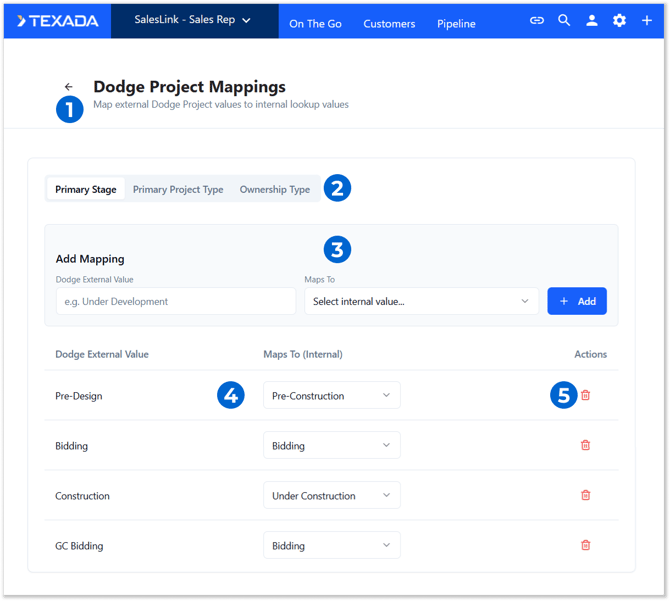
- Back Button
Click to return to the Project List. - Primary Stage / Primary Project Type / Ownership Type
Click on a field’s name to manage Dodge mappings for that field. The Primary Stage, Primary Project Type, and Ownership Type fields all support Dodge mapping. - Add Mapping Panel
New mappings can be added using this panel. To add a new mapping, fill out a Dodge External Value and select a Maps To value, then click the “Add” button. - Dodge Mappings
Existing Dodge mappings for the currently-selected field are listed here.- Dodge External Value: The Dodge system value that maps to the Equipment CRM value indicated in the “Maps To” column.
- Maps To (Internal): The Equipment CRM value to which the value in the “Dodge External Value” column will be mapped. To change a mapping, select a different value from the drop-down.
The values available in each drop-down will be the same as those established in the Manage Dropdowns tool for the currently-selected field. For example, if you are currently managing Ownership Type mappings, you will be able to select from any of the Ownership Types established in Manage Dropdowns → Ownership Type.
- Delete Button
Click to delete a mapping.
Other Settings
This tool contains miscellaneous settings related to Projects.
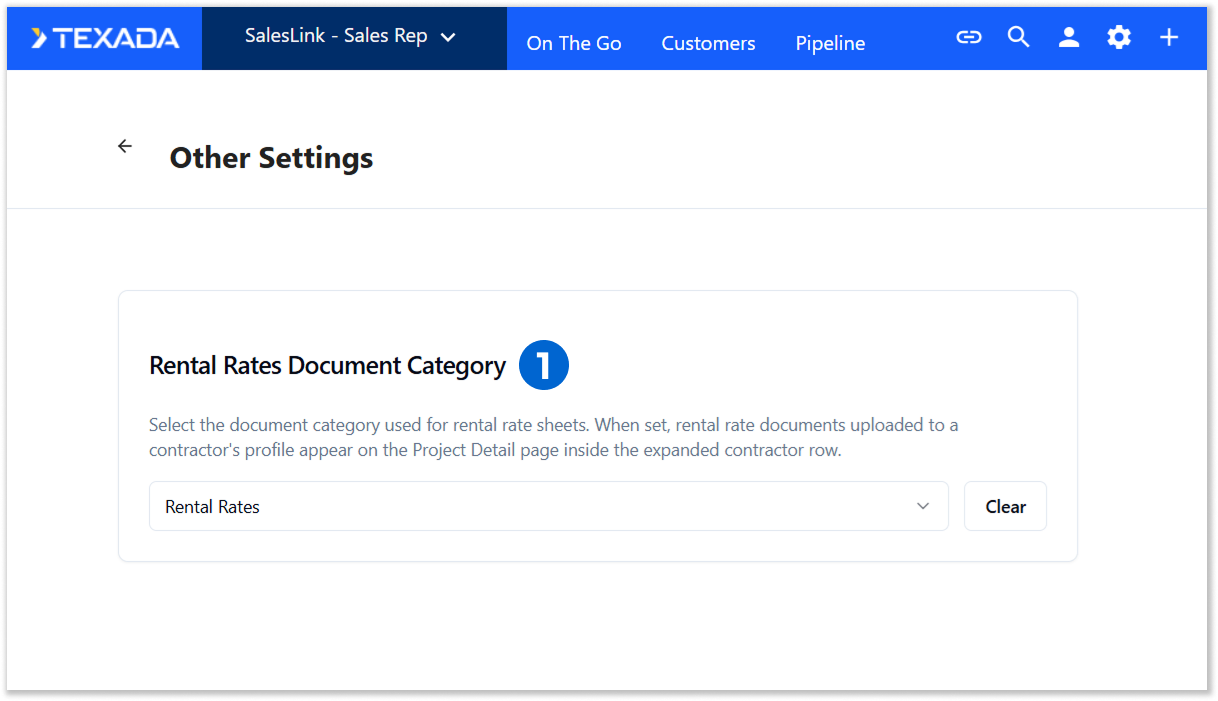
- Rental Rates Document Category
This option determines which document category will be used to populate each Company’s Rental Rates section on the Project Details screen.
The categories available in the drop-down correspond to the categories to which documents can be uploaded via the Documents tab of the Customer details screen. Select a category from this drop-down to cause documents uploaded to that category to appear under each Customer’s Rental Rates.