In This Article
Introduction
The Projects feature in Equipment CRM allows you to gracefully manage large construction projects, aggregating every associated subcontractor, contact, sales activity, and piece of equipment under a single, centralized record. Projects can be created and managed in both Equipment CRM and Equipment CRM Mobile.
The following article will describe how to create a new Project record in Equipment CRM Mobile.
Create a Project
To create a new Project in Equipment CRM Mobile, follow the steps below.
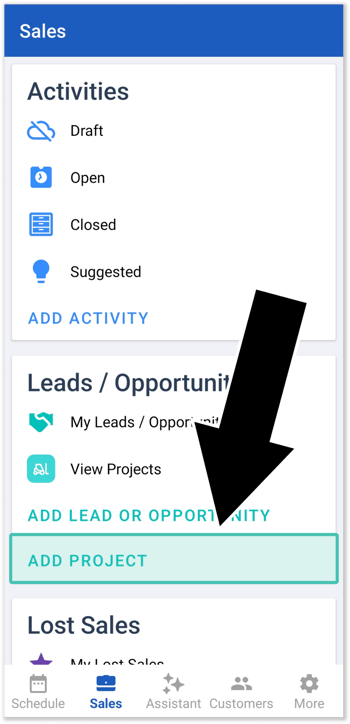
- Open the Equipment CRM Mobile application and select Sales from the bottom menu. Scroll down to the Leads & Opportunities section and tap “Add Project”.
- Fill out the details for your Project, including at least a Project Name, Status, Assignee, and Location. For a detailed breakdown of the information on this screen, see “The Project Details Page”.
Once you are finished, tap “Submit” to create the Project.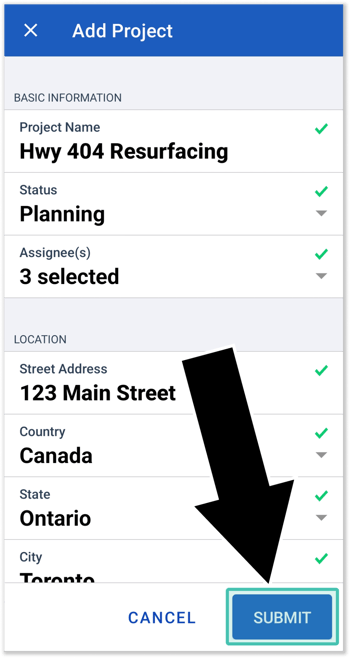
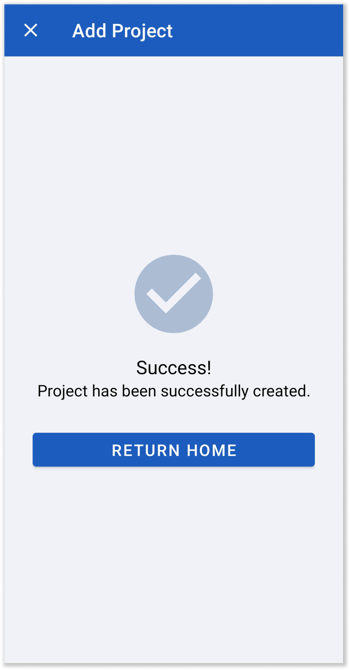
- Once the Project has been successfully created, tap “Return Home” to return to the Sales screen. You can now view and manage your Project via the Projects screen.