
In This Article
- Introduction
- AI Damage Detection
- Configuration
- Availability
- Tips for High-Quality Results
- Frequently-Asked Questions
Introduction
Identifying equipment damage at the right moment—before it becomes a dispute, missed charge, or service delay—is one of the biggest challenges in rental operations. AI Damage Detection brings automation and consistency to this process by comparing equipment condition at check-out and return, helping your team quickly spot new damage and take action.
By leveraging AI-powered image analysis directly within your existing workflows, this feature enables faster inspections, reduces reliance on manual review, and provides a clearer, more objective record of equipment condition across the rental lifecycle.
AI Damage Detection
AI Damage Detection analyzes photos taken during equipment inspections and identifies damage that appears on return but was not present at dispatch.
This functionality applies to:
For both of these processes, the agent will compare “before” images (taken during check-out or delivery) and “after” images (taken during check-in or pickup) and flag any newly-detected damage for review.
In Service & Rental Mobile
AI Damage Detection is fully integrated with Service & Rental Mobile’s existing Delivery, Pickup, Check-In, and Check-Out functionality. No changes to your existing workflows are required: once this feature has been enabled, all inspection photos will be automatically sent to the Damage Detection agent.
For a Driver or Yard Worker using Service & Rental Mobile, the end-to-end AI Damage Detection experience will look like the following:
- In Service & Rental Mobile, complete a Delivery Ticket or Check-Out as normal. Make sure to include at least 3-4 high-quality photos to serve as the “before” photos for damage detection. See “Tips for High-Quality Results” for tips on taking inspection photos.
Once the rental period is over, complete a Pickup Ticket or Check-In for the rented equipment. As before, make sure to include high-quality inspection photos.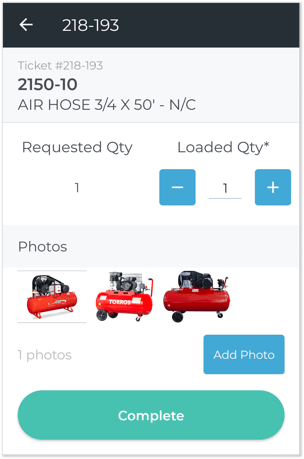
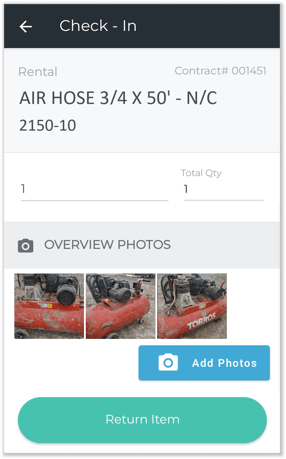
- Once the equipment has been returned, the AI Damage Detection agent will automatically compare the photos taken before and after the rental period to determine whether the equipment was damaged. Normal turnaround time for this process is 1-3 minutes.
Once the analysis is complete, a notification will be sent to the inspector’s phone with the results. Tap the bell icon in the top-right corner of Service & Rental Mobile to view notifications. If damage was found, tapping the notification will open the image in question, with the damaged area highlighted in red.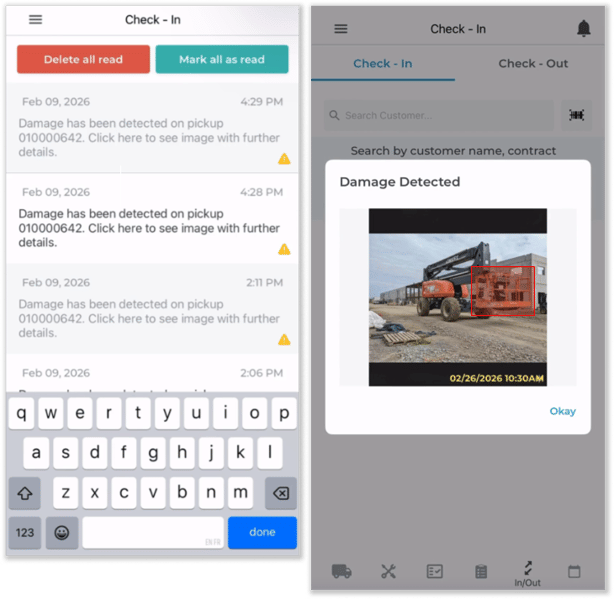
- If damage was found, an entry will be created in the AI Damage Detection List page in Rental Management (Next). A counter operator can now review the flagged images and determine whether a Work Order is needed.
Damage Detection Results
Once the AI Damage Detection agent has finished its analysis, it will return one of four possible results:
- No Damage Found
This result can mean one of two things: either no damage to the asset was found, or the Damage Detection agent was unable to complete its analysis due to an error or due to insufficient photographic information. Manual review is recommended to confirm whether the included photos were sufficient for analysis; see “Tips for High-Quality Results” for more information. - Major Damage
Major damage to the equipment was detected. It is highly likely that the equipment will require maintenance. - Uncertain Damage
Damage to the equipment was detected, but the agent was unable to determine the scope of the damage. Human review is recommended. - Minor Damage
Minor damage to the equipment was detected. It is unlikely that the equipment will require maintenance.
Results 2, 3, and 4 are all considered “damage” and will appear in the AI Damage Detection List in Rental Management (Next). Result 1 is considered “no damage” and will not appear in the AI Damage Detection List.
In all four cases, the Driver or Yard Worker who completed the Check-In will receive a notification on their phone informing whether or not damage was found.
In Rental Management (Next)
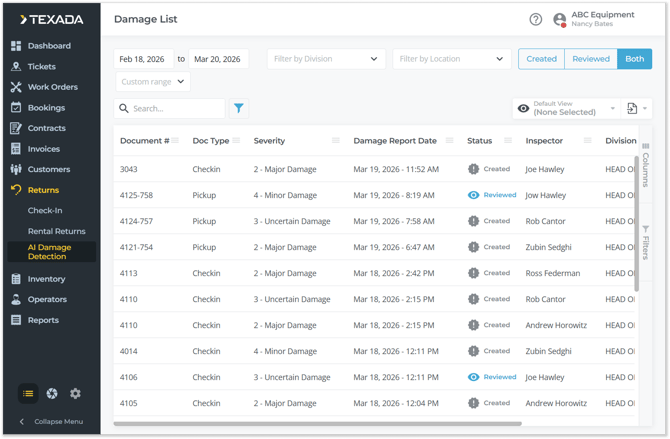
The AI Damage Detection List page in Rental Management (Next) is where counter operators can review Tickets and Check-Ins that were flagged by the AI Damage Detection agent. Users can compare inspection photos taken before and after the rental, and can even create Work Orders directly from this page!
See “The AI Damage Detection List” for more information.
Configuration
AI Damage Detection can be enabled and disabled on a per-Division basis in Service, Rental, and Financials (Next).
To do this, open the User Menu by clicking on your name in the top-right corner of the screen. Select Settings → Division Settings, then click on the Division you’d like to edit. Check the “AI Damage Detection” checkbox to enable this feature for the Division, then click “Save” to save your changes.
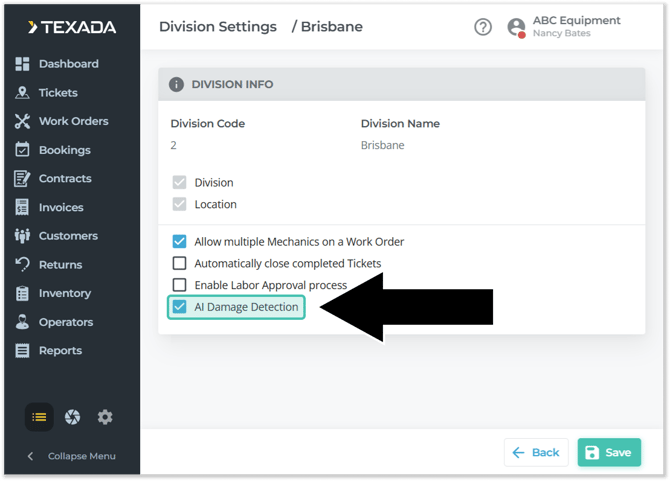
While AI Damage Detection is enabled, inspection photos taken during Delivery / Pickup Tickets and Check-Outs / Check-Ins in Rental Management Mobile will be automatically sent to the AI Damage Detection agent.
Availability
AI Damage Detection will be available as a free trial to all Texada customers. This one-time trial will include 300 free damage detection reports so your team can see the impact of this feature firsthand. Once the trial period has ended, AI Damage Detection will be switched off automatically, and can be re-enabled by subscription.
Visit texadasoftware.com to learn more and to subscribe to launch updates!
Tips for High-Quality Results
The AI Damage Detection agent will do its best to detect signs of damage using whichever photos it is provided. That said, you can improve the quality and consistency of your results by keeping the following guidelines in mind:
- Take both “before” and “after” photos.
The AI Damage Detection agent determines that a piece of equipment has been damaged by comparing its appearance at the end of the rental period to its appearance at the beginning of the rental period. As such, it’s necessary to take photos during both the Delivery / Check-Out process and the Pickup / Check-In process to see results. - Take lots of photos.
Texada recommends taking a minimum of 3 photos when both delivering and returning each piece of equipment. A series of 4 photos taken of each of the equipment’s sides (front, right, back, and left) is ideal. Up to 10 photos from each inspection will be used – if more than 10 photos are included, the first 10 will be used. - Take quality photos.
For best results, inspection photos should be taken in good lighting conditions, and the piece of equipment should be clean and in focus. Dirt or debris may obscure damage and reduce detection accuracy. Only include one piece of equipment in each photo, and make sure that all of the photos included on each inspection are of the same asset. - Take photos of all parts of the asset.
While every part of the asset should be captured in at least one photo, not every photo needs to show the entire asset – in fact, taking close-up pictures of specific parts can help the agent detect damage with those parts. Just remember that the agent can only work with what it can see: if a part of the equipment isn’t included in any pictures, any damage to that part will be missed in the analysis.
The best way to ensure that Drivers and Yard Workers take quality photos is to require them on your Inspection forms.
For this reason, Texada recommends creating a “Walk Around” Inspection form that includes four image inputs: Front, Right, Back, and Left. Making this form mandatory during both the check-out and check-in processes will help remind your staff to take photos of the equipment from every angle.
See “About Inspections” for information on configuring Inspection forms.
Frequently-Asked Questions
- What happens if I forget to take photos during the check-out or check-in process?
Both “before” and “after” photos are required for optimal results. If no photos were taken during either the check-out or check-in process, or if the provided photos are unusable, detection will not occur. Detection can occur with only “after” photos, but in this case, it won’t be possible to tell whether or not the damage occurred during the current rental period.
- An asset was returned damaged, but the AI Damage Detection agent said “No damage found”. Why is that?
The AI Damage Detection agent is not perfect, and can occasionally commit both false positives and false negatives. That said, the agent’s accuracy is directly proportional to the quality of the photos taken during the inspection process. If a piece of equipment was showing visible damage but the agent did not find any, it’s likely that the submitted photos were unusable, or that an error occurred during the detection process.
- What happens if I take more than 10 inspection photos? Can I choose which ones are used for damage detection?
The AI Damage Detection agent can process up to 10 photos for each inspection, meaning it can compare up to 10 “before” photos to up to 10 “after” photos. If more than 10 photos are included, the first 10 photos will be used.
- Does the order in which photos are submitted make a difference? What if I walk around the equipment clockwise on the way out, then counter-clockwise on the way in?
As long as you stay under the 10-photo limit, the order in which inspection photos are submitted does not matter. The AI Damage Detection agent is intelligent enough to know which photos to compare.
- Is the AI Damage Detection agent trained using inspection form data?
Texada takes your privacy very seriously, and data sensitive to your organization is never shared externally or used for training purposes without your consent. Feedback on detected damage can be provided manually via the Thumbs Up / Thumbs Down buttons on the AI Damage Detection List page. This feedback will be used to improve the agent’s accuracy in the future.