
In This Article
Introduction
The Projects List page in Equipment CRM allows you to browse the Projects in your system.
To reach this page, log in to Equipment CRM (Sales Rep or Executive) and select On The Go → Projects from the top navigation menu.
The Projects List
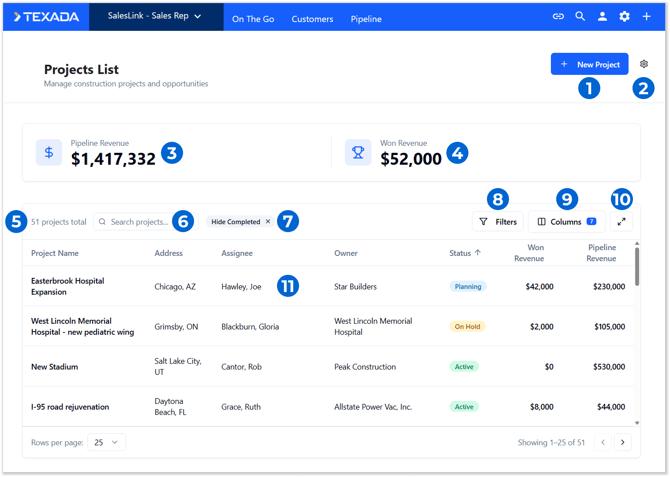
- New Project Button
Click to create a new Project. See “Create or Edit a Project” for more information. - Settings Button
Click to access Project administration settings. See “Project Settings” for more information.
This button will only be visible to users who have been granted Project Administration privileges via the Manage - Project Administration secured module. - Pipeline Revenue
The total potential revenue of all Projects matching the current filters. Equal to the sum of values under the “Pipeline Revenue” column. - Won Revenue
The total revenue of all won opportunities for Projects matching the current filters. Equal to the sum of values under the “Won Revenue” column. - Project List
Projects matching the current filters are listed here.- The number in the top-left corner of the table indicates the total number of projects, including those not currently displayed.
- Use the “Rows per page” drop-down in the bottom-left corner of the table to change the number of Projects displayed on a single page.
- Use the left and right arrows in the bottom-right corner of the table to navigate between pages.
- Click on a column header to sort the Project List by that column.
- Search Bar
Begin typing into the search bar to filter the list of Projects by Project Name. Note that this will NOT update the Pipeline Revenue and Won Revenue amounts. - Current Filters
Currently-applied filters are displayed here. Click the “x” button next to a filter to remove it. - Filters Button
Click to open the Filters window and filter the Project List. Note that applying a new filter via this window will update the displayed Pipeline Revenue and Won Revenue amounts. - Columns Button
Click to manage the columns displayed in the Project List. The number next to this button indicates the number of columns currently displayed. Any changes made here will be preserved the next time you access the Project List page.- Check or uncheck a column to display or hide it.
- Click and drag the displayed columns to reorder them.
- Full Screen Button
Click to display the Project list in full screen. Click again to close. - Project
Click on a Project to view its details. See “The Project Details Page” for more information.
Project List - Columns
The Project List comprises the following columns:
- Project Name: The name of the Project.
- Address: The address at which the Project is taking place.
- Assignee: The Equipment CRM users currently assigned to the Project. Multiple users can be assigned to the same Project.
- Owner: The company that owns this Project. This must be an existing company in Equipment CRM.
- Status: The Project’s current status. Project statuses can be managed via the Settings menu, under Manage Dropdowns → Project Status.
- Won Revenue: The total revenue of all won opportunities for this Project.
- Pipeline Revenue: The total revenue represented by the open Leads and Opportunities for this Project.
- Valuation: The Project’s total valuation.
- Primary Stage: The Project’s primary stage (pre-construction, bidding, completed, etc.) Primary stages can be managed via the Settings menu, under Manage Dropdowns → Primary Stage.
- Project Type: The Project’s primary project type (commercial, residential, industrial, etc.) Primary project types can be managed via the Settings menu, under Manage Dropdowns → Primary Project Type.
- Ownership Type: The Project’s ownership type (private, public, governmental, etc.) Ownership types can be managed via the Settings menu, under Manage Dropdowns → Ownership Type.
- Bid Date: The Project’s bid deadline date.
- Target Start: The Project’s target start date.
- Target Completion: The Project’s target completion date.
- External Reference: The Dodge project associated with this Project, if any.
- Last Modified Date: The date on which this Project was last updated in Equipment CRM.
Filters
Click the “Filters” button in the top-right corner of the Project List to open the Filter window. This window allows you to filter the Project List by status and assignee.
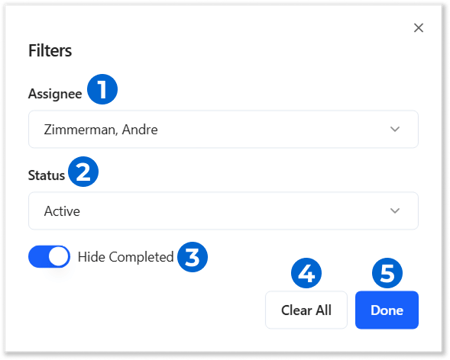
- Assignee
Select one or more Equipment CRM users from this drop-down to filter by Projects assigned to those users. - Status
Select one or more Project statuses from this drop-down to filter by Projects with those statuses. - Hide Completed
Enable this toggle to hide Completed Projects from the list. - Clear All Button
Click to remove all filters. - Done Button
Click to apply the currently-selected filters and return to the Project List.